




Overlay for running BFI/CRT Beam Simulation shaders on top of Windows desktop.
ShaderBeam allows you to experience motion clarity delivered by Blur Buster's CRT simulation technology on top of games, video and any other content.
ShaderBeam focuses on motion clarity only, if you're looking for scanline emulation, check out its sister app ShaderGlass.
- High-refresh monitor (100 Hz or more, 240 Hz+ recommended)
- Windows 10/11 (latest Windows 11 recommended, Windows 10 will have yellow border)
- Recommended: a second dGPU (or iGPU) to reduce desync issues
- Optional: RivaTuner Statistics Server (RTSS) for frame-limiting content
Latest stable release (v0.2.1, 24 Jan 2026)
Warning
This app has the potential to create rapidly flashing images. If you are photosensitive please take necessary precautions.
If you have a high refresh monitor, you can try the CRT Beam Simulator in browser here: https://testufo.com/crt
Flat-panel displays create a lot of blur around moving objects and this technology brings back motion clarity that CRTs had.
ShaderBeam applies the same effect to your whole desktop, including fullscreen gaming.
Click to view on YouTube
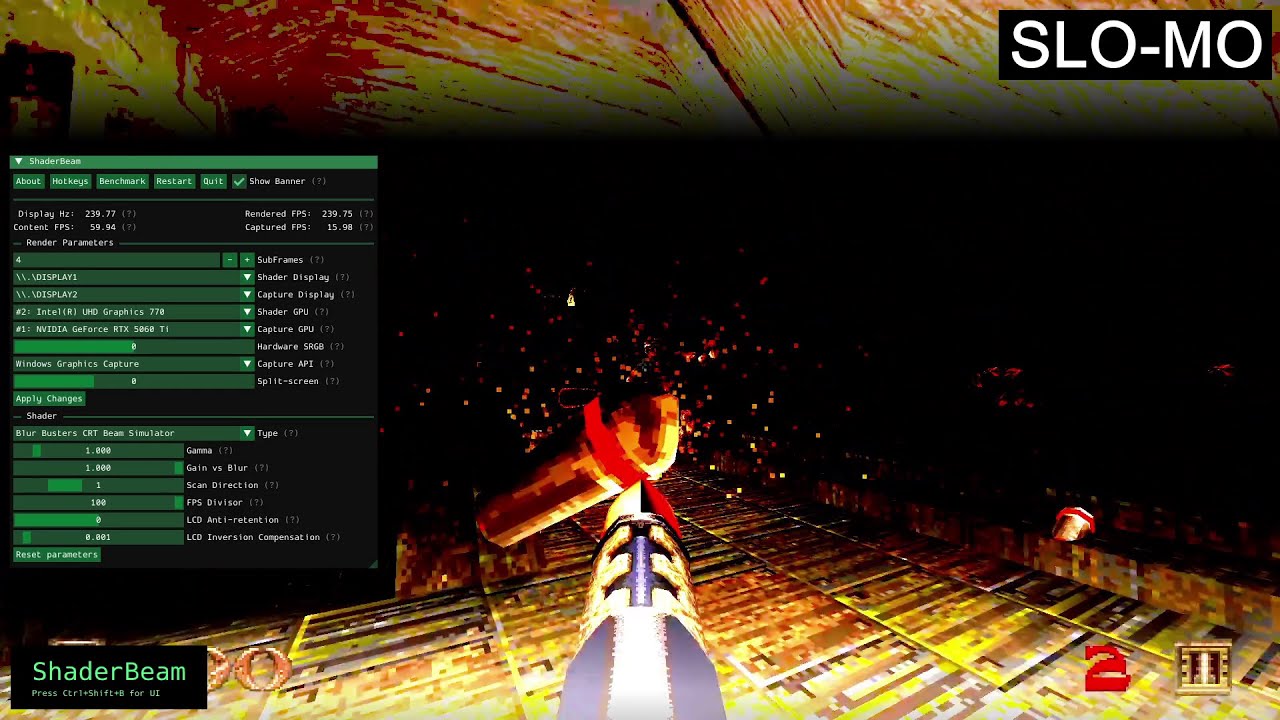
Due to extreme timing requirements ShaderBeam performs best in simple setups with no other apps or overlays running. Make sure to try these:
- Disable VRR (G-Sync, FreeSync etc.) and Smart VSync (ShaderBeam needs to run at VSync)
- Use only one monitor and disconnect any others
- Set GPU settings to maximum performance (NVIDIA Control Panel: Power management mode)
- Ensure "Background Application Max Frame Rate" is Off (NVIDIA Control Panel)
- Adjust Queued Frames in ShaderBeam: for single GPU try 1; for dual GPU try 3
Other options to try, results will depend on the game:
- Disable "Hardware-accelerated GPU Scheduling" (Windows Settings: Display -> Graphics -> Advanced)
- Disable MPO using registry files from here
- Use Process Lasso to max GPU priority of ShaderBeam process
- After you start your game, select its window as Capture Input instead of whole Desktop
With more demanding games a common issue is irregular flashing which is caused by ShaderBeam not being given enough GPU time by the OS to maintain its frame rate. Things you can try:
-
Apply Performance Tips above
-
Try changing Queued Frames to see if flashing stops at some point (this will unfortunately add some latency); make sure to try 1 as well as depending on game's presentation it might provide best results
-
If your GPU appears multiple times on the list, try using the second version as Shader GPU. This influences GPU scheduling and helps on some setups
By using a second GPU to run the shader, it's possible to eliminate desync/flashing issues in most games. The shader has been optimized and at lower resolutions/refresh rates you can even use an iGPU (for example Intel UHD 770 can do 1080p at 800fps+). You can use the Benchmark button in ShaderBeam to estimate maximum shading rate of your GPU.
You do not need to connect a display to the secondary GPU, keep everything plugged into your primary GPU. In ShaderBeam, simply change Shader GPU to your iGPU or secondary dGPU.
Important
If you have an OLED, make sure to set your Monitor Type as that will disable LCD Anti-retention. It causes occasional stutters and adds input lag.
- ShaderBeam is fullscreen-only, you can change the display to use via UI.
- Upon startup ShaderBeam will automatically start simulation using default parameters.
- You can change various render and shader parameters using the UI overlay.
- Use pop-up tooltips to learn more about available options.
- Click away from the UI to hide it and get back into the game (might need to click twice), use the hotkey to bring menu back.
- Current global hotkeys are:
- Toggle UI -- Ctrl+Shift+B
- Force on top -- Ctrl+Shift+G
- Restart -- Ctrl+Shift+A
- Quit -- Ctrl+Shift+Q
This happens when ShaderBeam isn't given enough GPU time by the OS to present a frame on time. It's more likely to happen the heavier game you are playing, and also some games (especially Unreal Engine ones) create unavoidable GPU stalls even at low details.
Also double-check that Rendered FPS equals Display Hz. If Rendered FPS is below Display Hz it means your Shader GPU isn't keeping up (try lower resolution or refresh rate). If Rendered FPS is above Display Hz it means VSync isn't being applied - check GPU settings and disable any VSync overrides (like Smart VSync etc.).
Try changing Queued Frames to see if flashing stops at some point (this will unfortunately add latency). Surprisingly, some games work best with 1 queued frame and worse with more than that.
If your GPU appears multiple times on the list, try using the second version as Shader GPU. This influences GPU scheduling and helps on some setups.
The best way to avoid this issue is to use a second GPU for ShaderBeam. You can also try "Simple BFI" shader which is much simpler and extremely fast, but can leave temporary afterimages after longer use.
For best results you can try limiting your game's frame rate to exact time of a subframe, i.e. on a "240 Hz" display which could actually be running at 239.76 Hz, the frame rate should be 59.94 (~240/60 = 4 subframes). The best way to do this is:
- in-game set unlimited frames and v-sync on
- use RivaTuner Statistics Server (RTSS) to limit the game's framerate to exact value shown under "Content FPS" in ShaderBeam (including decimals)
- be careful not to limit ShaderBeam's framerate in RTSS! use profiles!
Sometimes capture API can start lagging, press Ctrl+Shift+A to restart ShaderBeam and resync.
You can also try disabling LCD Anti-retention (it's not necessary on OLEDs at all, only on LCDs) as it can introduce choppiness to the capture.
Whenever this happens, press Ctrl+Shift+G to force ShaderBeam on top. Some games will occasionally kick ShaderBeam out as they use the same topmost window flag.
Adjust Gamma until they become less visible. You can also change Scan Direction to "No Scan" although that will degrade visual quality slightly (especially on OLEDs).
ShaderBeam incorporates the following software under MIT License:
- Blur Busters CRT Beam Simulator Copyright (c) 2024 Mark Rejhon & Timothy Lottes
- Dear ImGui Copyright (c) 2014-2025 Omar Cornut
- Proggy Vector Font Copyright (c) 2004, 2005 Tristan Grimmer
- mINI Copyright (c) 2018 Danijel Durakovic

