Track your expenses and income — right inside your Google account.
No server. No subscription. No third-party database. Your data stays in Google Sheets that you own.



Spendwise is a personal finance app that runs entirely on your Google account. You set it up once and use it like any web app — but everything is stored in your own Google Sheets and nothing ever leaves your Drive.
It's free, private, and yours to keep.
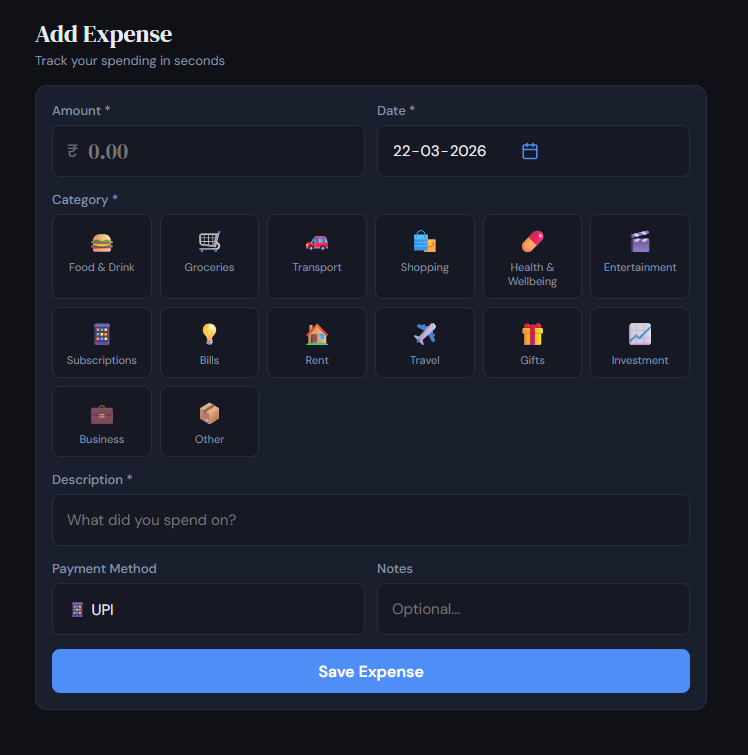
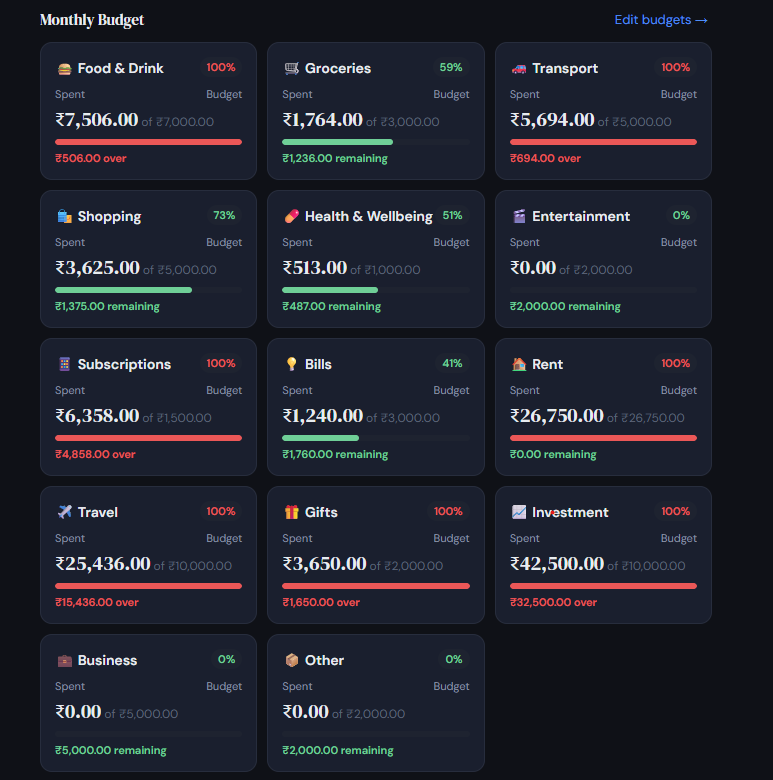
Expense & income tracking — Log what you spend and earn. Categorise entries, set monthly budgets per category, and see how you're doing.
Dashboard — See your monthly total, average spend per day, budget usage per category, and recent transactions at a glance.
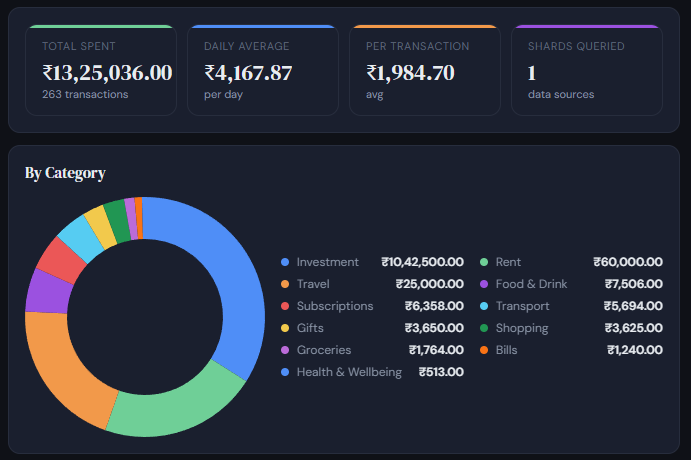
Analytics — Compare spending across months, view category breakdowns, and spot trends with charts. Filter by week, month, quarter, half year, or full year.
Standing instructions — Add recurring expenses (rent, subscriptions, EMIs) and have them logged automatically on their due date.
Weekly email report — Get a summary of your week's spending delivered to your inbox. Shows top categories, budget alerts, income, and comparison to last week.
Google Chat App Integration (New in v1.2.0) — Log expenses directly from Google Chat using quick messages or slash commands like /spend and /summary. Receive a daily automated summary of your budget directly in your chat.
Automated Gmail Receipt Ingestion (New in v1.2.0) — Automatically scan your Gmail for purchase receipts (e.g. Swiggy, Zomato, Amazon, or custom keywords/senders) and import them. Features duplicate detection, keyword-to-category mapping, and robust execution logs.
Full data export — Download all your expenses as a CSV file any time from Settings.
Upgrading to v1.2.0 is fully backwards compatible. None of your existing expenses, categories, settings, or standing instructions will be touched.
- Open your existing Google Apps Script project at script.google.com.
- Click the gear icon (Project Settings) on the left sidebar.
- Check the box "Show 'appsscript.json' manifest file in editor".
- Go back to the Editor tab (< > icon).
- Paste the updated contents for
Code.gs,AdminOps.gs,page-settings.html, andshared-styles.htmlfrom this repository. - Create two new script files:
- Click the + icon next to Files → Script → name it
ChatHandler(do not add.gs) → pasteChatHandler.jscontent. - Click the + icon next to Files → Script → name it
EmailIngestion(do not add.gs) → pasteEmailIngestion.jscontent.
- Click the + icon next to Files → Script → name it
- Open the
appsscript.jsonfile in the editor and replace its contents entirely with the project'sappsscript.json(this adds the necessary OAuth scopes and enables the Chat service).
- In the toolbar dropdown, select the function
SETUPorrunRepairand click Run. - This will securely verify your sheets and create three new configuration tabs in your Config sheet without modifying existing tabs:
KeywordMap(for auto-categorizing based on keywords)EmailSources(for defining Gmail scan rules)Logs(for chat and receipt import logs)
- Redeploy your web app: Click Deploy → Manage deployments → click the edit pencil icon → select version New Version → click Deploy.
- Refresh your web app. Go to Settings to view the new Email Receipt Ingestion and Keyword Mappings sections.
You need a Google account. That's it.
- Go to script.google.com and click New Project.
- Click the gear icon (Project Settings) on the left sidebar and check "Show 'appsscript.json' manifest file in editor".
- Go back to the editor.
Create the following files in your Apps Script project and paste the contents from this repository:
- Manifest:
appsscript.json - Script Files:
Code.gs,AdminOps.gs,ChatHandler.gs,EmailIngestion.gs - Shared HTML Files:
index.html,shared-styles.html,shared-nav.html - Page HTML Files:
page-add.html,page-dashboard.html,page-expenses.html,page-analytics.html,page-income.html,page-standing.html,page-settings.html
Note: In Apps Script, click + next to Files → select HTML or Script as appropriate. Type the name without extensions.
- In the editor toolbar dropdown, select the function SETUP and click Run.
- Authorize the script when prompted (click Review permissions → choose your account → Advanced → Go to Spendwise (unsafe) → Allow).
- The script will create your database sheets automatically in Google Drive. Check the execution logs for success.
- Click Deploy → New Deployment.
- Select type: Web App (click gear icon next to "Select type" if Web App is not listed).
- Set configuration:
- Execute as: Me
- Who has access: Only myself (Recommended for privacy).
- Click Deploy and copy the Web App URL. Open it to access Spendwise!
Gmail ingestion allows Spendwise to scan your inbox, parse receipt details, and automatically log expenses.
Go to Settings → Keyword Mappings to link keywords in transaction descriptions to categories. For example:
swiggy→Food & Drinkzomato→Food & Drinkamazon→Shoppinguber→Transport
Go to Settings → Email Receipt Ingestion → click + Add Source and configure:
- Sender: Email address of the vendor (e.g.
noreply@swiggy.in). - Subject Filter: Substring or text that matches the receipt email (e.g.
Order confirmation,Your Amazon.in order). - Parser: Select a specialized parser (
Swiggy,Zomato,Amazon) or selectGeneric Keyword Categorizerfor other vendors. - Enabled: Check to activate the scanning rule.
- Enable the Enable Email Ingestion toggle switch.
- Select your desired Scan Interval (e.g. every 15 min, 30 min, or every 60 min).
- Click Save Email Settings. This automatically registers a background time-based trigger in your Apps Script account.
- Click Run Import Now to test the scan immediately.
- Click View Logs to verify that emails were processed and see if any transactions were imported or skipped as duplicates.
Link Spendwise to Google Chat to add expenses on-the-go or get daily budget progress summaries.
- Open your Apps Script project editor.
- Click Project Settings (gear icon) and copy your Project Number under GCP Project (if using a default project, you will need to link it to a standard GCP Project by clicking Change project and entering a GCP project ID).
- Open the Google Cloud Console for that project.
- In Cloud Console, search for Google Chat API and click Enable.
- Go to the Configuration tab of the Google Chat API.
Fill in the configuration fields:
- App name: Spendwise
- Avatar URL: (Use any image URL, e.g. a green wallet icon)
- Description: Spendwise Expense Tracker Bot
- Interactive features: Enable/Turn ON
- Functionality: Check Receive 1:1 messages (so you can DM the bot) and optionally Join spaces
- Connection settings: Select Apps Script project and paste your Apps Script Deployment ID (retrieve this from Apps Script editor: Deploy → Manage deployments → copy the Active Deployment ID).
- Slash commands: Add the following commands:
/spend(Description:Log an expense. Format: /spend <amount> <desc> [category])/summary(Description:Get budget summary)/help(Description:Show help guide)
- Click Save.
Open Google Chat, search for Spendwise, and start a conversation. Try these commands:
/spend 120 Uber ride to work— Automatically logs120currency units, categorizes underTransport(using keyword mappings), and saves notes with a Chat reference./spend 500 grocery shopping Groceries— Logs500under theGroceriescategory explicitly./summary— Shows your total monthly spend, budget usage per category, and remaining balance./help— Lists all commands.
Go to your Settings sheet (or set dailySummaryEnabled to true and configure dailySummaryTime in the settings) and run installDailySummaryTrigger() from the script editor. This will push your budget summary directly to you in Google Chat every evening.
- Safe Upgrades: The SETUP and REPAIR scripts detect if your configuration is already present and will never overwrite, clear, or modify your existing transaction data.
- Privacy First: All Gmail scanning and Google Chat communication run entirely within your Google account. No external servers or database queries are performed.
- Google Limits: Apps Script triggers run on Google's free tier. Mail scanning checks read-only metadata and skips processing for messages already seen, ensuring you stay well within daily quota limits.
MIT — use it however you want.