


Hangfire dashboard for Umbraco
This installs Hangfire and a dashboard in Umbraco, the dashboard is secured and is only available for users with access to the Settings section of Umbraco.
After installing this, you can add a Composer to start running scheduled tasks, for example:
using System.Threading;
using Hangfire;
using Hangfire.Console;
using Hangfire.Server;
using Umbraco.Cms.Core.Composing;
using Umbraco.Cms.Core.DependencyInjection;

namespace MyNamespace
{
    public class Composer : IComposer
    {
        public void Compose(IUmbracoBuilder builder)
        {
            RecurringJob.AddOrUpdate(() => DoIt(null), Cron.Hourly());
        }

        public void DoIt(PerformContext context)
        {
            var progressBar =  context.WriteProgressBar();
            var items = new int[10]{ 2, 4, 6, 8, 10, 12, 14, 16, 18, 20 };

            foreach (var item in items.WithProgress(progressBar, items.Length))
            {
                context.WriteLine($"Number: {item}");
                Thread.Sleep(1000);
            }
        }
    }
}
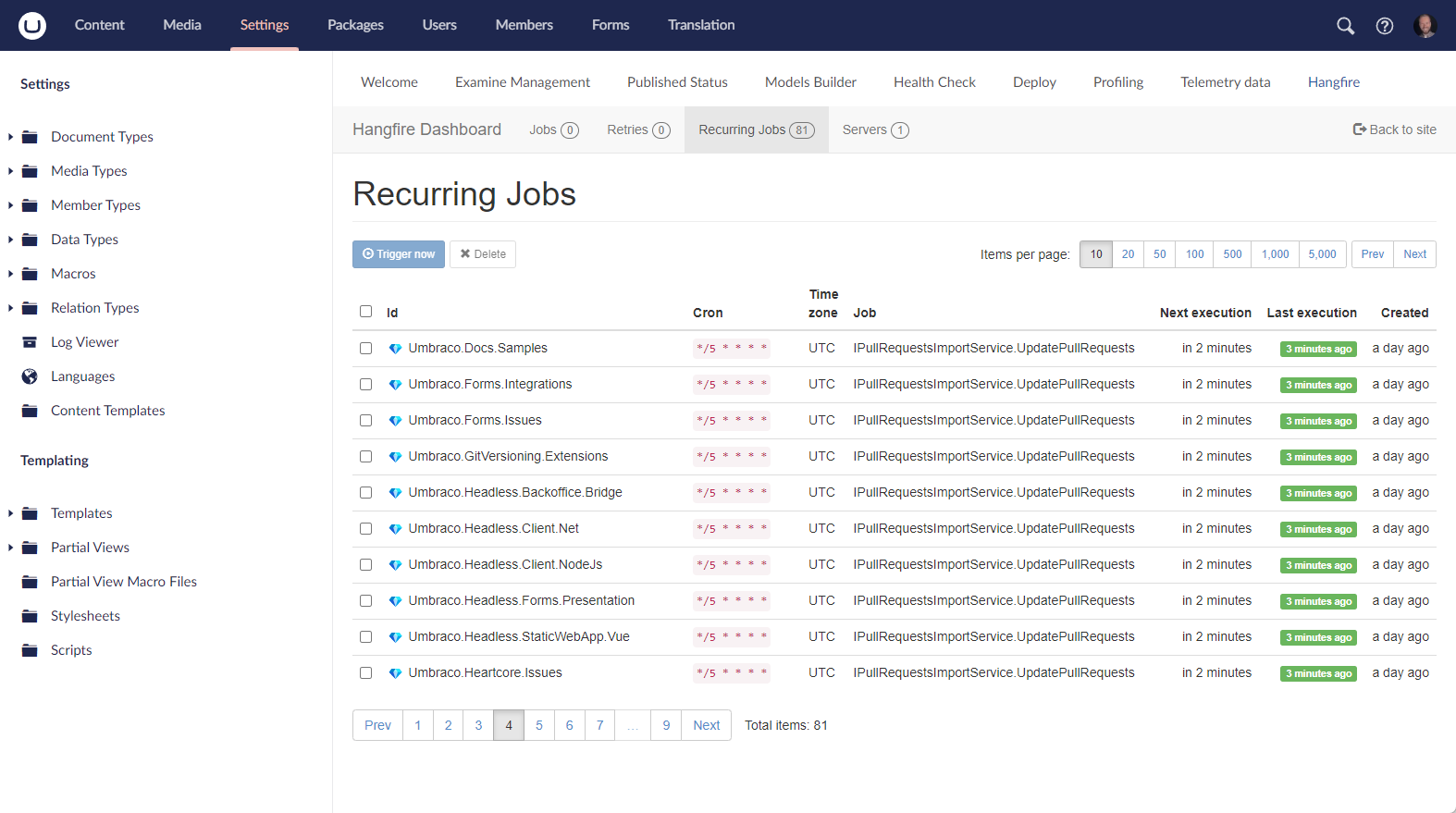
In the Umbraco backoffice it will look a little something like this:
By default, Hangfire processes jobs from the "default" queue. For scenarios where multiple applications or sites share the same Hangfire database, you can configure specific queues for each server to process:
{
  "Hangfire": {
    "Server": {
      "QueueNames": ["app1", "shared", "default"]
    }
  }
}
Each Hangfire server will only process jobs from its configured queues. Queues are processed in the order specified, so jobs in earlier queues have higher priority.
To enqueue jobs to a specific queue:
BackgroundJob.Enqueue(() => DoWork(), new EnqueuedState("app1"));If no queue names are configured, the server will process the "default" queue.
Configure Hangfire's SQL Server storage behavior to optimize performance and reduce database load:
{
  "Hangfire": {
    "StorageOptions": {
      "QueuePollInterval": "00:00:15",
      "PrepareSchemaIfNecessary": true,
      "EnableHeavyMigrations": true,
      "CommandBatchMaxTimeout": "00:05:00",
      "SlidingInvisibilityTimeout": "00:05:00",
      "UseRecommendedIsolationLevel": true,
      "DisableGlobalLocks": true
    }
  }
}
Configuration options:
- QueuePollInterval: Controls how often Hangfire polls the database for new jobs. Default is
00:00:00(immediate polling). Setting to00:00:15(15 seconds) significantly reduces database load in high-traffic scenarios while maintaining reasonable job pickup times. - PrepareSchemaIfNecessary: Automatically creates database schema if needed (default:
true) - EnableHeavyMigrations: Allows Hangfire to perform database migrations (default:
true) - CommandBatchMaxTimeout: Maximum timeout for batch commands (default: 5 minutes)
- SlidingInvisibilityTimeout: Time before a processing job is considered abandoned (default: 5 minutes)
- UseRecommendedIsolationLevel: Uses recommended SQL isolation level (default:
true) - DisableGlobalLocks: Disables global locks for better performance (default:
true)
If you only want to access the Hangfire dashboard without running background job processing on a particular server:
{
  "Hangfire": {
    "Server": {
      "Disabled": true
    }
  }
}By default, the Hangfire dashboard appears as a dashboard within Umbraco's Settings section. You can optionally configure it as a standalone section with its own top-level menu item and separate permissions:
{
  "Hangfire": {
    "UseStandaloneSection": true
  }
}
Key differences:
- Dashboard mode (default): Dashboard appears in Settings section, inherits Settings section permissions
- Standalone section mode: Full-width view (no tree sidebar), separate "Hangfire" section in User Groups with granular permission control
When enabled, administrators can grant users access to the Hangfire section independently from other sections by editing User Group permissions.
- Version 5+ of this package works with Umbraco versions 17 and above
- Version 4+ of this package works with Umbraco versions 14 through 16
- Version 3 and below works with Umbraco 9 through 13
- You might need to add the following above your
IComposers that schedule the jobs:[ComposeAfter(typeof(HangfireComposer))](see this issue)