The pcsync utility allows editing copies of JavaScript and other textual files of a PlayCanvas project locally on your own computer, in a text editor of your choice.
pcsync also allows pushing and pulling of binary files, such as images and models.
In addition, if your project has a file called pcignore.txt, PlayCanvas merge will not affect the files listed in it, and the operation of pcsync will be restricted only to those files.
pcsync is used to push or pull one or all files to or from PlayCanvas (overwriting existing files with the same name/path), to compare one or all local files to their remote (PlayCanvas) versions, and to watch for local changes and sync them in real time.
Only the pcsync pull command (when downloading) and the pcsync init command (which creates or overwrites pcconfig.json) can change local files. All other pcsync commands change only remote files. Thus, apart from pcconfig.json, your local directory holds the authoritative version of your textual files.
The only scenario we do not support is when developer A uses pcsync watch, while developer B is editing files of the same PlayCanvas branch in the browser code editor. B's work will be overwritten by A, if they edit the same file. Either B should start using local files, or A should stop pcsync watch and switch to the browser code editor.
pcsync has the following commands:
  diff [file]                 compare local and remote files (all files if no file specified)
  pull [file]                 download remote files to local (all files if no file specified)
  push [file]                 upload local files to remote (all files if no file specified)
  rename <oldPath> <newPath>  rename or move a remote file or folder
  rm <path>                   remove a remote file or folder
  watch                       watch local directory and sync changes to remote in real-time
  ignore                      list assets matched by pcignore.txt
  init                        create a pcconfig.json in the current directory
The following options are available on all commands:
  -k, --api-key <key>     PlayCanvas API key (overrides config)
  -p, --project-id <id>   PlayCanvas project ID (overrides config)
  -b, --branch-id <id>    PlayCanvas branch ID (overrides config)
  -t, --target-dir <dir>  local target directory (overrides config)
      --base-url <url>    PlayCanvas API base URL (overrides config)
  -n, --dry-run           show what would happen without making changes
      --verbose           print detailed output including config values
  -V, --version           output the version number
  -h, --help              display help
These override the corresponding config file and environment variable values for the duration of the command, which is useful for CI/CD scripting or one-off operations.
A local directory designated as PLAYCANVAS_TARGET_DIR corresponds to the root of the PlayCanvas file and folder asset hierarchy.
All file and folder paths passed to pcsync as arguments should be relative to this root and use forward slashes even on Windows, e.g.
pcsync rename dir1/file1.js file1.js
will move file1.js to the root asset directory.
Without a file argument, compares all local and remote files and folders. With a file argument, shows a line-by-line diff of that specific file.
Options for comparing all files:
  -r, --regexp <pattern>   filter files matching the provided regular expression
  -e, --ext <extensions>   filter files by extension (comma-separated, e.g. jpg,png)
Without a file argument, downloads all remote files, overwriting their local counterparts. With a file argument, downloads that single remote file, creating local folders if needed.
Options for downloading all files:
  -r, --regexp <pattern>   filter files matching the provided regular expression
  -e, --ext <extensions>   filter files by extension (comma-separated, e.g. jpg,png)
  -y, --yes                skip confirmation prompt
Without a file argument, uploads all local files, overwriting their remote counterparts. With a file argument, uploads that single local file, creating remote folders if needed.
Options for uploading all files:
  -r, --regexp <pattern>   filter files matching the provided regular expression
  -e, --ext <extensions>   filter files by extension (comma-separated, e.g. jpg,png)
  -y, --yes                skip confirmation prompt
Rename or move a remote file or folder. Changes the parent folder if needed.
Remove a remote file or folder.
Watch the local directory for changes and sync them to remote in real time.
-f, --force skip local/remote equality and multi-instance checks
Moving or renaming a file or a folder will appear to pcsync watch as a remove + create. In such cases it may be better to stop pcsync watch, perform the operation locally, apply it to PlayCanvas with pcsync rename, and start pcsync watch again.
List all assets matched by your current pcignore.txt. Useful for checking your pcignore.txt syntax.
Interactive setup wizard that creates a pcconfig.json in the current directory. Prompts for API key, project ID, branch ID and target directory.
Assume file F was created locally and pushed to PlayCanvas with pcsync, and now you are adding F as a script component to an entity in PlayCanvas Editor.
Note that it will take a second or two for F to appear in the dropdown list, because F is parsed by the editor for the first time when that list is populated.
If your project has a file called pcignore.txt in the root folder, any file listed there will be the same before and after a PlayCanvas merge.
The operation of pcsync is restricted to the files listed in pcignore.txt, if pcignore.txt exists. This ensures that the set of files managed locally exactly matches the set ignored by PlayCanvas merge, which is appropriate for most workflows.
To make pcsync work with more files than listed in pcignore.txt, use the PLAYCANVAS_INCLUDE_REG config variable, which is a regular expression to test each file's path from the root of the asset hierarchy.
Before a PlayCanvas merge, make sure that the latest checkpoint of the destination branch is taken after pcignore.txt was added.
If you are using git for your textual files, you can perform a git merge before a PlayCanvas merge of the corresponding branches, push the result to the PlayCanvas destination branch, and then perform a PlayCanvas merge.
pcignore.txt consists of one or more lines, each of which is either a path (with the same syntax as .gitignore), or one of the following:
ignore_all_textual_files
ignore_all_js_files
ignore_all_files_with_extension <extension1,extension2,...>
ignore_regexp <regexp string>
source_branch_wins
ignore_all_textual_files is the most common choice.
source_branch_wins (included once anywhere) changes the PlayCanvas merge behavior: instead of keeping items matching pcignore.txt as is (in the destination branch), the merge result will now include the versions of the corresponding items (if present) from the source branch.
Multiple ignore_regexp lines can be provided. Any textual asset whose path from the root of the asset hierarchy matches an ignore_regexp expression will be ignored.
To check your pcignore.txt syntax, you can run pcsync ignore. It will list all existing files that match your current pcignore.txt.
Use a space and not * or ? to match a space in a file or folder name in gitignore lines.
Binary files include assets such as textures (JPG and PNG) and models (GLB).
push, pull (with a single file argument) and rm work with binary file arguments without any special options.
When running push, pull or diff without a file argument, you can use the -r or -e options to include binary files (without these options pcsync only works with textual files):
  -e, --ext <extensions>  filter files by extension (comma-separated)
  -r, --regexp <pattern>  filter files matching the provided regular expression
For instance:
pcsync diff -e jpeg,png
pcsync push -r "\\.(png|jpeg)"
The regular expression tests each file's path from the root.
Requires Node.js >= 20. We recommend using nvm to manage Node versions.
Install globally from npm:
npm install -g playcanvas-sync
This makes the pcsync command available system-wide.
To uninstall:
npm uninstall -g playcanvas-sync
After installation, the fastest way to get started is:
mkdir my-project && cd my-project
pcsync init
pcsync pull
Config variables can be set in a file called .pcconfig in your home directory, in pcconfig.json in your target directory (and your remote PlayCanvas branch), provided as environment variables, or passed as CLI options (which have the highest precedence).
The precedence order (highest to lowest) is:
- CLI options (
--api-key,--project-id, etc.) - Environment variables (
PLAYCANVAS_API_KEY, etc.) - Config files (
.pcconfig,pcconfig.json) - Built-in defaults
The home directory location is:
- Windows:
C:\Users\<username> - Mac/Linux:
/Users/<username>or/home/<username>
Get your PlayCanvas API key (token) from your PlayCanvas account page (playcanvas.com/<username>/account). See the User Manual for detailed instructions.
From the Chrome Developer Tools console (on the PlayCanvas Editor page) run:
copy({
  PLAYCANVAS_BRANCH_ID: config.self.branch.id,
  PLAYCANVAS_PROJECT_ID: config.project.id
})
This will copy your branch and project id to the clipboard.
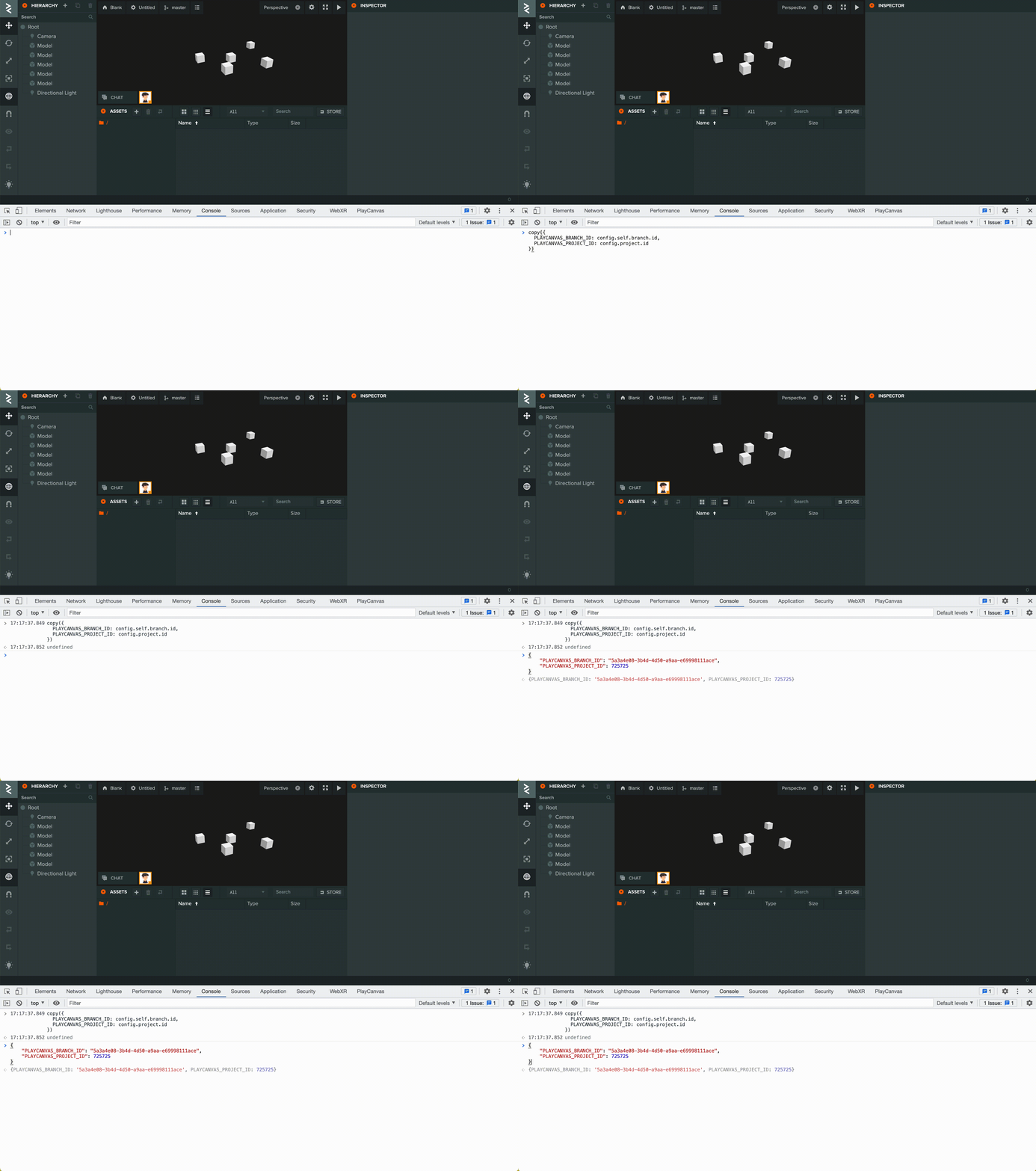
Alternatively, you can get your branch id from the Version Control Panel of the PlayCanvas Editor, and your project id from its home page url, e.g. for playcanvas.com/project/10/overview/test_proj the id is 10. See the User Manual for more details.
Create a directory for the local versions of your PlayCanvas files, e.g. proj1. Add its full path to .pcconfig in your home directory, along with your API key and the branch/project IDs.
A sample .pcconfig should look like this:
{
  "PLAYCANVAS_BRANCH_ID": "abc",
  "PLAYCANVAS_PROJECT_ID": 10,
  "PLAYCANVAS_TARGET_DIR": "/Users/zpaul/proj1",
  "PLAYCANVAS_API_KEY": "xyz",
  "PLAYCANVAS_BAD_FILE_REG": "^\\.|~$",
  "PLAYCANVAS_BAD_FOLDER_REG": "\\.",
  "PLAYCANVAS_CONVERT_TO_POW2": 0
}
All listed key-value pairs are necessary. You can split them between .pcconfig (in your home directory), pcconfig.json (in your project target directory), and environment variables.
Alternatively, use pcsync init to generate a pcconfig.json interactively.
PLAYCANVAS_TARGET_DIR can only be set in .pcconfig, an environment variable, or via --target-dir. You can also set PLAYCANVAS_USE_CWD_AS_TARGET to 1 in .pcconfig to use your current working directory as your target.
For some workflows, it may be necessary to keep the pcconfig.json file at the top level in the target directory, but treat one of its subdirectories as the root of the local file hierarchy. In such cases PLAYCANVAS_TARGET_SUBDIR needs to be provided, e.g.
"PLAYCANVAS_TARGET_SUBDIR": "src"
Backslash characters should be written as \\ (escaped).
Many text editors and operating systems create local auxiliary files and directories that do not need to be automatically pushed to PlayCanvas.
PLAYCANVAS_BAD_FILE_REG and PLAYCANVAS_BAD_FOLDER_REG contain RegExp strings (note the escapes) that tell pcsync watch which files and directories to ignore. In our sample .pcconfig, a bad file has a name that starts with a dot or ends with ~. A bad folder is one that has a dot anywhere in its path relative to PLAYCANVAS_TARGET_DIR. The expressions provided are sufficient in most cases, and you can simply copy them into your .pcconfig.
To determine which auxiliary files and folders your OS and text editor create, run pcsync watch with the --verbose and --dry-run flags, and create/edit some files.
pcsync watch --verbose --dry-run
The output will show all file system events as they happen, and which of them will be filtered out by your current PLAYCANVAS_BAD_FILE_REG and PLAYCANVAS_BAD_FOLDER_REG.
If in your case no bad files and folders exist, use a string like "matchNothing" as the value of PLAYCANVAS_BAD_FILE_REG and/or PLAYCANVAS_BAD_FOLDER_REG.
Problems are often caused by setting config variables incorrectly. Execute your command with --verbose to print the current values of all config variables and other useful data:
pcsync diff --verbose
- Run
pcsync pullto download existing textual files from PlayCanvas - Launch
pcsync watch - Start editing/creating files locally in your own text editor
To merge changes from another PlayCanvas branch into your branch without git:
- Stop
pcsync watch - Run
pcsync diff, and, if necessary,pcsync pushto make sure the PlayCanvas version is up-to-date. - Perform merge in PlayCanvas
- Use
pcsync pullto download the merge result
- Create your own PlayCanvas branch of your team's project
- Create a git branch for your work, and make it your local target directory
- Create a
pcignore.txtfile, listing all files you intend to keep in git, create a PlayCanvas checkpoint that includes yourpcignore.txt - Launch
pcsync watch - Start editing/creating files locally in your own text editor
- When necessary, merge in
gitthe branch of another group member into your branch - Use
pcsync pushto update your remote branch after git merge - Merge the same branches in PlayCanvas
- Use
pcsync diffto verify that local and remote files are still in sync
Most items from Case 1 apply, also:
- Periodically run
pcsync diff. It is usually OK to see extra remote files (coming from other team members). If you notice that a remote file is different from your local file, consider agitmerge to include your team member's changes into yourgitbranch, resolve conflicts ingit, if any, as usual. - Avoid
pcsync pull. To get others' files/changes into your branch, usegitmerge instead to maintain an accurategithistory of edits to each file (who added what).
You can build TypeScript Bindings from the PlayCanvas engine repo (branch stable) as mentioned in the instructions here:
npm run build:types
This will generate the file build/output/playcanvas.d.ts in your engine folder.
TypeScript source files are usually compiled into a single JavaScript file, which is then used in a PlayCanvas project.
This JavaScript file can be added to your pcignore.txt to prevent PlayCanvas merge from reporting conflicts in it.
If you are storing your TypeScript source files in git, there is no need to include them in your PlayCanvas project.
Copy the file playcanvas.d.ts with TypeScript bindings for the PlayCanvas engine to a folder called typings in your target directory.
Create a jsconfig.json file in your target directory with the following content:
{
    "compilerOptions": {
        "target": "ES5",
        "module": "commonjs",
        "files": [
            "typings/playcanvas.d.ts"
        ]
    }
}
Your folder structure should look like this:

Add jsconfig.json and typings to PLAYCANVAS_BAD_FILE_REG and PLAYCANVAS_BAD_FOLDER_REG, e.g.
"PLAYCANVAS_BAD_FILE_REG": "^\\.|~$|jsconfig.json",
"PLAYCANVAS_BAD_FOLDER_REG": "^\\.|typings"
Now you are ready to start using pcsync to sync your PlayCanvas project and edit with VS Code goodness 🚀
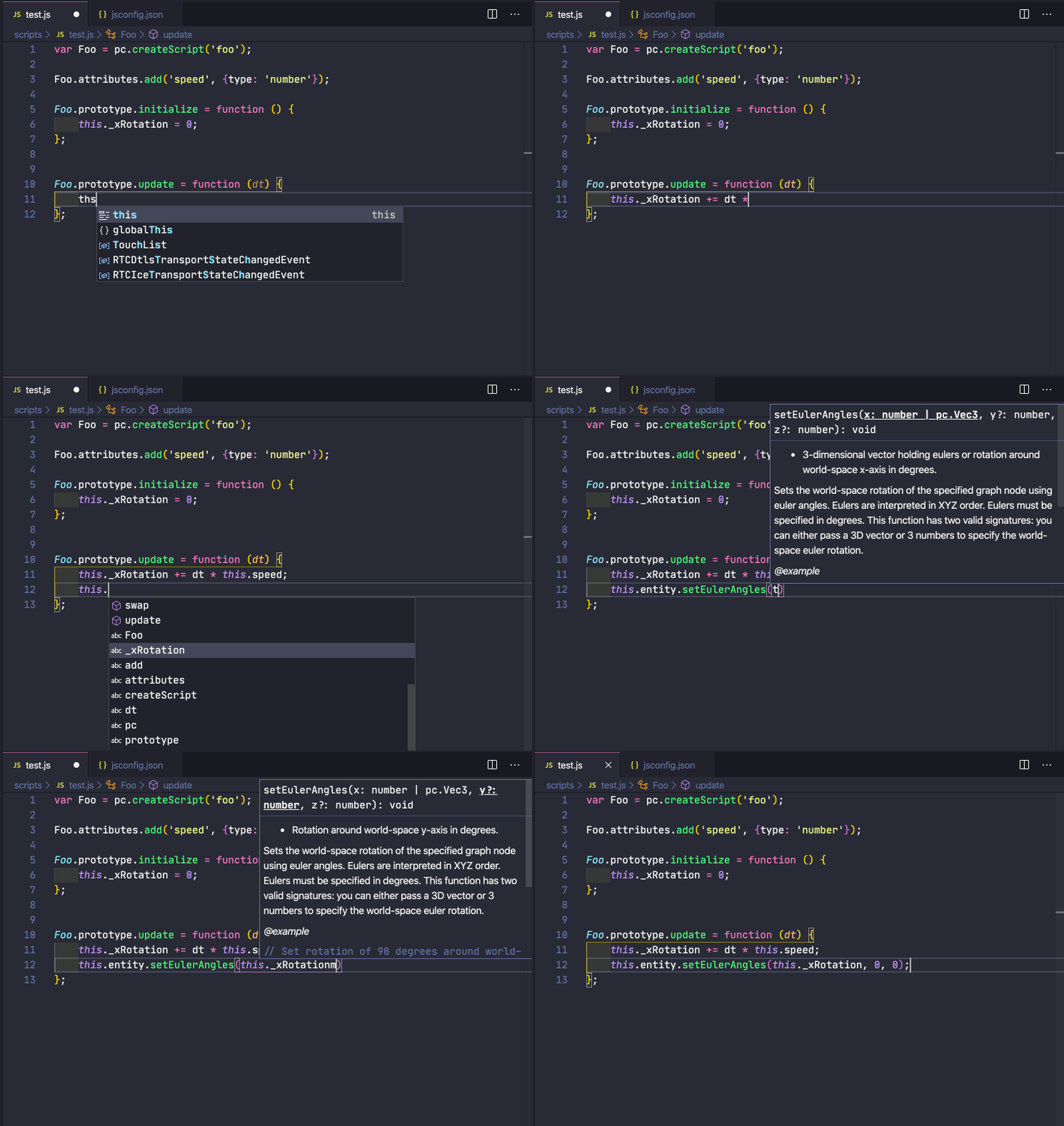
If you are upgrading from v2, note the following changes:
| v2 Command | v3 Command | Notes |
|---|---|---|
pcsync diffAll |
pcsync diff |
No file argument = all files |
pcsync diff <file> |
pcsync diff <file> |
Unchanged |
pcsync pullAll |
pcsync pull |
No file argument = all files |
pcsync pull <file> |
pcsync pull <file> |
Unchanged |
pcsync pushAll |
pcsync push |
No file argument = all files |
pcsync push <file> |
pcsync push <file> |
Unchanged |
pcsync parseIgnore |
pcsync ignore |
Renamed |
pcwatch |
pcsync watch |
Now a subcommand |
pcwatch -f |
pcsync watch --force |
Unchanged flag |
The old commands (diffAll, pullAll, pushAll, parseIgnore) still work but print a deprecation warning. The standalone pcwatch binary also still works with a deprecation warning. Both will be removed in a future major version.
New features in v3:
--version: Check which version is installed--dry-run: See what would happen without making changes (previously config-only)--verbose: Detailed output including config values (previously config-only)- CLI config overrides:
--api-key,--project-id,--branch-id,--target-dir,--base-url pcsync init: Interactive setup wizard forpcconfig.json


![@renovate[bot]](https://avatars.githubusercontent.com/in/2740?s=64&v=4)


![@dependabot[bot]](https://avatars.githubusercontent.com/in/29110?s=64&v=4)


