A mouse gesture engine for Windows.
Stroke triggers custom operations in response to mouse gestures. It intercepts input globally, matches the drawn trajectory against user‑defined patterns, and executes associated C# scripts. The engine is lightweight, windowless, and completely decoupled from its configuration tool.


- Key Features
- Getting Started
- Default Gestures
- Core Concepts
- Scripting with the Base Library
- Configuration Tool
- Frequently Asked Questions
- Contributing
- License
- Efficient Recognition: A distance‑based vector matching algorithm processes arbitrary continuous trajectories with speed and accuracy.
- Pure Design: The core engine has no user interface, runs silently in the background, and operates independently of the configuration utility. Once set up, the configurator can be deleted.
- Programmable Actions: Gestures invoke C# code that is compiled at startup, providing full access to the .NET runtime.
- Context‑Aware Matching: Actions are organized into packages that become active only when the foreground process path satisfies a user‑defined regular expression.
- Global Keyboard Hooks: Low‑level keyboard events are exposed directly to scripts, allowing sophisticated input interception and automation.
- Plugin Extensibility: You can write your own plugins in C#. A collection of ready-to-use plugins is available at StrokePlugins.
- Windows 7 or later.
- .NET Framework 4.8 runtime.
- Download the latest release from the Releases page.
- Extract the archive to a permanent directory.
- Run
Stroke.exeto start the gesture engine. - Run
Stroke.Configure.exeto customize gestures, actions, and other settings.
Running
Stroke.Configure.exeautomatically terminates any runningStroke.exeprocess to avoid conflicts.
The Stroke release package includes a set of pre-configured, out-of-the-box default gestures, with the right mouse button set as the default gesture trigger. These gestures are optimized for common Windows productivity scenarios, with context-aware scoping that organizes actions into scenario-specific packages. Corresponding actions are only activated when the process of the window under the cursor at the gesture start point matches the package rules. Some default gestures support alternative actions by holding the left mouse button while drawing, as listed in the "Left Button Key Mark Action" column of the table, marked as "N/A" if there is no corresponding function.
Applicable to all Windows applications and system-wide scenarios.
| Gesture | Gesture Preview | Default Action | Left Button Key Mark Action |
|---|---|---|---|
| ↑ (Up) | 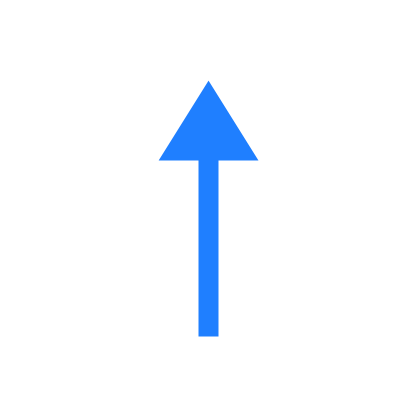 |
Copy | Home key |
| ↓ (Down) | 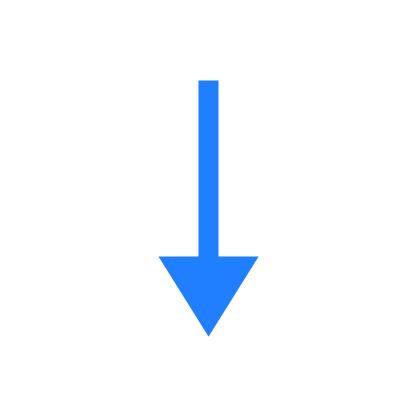 |
Paste | End key |
| ↓↑ (Down-Then-Up) | 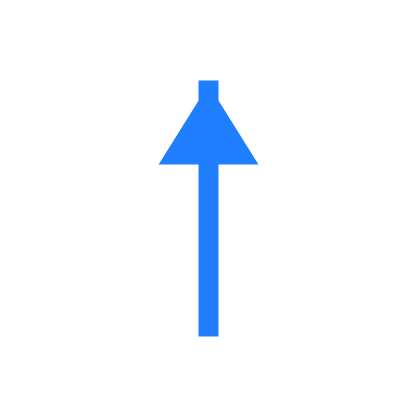 |
Cut | N/A |
| ↑↓ (Up-Then-Down) | 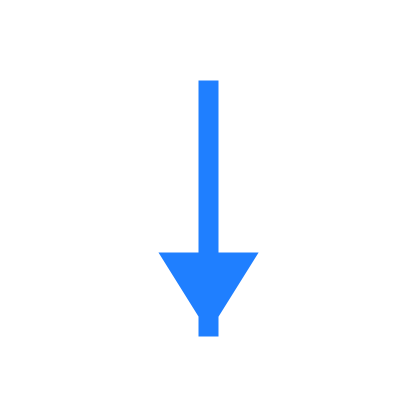 |
Select All | N/A |
| ↓← (Down-Then-Left) | 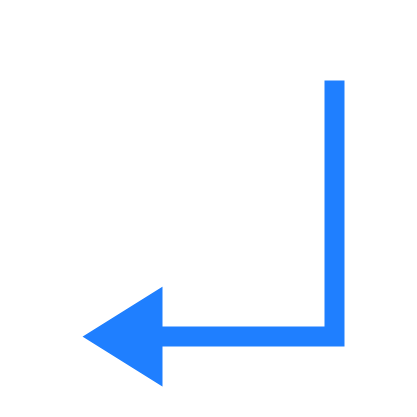 |
Undo | N/A |
| ↓→ (Down-Then-Right) | 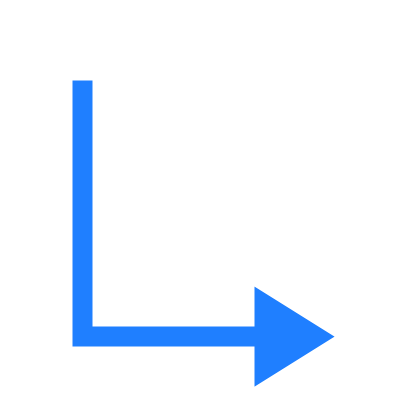 |
Redo | N/A |
| ← (Left) | 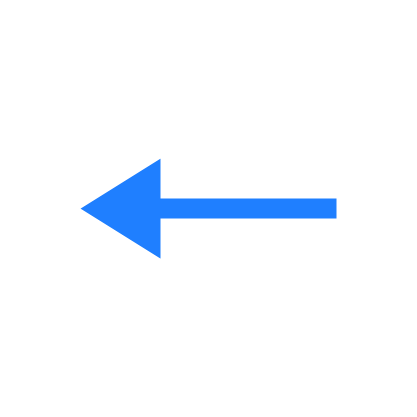 |
Back | Switch between other desktops you've created on the left |
| → (Right) | 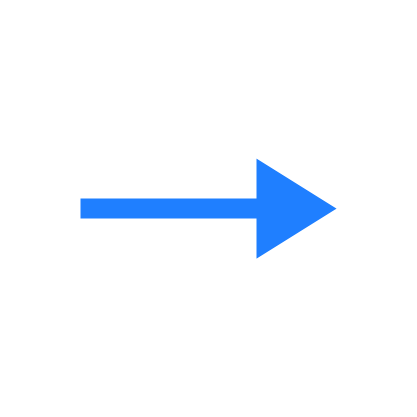 |
Forward | Switch between other desktops you've created on the right |
| ←→ (Left-Then-Right) | 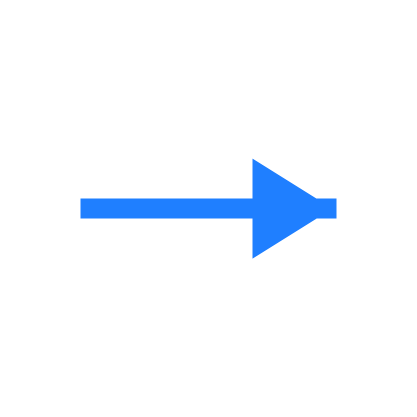 |
Play/Pause | Mute/Unmute |
| ←↑ (Left-Then-Up) | 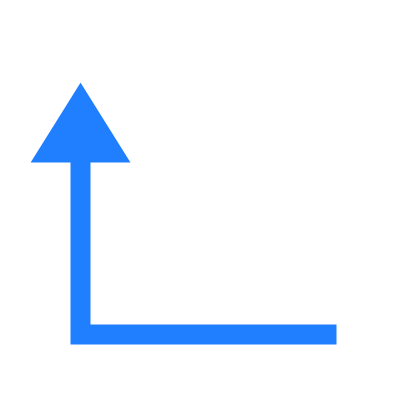 |
Previous Track | N/A |
| ←↓ (Left-Then-Down) | 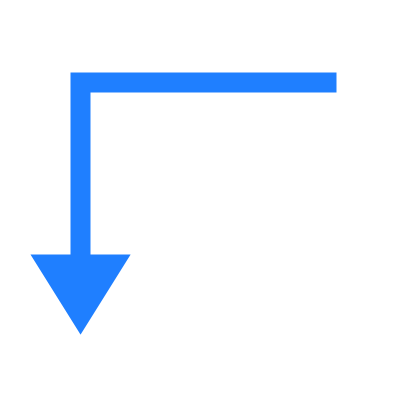 |
Next Track | N/A |
| Wheel Up | N/A | N/A | Volume Up |
| Wheel Down | N/A | N/A | Volume Down |
| ↙ (Down-Left) | 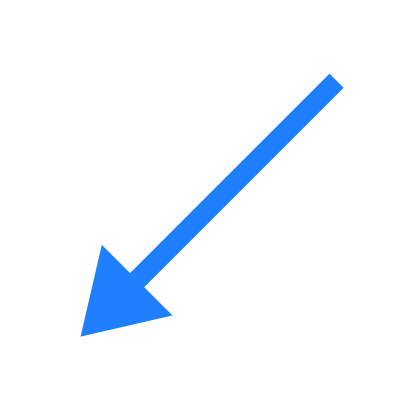 |
Minimize Window | Disable Window Topmost |
| ↗ (Up-Right) | 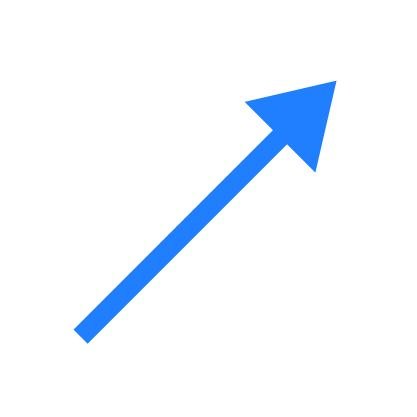 |
Maximize/Restore Window | Enable Window Topmost |
| ↖ (Up-Left) | 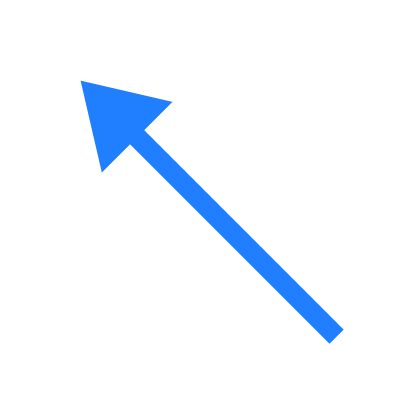 |
Close Window | N/A |
| ↘ (Down-Right) | 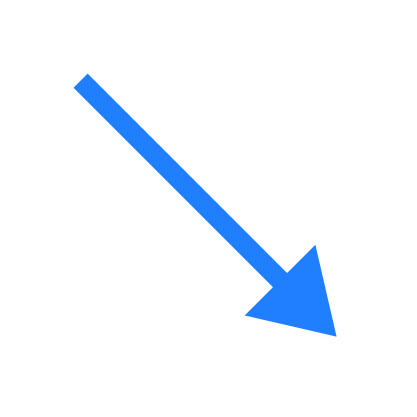 |
Open File Explorer (D: Drive) | Open File Explorer (C: Drive) |
| Left Click | N/A | Enter Key | N/A |
Applicable to pre-configured common applications with tabbed interfaces. You can add adapted process rules according to your usage needs.
| Gesture | Gesture Preview | Default Action | Left Button Key Mark Action |
|---|---|---|---|
| ↖ (Up-Left) | |
Close Active Tab | Close Window |
| Wheel Up | N/A | Switch to Previous Tab | Volume Up |
| Wheel Down | N/A | Switch to Next Tab | Volume Down |
Applicable to both Windows File Explorer and mainstream web browsers.
| Gesture | Gesture Preview | Default Action | Left Button Key Mark Action |
|---|---|---|---|
| →← (Right-Then-Left) | 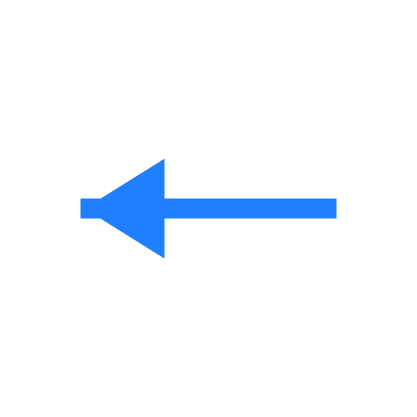 |
Refresh | N/A |
| →↑ (Right-Then-Up) | 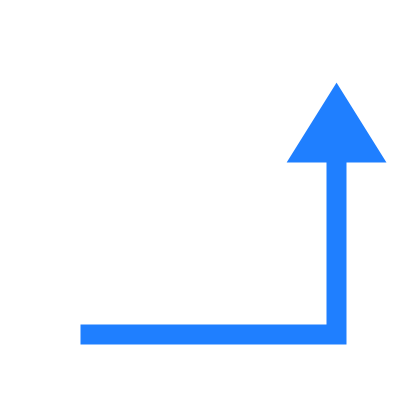 |
Full Screen | N/A |
Applicable exclusively to Windows File Explorer.
| Gesture | Gesture Preview | Default Action | Left Button Key Mark Action |
|---|---|---|---|
| →↓ (Right-Then-Down) | 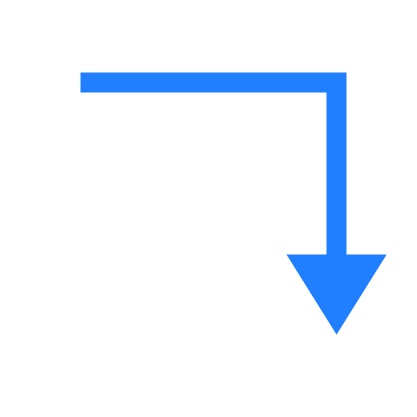 |
Create New Folder | N/A |
| ↑← (Up-Then-Left) | 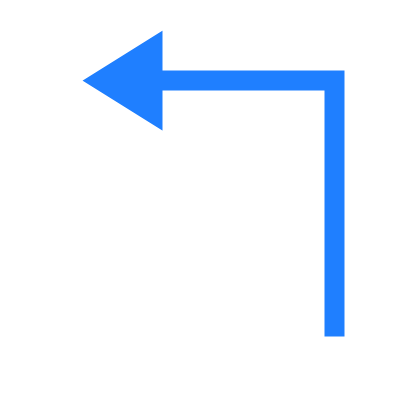 |
Navigate Up One Level | N/A |
| ↑→ (Up-Then-Right) | 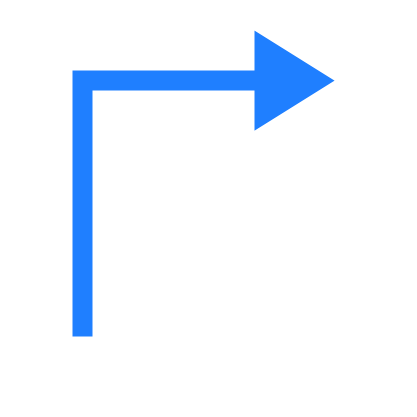 |
Open New File Explorer Window | N/A |
Applicable exclusively to mainstream web browsers.
| Gesture | Gesture Preview | Default Action | Left Button Key Mark Action |
|---|---|---|---|
| →↓ (Right-Then-Down) | |
Focus Address Bar | N/A |
| ↑← (Up-Then-Left) | |
Reopen Last Closed Tab | N/A |
| ↑→ (Up-Then-Right) | |
Open New Tab | N/A |
The web browser exclusive action package is pre-configured to support only firefox, chrome, edge and zen browsers by default. You can add process rules for other browsers according to your usage needs.
An action package is a named collection of actions bound to a specific application context. It contains a set of regular expression patterns that are tested against the full process image path of the window under the cursor. Patterns are evaluated in reverse order—from bottom to top—so placing more specific packages lower in the list gives them priority over generic ones. A global package with a catch‑all pattern should be placed at the top.
While the designated gesture button is held, Stroke recognises two types of input:
- Spatial Gestures: The mouse path is converted into a sequence of directional vectors and compared against every stored gesture. An action triggers when the similarity exceeds an internal threshold. The algorithm naturally handles any continuous trajectory.
- Special Gestures: A quick click of another mouse button or a wheel scroll without moving the mouse. These act as distinct triggers and do not require a drawn path.
Pressing additional mouse buttons while drawing attaches a modifier to the gesture. Five standard buttons are available; one serves as the gesture trigger, leaving four that can be pressed individually or in combination. This yields 16 key mark states. The mark is passed to your script as an integer. Each button occupies a fixed bitmask; simultaneous presses are combined using bitwise OR. Every action's C# code is compiled into a method that receives this key mark as its parameter.
| Button | Mask |
|---|---|
| Left | 0x00000001 |
| Right | 0x00000002 |
| XButton1 | 0x00000004 |
| XButton2 | 0x00000008 |
| Middle | 0x00000010 |
The Base class provides a comprehensive set of static methods and properties for system interaction within your action code.
Base.PressKeys(string keys): A domain‑specific language for simulating complex key sequences.
Literal characters:A‑Z,0‑9.
Modifier keys:((Ctrl down),)(Ctrl up),[(Shift down),](Shift up),{(Alt down),}(Alt up),<(Win down),>(Win up).
Special commands:/T(Tab),/R(Enter),/E(Escape),/S(Space),/B(Backspace),/I(Insert),/D(Delete).
Virtual‑key codes:#followed by a two‑digit hex number. A reference of virtual‑key codes is available in Keys.xlsx.Base.PressKey(Keys key): Press and release a single key.Base.KeyDown(Keys key),Base.KeyUp(Keys key): Send a key down or up event.Base.IsKeyDown(Keys key),Base.IsKeyToggled(Keys key): Query the physical state of a key.Base.MouseMove(int x, int y),Base.MouseMoveRelative(int offsetX, int offsetY): Move the cursor to absolute coordinates or by a relative offset.Base.MouseDown(MouseButtons button),Base.MouseUp(MouseButtons button),Base.MouseClick(MouseButtons button),Base.MouseDoubleClick(MouseButtons button): Simulate mouse button events.Base.MouseWheel(int delta),Base.MouseHorizontalWheel(int delta): Send vertical or horizontal scroll events.Base.GetMousePosition(): Retrieve the current cursor position.
All window methods accept an optional handle; when omitted, they operate on the root window beneath the gesture’s starting point.
Base.Activate(IntPtr handle = default): Bring a window to the foreground.Base.SetWindowState(WindowState state, IntPtr handle = default): Change a window’s state (Normal, Minimized, Maximized, Closed).Base.GetWindowState(IntPtr handle = default): Query the current window state.Base.IsTopmost(IntPtr handle = default),Base.TopmostOn(IntPtr handle = default),Base.TopmostOff(IntPtr handle = default): Inspect or toggle a window’s topmost attribute.Base.GetWindowClassName(IntPtr handle = default),Base.GetWindowText(IntPtr handle = default): Retrieve the window class name or title.Base.GetWindowProcessId(IntPtr handle = default): Obtain the process identifier that owns the window.
Base.Run(string fileName, string arguments = "", string workingDirectory = ""): Launch an executable or open a document. If no working directory is provided, the executable’s folder is used.
Base.PenColor,Base.PenOpacity(0‑1),Base.PenThickness(0‑10): Read or change the appearance of the on‑screen drawing trail at runtime.
Base.Data: A shared dictionary that persists across script invocations.Base.KeyPoint: The screen coordinates where the gesture started.Base.KeyboardHook: Subscribe to global keyboard events via theKeyboardActionevent. UseStartHook()andStopHook()to control the hook. Returningtruefrom a handler prevents the key event from propagating further.
The graphical configurator provides a convenient way to manage all settings. Its main window contains a toolbar and a workspace split into the action tree on the left and a property editor on the right. The toolbar buttons open the following configuration panels.
Adjust the drawing pen’s color, opacity (0‑100 %), and thickness (0‑10 pixels). Setting opacity or thickness to zero completely hides the gesture trail.
Lists all stored gestures. Right‑click an item to add a new gesture or delete the selected one. Select a gesture to edit its name. The preview pane displays the gesture shape. To refine a gesture, click the preview area with the left or right mouse button to enter drawing mode, then draw using the gesture button; the new path is blended with the existing pattern. A middle click on the preview resets the gesture to an empty state.
The tree organizes action packages and their child actions. Right‑click an action package node to add or remove a package; right‑click an action node to add or remove an action. Selecting a node loads its details into the right pane:
- For an action package, edit its name and the process‑matching regular expressions (one per line).
- For an action, set its name, choose the gesture or special gesture that triggers it, and write the C# code to execute. A button labelled “Add Path” is available: click it, then drag the crosshair cursor onto any window and release; the process path is captured and inserted as an escaped regular expression.
Specify additional .NET assemblies and namespaces required by your scripts. Assemblies are referenced during code compilation; namespaces are automatically imported into every script.
Define process path patterns (regular expressions) where Stroke should be completely disabled. A crosshair button identical to the one in the action editor is also available here for convenient path capture.
Set the size of the thread pool used to execute actions. A higher value allows more scripts to run concurrently, which is useful when actions include delays or blocking calls. The default value is 8, with a valid range of 1 to 64.
The configurator supports interface translation via UTF‑8 text files placed in the Languages subdirectory. Files are named using a language code or a language‑region code (e.g., zh or ja‑JP). The application loads the best match for the current system locale.
Why doesn’t my redrawn gesture look exactly like the new drawing?
To improve consistency, new drawings are blended with the stored gesture. Each redraw adds 10 % of the new sample into the existing pattern. Use a middle click on the preview to fully reset it.
How can I hide the on‑screen pen trail?
Set either the pen opacity or thickness to zero in the Pen Settings.
Why don’t actions fire in certain applications?
Verify that the application’s process path matches a pattern in an action package. Also ensure Stroke runs with equivalent or higher privileges; a non‑elevated instance cannot interact with elevated windows.
How do external DLLs work?
Place custom .NET DLLs in the same directory as Stroke.exe. They will be automatically referenced when scripts are compiled. Using the Stroke namespace for helper types makes them directly accessible without additional imports.
How can I run Stroke at system startup?
Use Windows Task Scheduler to create a task triggered “At log on” that points to Stroke.exe. Set the “Start in” field to the application’s directory. To interact with elevated windows, enable “Run with highest privileges.”
What does the thread count affect?
It determines how many scripts can execute simultaneously. Increasing the thread count can improve responsiveness when actions include long waits. Memory usage grows slightly with each additional thread.
Contributions are welcome. Please open an issue or submit a pull request to discuss improvements or bug fixes.
This project is licensed under the MIT License. See the LICENSE file for details.