A modern, customizable start menu for JWM (Joe's Window Manager) and Puppy Linux, written in Python with GTK3.


English | Español
- Technical Documentation - In-depth technical guide (English)
- Documentación Técnica - Guía técnica detallada (Español)
PyMenuPup is a modern and highly customizable start menu designed specifically for lightweight distributions like Puppy Linux that use JWM as window manager. It is also compatible with Openbox and Tint2.
- Fully customizable: colors, fonts, sizes and positioning
- Multilingual: support for English and Spanish
- Quick search: find applications instantly
- Quick access: system folders with one click
- Web integration: direct browser search
- Profile picture: customizable (square or circular)
- Automatic detection: support for JWM, Openbox and Tint2
- Optimized performance: lazy loading of applications
- Customizable categories: hide the ones you don't need
- Keyboard navigation: arrow keys and Enter support
- System theme integration: use GTK theme colors
Main menu that displays all system applications organized by categories.
Functionalities:
- Automatic reading of JWM's
.jwmrcfile - Intelligent application categorization
- Real-time search
- Quick access to common folders
- Social network integration
- Desktop shortcut creation (not supported by ROX-Filer; works only with SpaceFM and related file managers)
- Keyboard support (arrow key navigation)
- Context menu (right-click on applications)
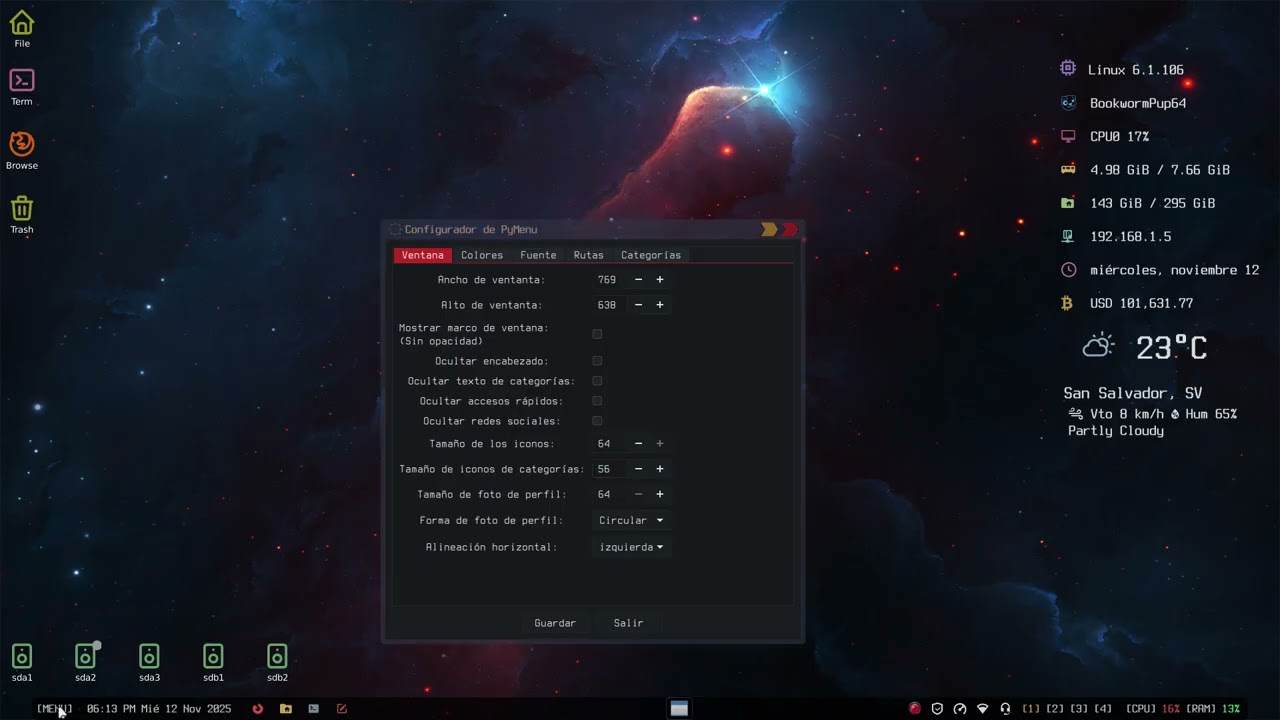
Graphical configuration tool to customize the menu.
Configurable options:
- Window dimensions and position
- Colors and transparency
- Fonts and text sizes
- File paths and commands
- Visible/hidden categories
- GTK system theme integration
PyMenuPup uses a simple and user-friendly translation system based on .lang files.
No complex tools like poedit or gettext are needed.
The project already includes a ready-to-use template.lang, so you only need to copy and translate it.
Translations use a plain text key = value format.
You only translate the text after the = sign.
# Example
Search applications... = Buscar aplicaciones...
Shutdown = Apagar
Desktop = Escritorio
If a line is left empty, PyMenuPup will automatically use English.
Translation files are searched in this order (highest priority first):
~/.config/pymenupup/locale/— User translations (recommended)/usr/local/share/locale/pymenupup//usr/share/locale/pymenupup/— System-wide
Tip: Using the user folder avoids modifying system files.
- English (en) — Built-in (no file needed)
- Spanish (es) —
es.langincluded - French (fr) —
fr.langincluded
More languages can be added easily.
template.lang → es.langExamples:
fr.lang— Frenchde.lang— Germanpt.lang— Portuguese
PyMenuPup Configurator = Configurador de PyMenuPup
Window = Ventana
Colors = Colores
Font = Fuente
That's it! 🎉 No Python code changes required.
Regional language files are supported, for example:
es-MX.lang— Spanish (Mexico)es-AR.lang— Spanish (Argentina)fr-CA.lang— French (Canada)pt-BR.lang— Portuguese (Brazil)
If a regional file is not found, PyMenuPup will automatically fall back to the base language (for example es.lang).
-
Create your language directory:
mkdir -p ~/.config/pymenupup/locale -
Copy the template:
cp template.lang ~/.config/pymenupup/locale/es.lang -
Edit and translate:
nano ~/.config/pymenupup/locale/es.lang -
Restart PyMenuPup and your language will be automatically detected!
If you create a translation for a new language, consider contributing it back to the project:
- Fork the repository
- Add your
.langfile to thelocale/directory - Submit a pull request
The translation system automatically handles category names in JWM menus. If your JWM has categories in your language (e.g., "Bureau" in French), PyMenuPup will automatically map them to the standard English names internally while displaying them in your language.
PyMenuPup has different versions optimized for different Linux environments:
The main version (pymenu-globicons.py and pymenu-config.py) is designed specifically for Puppy Linux, which:
- Runs the system as root user by default
- Does not require the use of
sudofor system operations - Has Puppy Linux specific paths and configurations
This main version is also compatible with EasyOS by Barry Kauler, since:
- EasyOS also runs as root by default
- Uses a frugal layered filesystem similar to Puppy Linux
- System paths and environment behave closely to Puppy-based systems No modifications are required to run the Puppy Linux version inside EasyOS.
In the distro-linux/ folder you will find versions adapted for other Linux distributions that use non-root users:
Modified version for standard Linux distributions (Debian, Ubuntu, Arch, Fedora, etc.) with the following changes:
- Permission management: Proper use of
sudofor operations requiring elevated privileges - Adapted paths: Configurations adjusted for standard user directory structures
- System commands: Adaptation of shutdown, reboot and lock commands for multi-user systems
- Environment variables: Correct handling of
$HOMEand$USERfor non-root users
Specialized version for Trixiepup64 (Wayland + labwc compositor) with the following features:
- Wayland compatibility: Optimized for Wayland display server instead of X11
- labwc integration: Native support for labwc compositor (Openbox-like for Wayland)
- Openbox menu parser: Reads and parses
menu.xmlfrom Openbox/labwc format - Wayland-specific commands: Adapted system commands for Wayland environment
- Menu.xml structure: Compatible with standard Openbox menu structure used by labwc's menu generator
When to use each version?
- Use the main version if you are on Puppy Linux or derivatives
- Use the Essora version if you are on Debian, Ubuntu, Arch, Fedora, Mint or other standard distributions
- Use the Trixiepup64 version if you are on Trixiepup64 or any Wayland-based system using labwc compositor
Python 3 (>= 3.6)
python3-gi
gir1.2-gtk-3.0
gir1.2-gdk-3.0
gir1.2-gdkpixbuf-2.0
gir1.2-pango-1.0
gir1.2-gio-2.0
gir1.2-glib-2.0
xdg-utils
Nerd Fonts
# Puppy Package Manager (PPM) usually includes python3-gi
# Verify that you have it installed:
python3 --version
python3 -c "import gi; print('GTK3 OK')"sudo apt update
sudo apt install python3 python3-gi python3-gi-cairo gir1.2-gtk-3.0 xdg-utilssudo pacman -S python python-gobject gtk3 xdg-utilssudo dnf install python3 python3-gobject gtk3 xdg-utils- Clone the repository:
git clone https://github.com/your-username/PyMenuPup.git
cd PyMenuPup- Copy the scripts to the system:
sudo cp pymenu-globicons.py /usr/local/bin/
sudo cp pymenu-config.py /usr/local/bin/

# Give execution permissions
sudo chmod +x /usr/local/bin/pymenu-globicons.py
sudo chmod +x /usr/local/bin/pymenu-config.py- Copy translation files:
sudo mkdir -p /usr/share/locale/pymenupup
sudo cp locale/*.lang /usr/share/locale/pymenupup/
sudo chmod 644 /usr/share/locale/pymenupup/*.lang- Create symbolic links (optional):
sudo ln -s /usr/local/bin/pymenu-globicons.py /usr/local/bin/pymenu
sudo ln -s /usr/local/bin/pymenu-config.py /usr/local/bin/pymenu-configThis project allows you to compile Python scripts into highly optimized .bin binaries using Nuitka, a Python-to-C compiler.
Below you'll find what it is, where to get it, and how to use it on Puppy/EasyOS.
Nuitka is a true Python compiler written in C++.
It takes your .py scripts and converts them into:
- Native executables (binaries)
- Faster performance
- Lower CPU usage
- No Python installation required to run them
It's ideal for distributing applications on Puppy Linux because it:
- Reduces program size
- Eliminates external dependencies
- Improves startup speed
- Better protects source code
You can download it directly from the official website:
- Website: https://nuitka.net
- Downloads: https://nuitka.net/pages/download.html
- GitHub: https://github.com/Nuitka/Nuitka
On Puppy/EasyOS, it's common to download it to the /root/ folder:
Example:
/root/Nuitka-2.9rc5/
Inside you'll find the compilation binary:
/root/Nuitka-2.9rc5/bin/nuitka
To compile, you need to activate the development environment.
Load devx.sfs:
Menu → Setup → SFS-Load-on-the-fly → devx.sfs
The devx includes:
- gcc
- make
- libc-dev
- Python.h and other necessary headers
Additionally, install these packages:
- patchelf
- python3-zstandard
- python3-dev
If your Puppy/EasyOS supports apt:
apt install patchelf python3-zstandard python3-devThanks to user Burunduk for testing on Fossapup64. To run PyMenu on a fresh Fossapup-9.5 installation:
- Open PPM (Puppy Package Manager)
- Update the database (~16 MB download)
- Search for and install
meld_3.20.2and its dependencies (~3 MB, use auto-install mode) - Run PyMenu - it should now work
Note: Meld is a small GUI diff tool that provides the necessary GTK dependencies and can be useful on its own.
Example compilation for pymenu-globicons.py:
python3 /root/Nuitka-2.9rc5/bin/nuitka \
    --mode=onefile \
    --follow-imports \
    --lto=yes \
    --static-libpython=no \
    --plugin-enable=gi \
    --nofollow-import-to=tkinter \
    --nofollow-import-to=unittest \
    --nofollow-import-to=pydoc \
    --nofollow-import-to=*.tests \
    --experimental=use_upx \
    /usr/local/bin/pymenu-globicons.py
The generated executable will appear as:
pymenu-globicons.bin
You can rename it (remove the .bin extension) and move it to /usr/local/bin:
mv pymenu-globicons.bin /usr/local/bin/pymenu-globicons
chmod +x /usr/local/bin/pymenu-globicons| Option | Description |
|---|---|
--mode=onefile |
Creates a single executable file |
--lto=yes |
Link-time optimization for size and performance |
--static-libpython=no |
Produces smaller binaries |
--follow-imports |
Includes necessary dependencies |
--experimental=use_upx |
Additional compression (if UPX is available) |
- The first compilation may take several minutes
- Compiled binaries are significantly faster than Python scripts
- Ensure all Python dependencies are installed before compiling
- Test the binary after compilation to verify functionality
When running PyMenuPup for the first time, a configuration file will be automatically created at:
~/.config/pymenu.json
Edit your ~/.jwmrc file and add:
<Program label="Menu" icon="applications-system">
    /usr/local/bin/pymenu-globicons.py
</Program>
Or to use with specific coordinates:
<Program label="Menu" icon="applications-system">
    /usr/local/bin/pymenu-globicons.py 100 100
</Program>
In PuppyLinux /root/.jwmrc:
<RootMenu label="Menu" labeled="false" height="24" onroot="3">then /root/.jwmrc-tray
<TrayButton label="[MENU]" popup="Open menú">exec:pymenu-globicons.py</TrayButton>If you use Tint2, edit ~/.config/tint2/tint2rc:
# Launcher
launcher_item_app = /usr/local/bin/pymenu-globicons.pyPyMenu can integrate with external tools for extended functionality. These tools are not included in this project and are completely optional:
- A custom tool to configure your profile picture
- Configure the path in: Settings > Paths > Profile manager
- PyMenu will work without this tool
- A custom shutdown/logout interface
- Configure the path in: Settings > Paths > Shutdown command
- PyMenu will work without this tool
Note: Users can specify their own custom tools or scripts for these features. The paths in the configuration are examples and should be adjusted to your system.
# Basic execution
pymenu-globicons.py

# With custom position (x, y)
pymenu-globicons.py 100 100

# With custom JWM file
pymenu-globicons.py /path/to/jwmrcpymenu-config.pyOr from the main menu, click on the configuration icon.
- Esc: Close the menu
- Alt + Left Click: Move the window
- Middle Click (wheel): Close the menu
- Arrow Keys: Navigate through applications
- Enter: Launch selected application
- Right Click on app: Context menu
PyMenuPup/
├── README.md                  # Main readme (English)
├── README-es.md               # Readme (Spanish)
├── TECHNICAL.md               # Technical documentation (English)
├── TECHNICAL-es.md            # Technical documentation (Spanish)
├── pymenu-globicons.py        # Main menu
├── pymenu-config.py           # GTK configurator
├── pymenupuplang.py           # Translation system
├── distro-linux/             # Distro-specific configurations
│   ├── Essora/
│   │   ├── Pymenu-essora.py
│   │   ├── pymenu-config-essora.py
│   │   └── pymenupuplang.py
│   └── Trixiepup-Wayland/
│       └── Pymenu-trixiewayland.py
├── locale/                   # Translations
│   ├── ar.lang                # Arabic
│   ├── de.lang                # German
│   ├── es.lang                # Spanish
│   ├── fr.lang                # French
│   ├── it.lang                # Italian
│   ├── ja.lang                # Japanese
│   ├── pt-BR.lang             # Portuguese (Brazil)
│   ├── pt-PT.lang             # Portuguese (Portugal)
│   ├── ru.lang                # Russian
│   └── template.lang          # Base template
└── screenshots/              # Screenshots
├── config-tool.png
└── main-menu.png
/usr/local/bin/
├── pymenu-globicons.py       # Main menu executable
├── pymenu-config.py          # Configurator executable
└── pymenupuplang.py          # Translation module

/usr/share/locale/pymenupup/
├── es.lang                   # Spanish translation
└── fr.lang                   # French translation

~/.config/pymenupup/
├── pymenu.json              # Main configuration
└── locale/                  # User custom translations (optional)
    └── es-custom.lang
~/.config/
├── pymenu.json              # Main configuration
└── tint2/
    └── tint2rc              # Tint2 config (if applicable)

~/
├── .jwmrc                   # JWM config
├── .jwmrc-tray             # JWM tray config
└── .face                    # Profile picture
The ~/.config/pymenu.json file has this structure:
{
    "window": {
        "width": 700,
        "height": 850,
        "decorated_window": false,
        "hide_header": false,
        "hide_quick_access": false,
        "hide_social_networks": false,
        "hide_category_text": false,
        "halign": "center",
        "icon_size": 32,
        "category_icon_size": 16,
        "profile_pic_size": 128,
        "profile_pic_shape": "square",
        "header_layout": "left"
    },
    "font": {
        "family": "Sans 12",
        "size_categories": 12000,
        "size_names": 10000,
        "size_header": 8000
    },
    "colors": {
        "use_gtk_theme": false,
        "background": "rgba(0, 0, 0, 0.7)",
        "border": "rgba(255, 255, 255, 0.1)",
        "text_normal": "#D8DEE9",
        "text_header_os": "#D8DEE9",
        "text_header_kernel": "#D0883A",
        "text_header_hostname": "#88C0D0",
        "hover_background": "rgba(255, 255, 255, 0.1)",
        "button_normal_background": "rgba(0,0,0,0.6)",
        "button_text": "#ECEFF4",
        "categories_background": "rgba(0,0,0,0.6)",
        "use_gtk_theme": true
    },
    "paths": {
        "profile_pic": "/root/.face",
        "profile_manager": "/usr/local/bin/ProfileManager.py",
        "shutdown_cmd": "/usr/local/bin/apagado-avatar.py",
        "jwmrc_tray": "/root/.jwmrc-tray",
        "tint2rc": "/root/.config/tint2/tint2rc"
    },
    "tray": {
        "use_tint2": false
    },
    "categories": {
        "excluded": []
    }
}PyMenuPup searches for icons in these paths:
/usr/local/lib/X11/pixmaps/usr/share/pixmaps/usr/share/icons/hicolor/*/apps/usr/share/pixmaps/puppy
Place your icons in any of these folders.
Edit the configuration file to hide specific categories:
"categories": {
    "excluded": ["Help", "Leave", "Rectify"]
}# Verify that Python3 is installed
python3 --version
# Verify GTK dependencies
python3 -c "import gi; gi.require_version('Gtk', '3.0'); from gi.repository import Gtk; print('GTK OK')"# Verify icon paths in your .jwmrc
grep IconPath ~/.jwmrc
# Reinstall icon package
# (in Puppy Linux it's usually included)If your .jwmrc contains malformed XML, the menu may fail to load fully. Even commented sections can break parsing if the tags are not properly closed.
Example of an incorrect comment:
\<!-- unclosed comment # Make sure scripts are executable
chmod +x /usr/local/bin/pymenu-globicons.py
chmod +x /usr/local/bin/pymenu-config.py# Run from terminal to see errors
python3 /usr/local/bin/pymenu-globicons.py# Verify the profile picture exists
ls -la ~/.face
# Or check the configured path
grep profile_pic ~/.config/pymenu.jsonContributions are welcome! If you want to improve PyMenuPup:
- Fork the repository
- Create a branch for your feature (
git checkout -b feature/AmazingFeature) - Commit your changes (
git commit -m 'Add some AmazingFeature') - Push to the branch (
git push origin feature/AmazingFeature) - Open a Pull Request
This project is licensed under the GPL v3 License. See the LICENSE file for more details.
Nilson Morales
- GitHub: @woofshahenzup
- Forum: Puppy Linux Forum
- The Puppy Linux team for creating such a lightweight and efficient distribution
- Joe Wingbermuehle for JWM (Joe's Window Manager)
- The GTK and Python communities
- All project contributors


Do you like PyMenuPup? Give the repository a star!