This is a helper file used to build the RCJ Scoring System with a Docker image.
Windows 10 Pro / Enterprise / Education
Windows10 Home is NOT suported!
OS : Windows 10 Education 1803
PC : Lenovo X250
CPU : Intel Corei7 5600U
RAM : 16GB
Access the following site and download the installer.
https://hub.docker.com/editions/community/docker-ce-desktop-windows
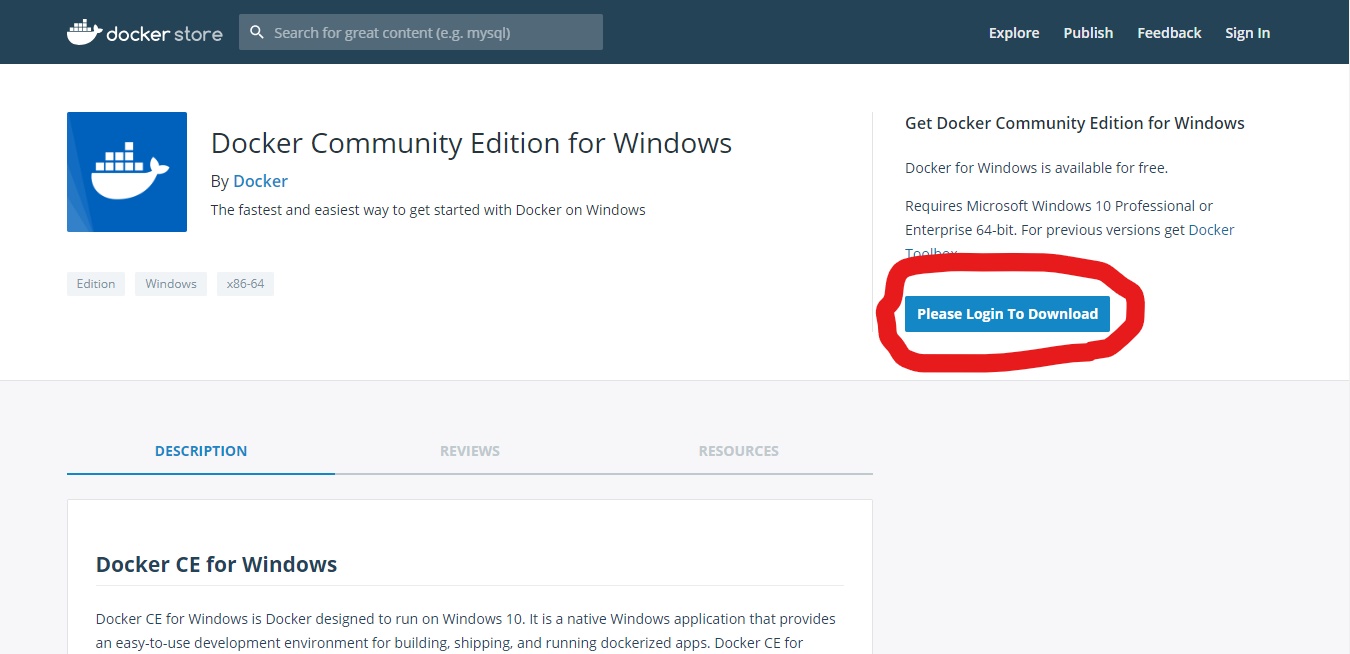
Run the downloaded installer.
When the following screen is displayed, press "OK".
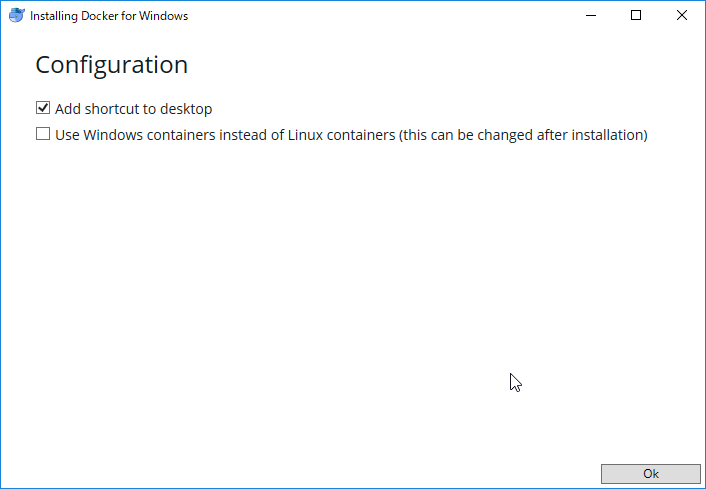
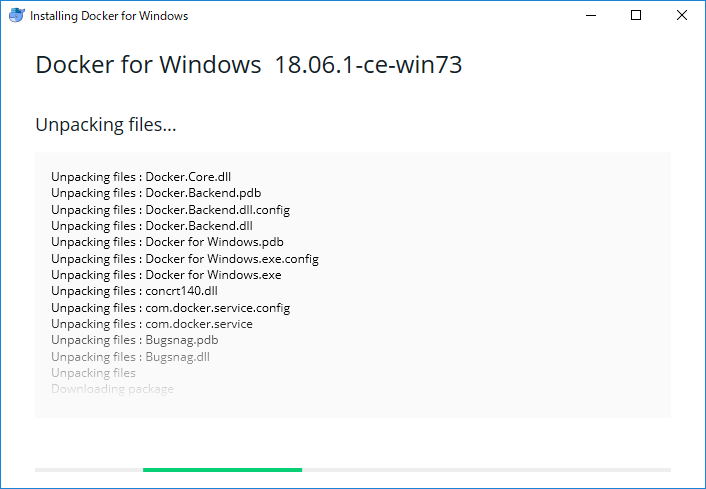
Installing
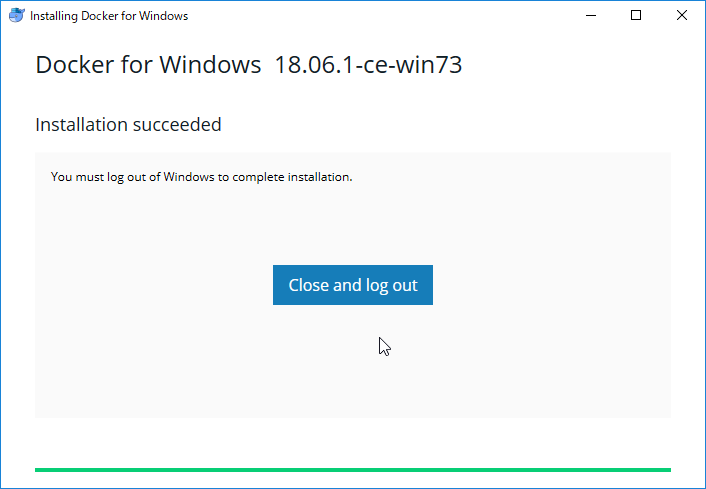
Press Close and log out.
Your computer will be logged out automatically. Please login again.
Double-click the following icon generated on the desktop to launch it.

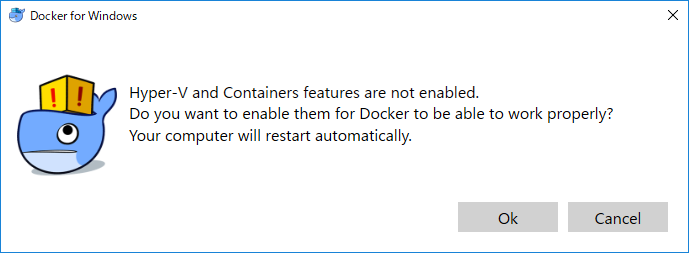
When the following message that Hyper-V is not activated is displayed, press OK to activate. After completion, the PC will restart automatically.
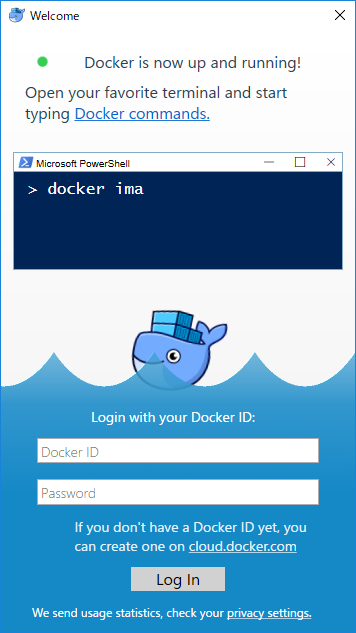
After restarting, when the following window is displayed, Docker for Windows has started successfully.
Make settings.
Right-click the Docker icon on the taskbar, go to Settings and press Shard Drives.
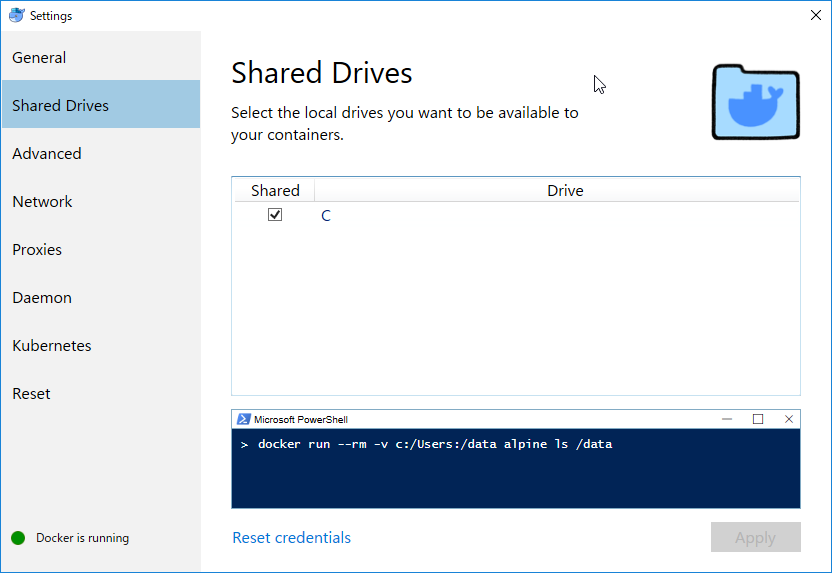
Check "Share" like the image and press Apply.
Note
If no password is set for the Windows account, set a password for the account before setting this.
Download the scoreing system from below link.
DOWNLOAD
Please unzip completely!!
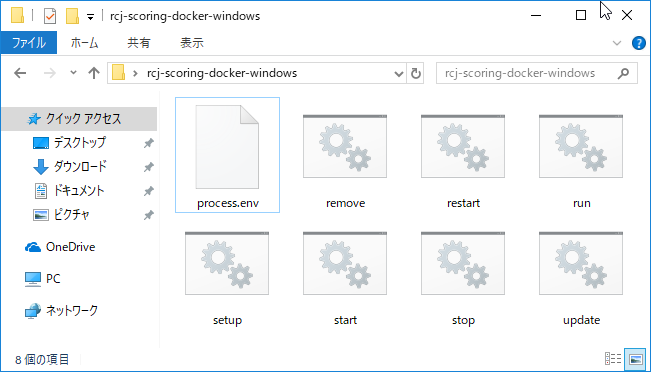
Duble-click "setup" to start the setup.
Installing...
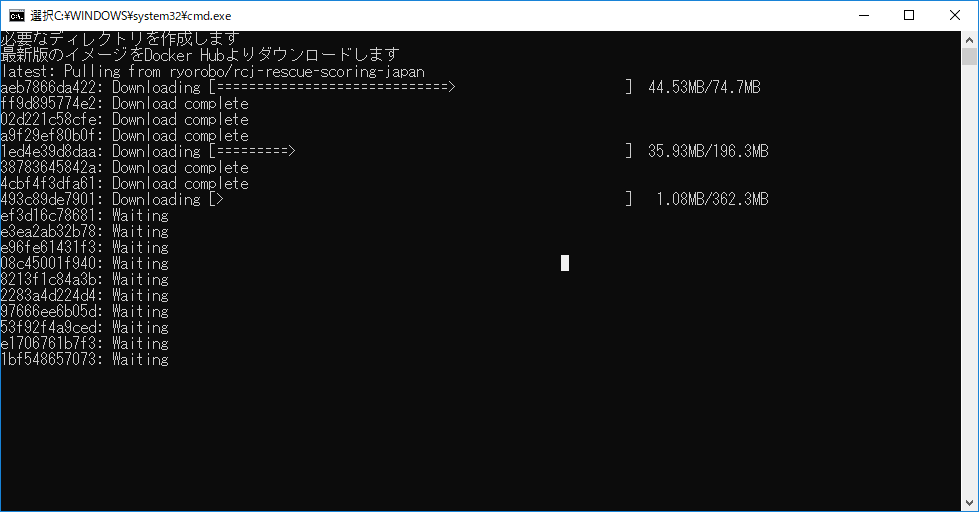
When the screen disappears, setup is complete. The system will boot automatically.
It takes up to a minute for the system to start up after the screen disappears.
When you access http://localhost:3000 after startup process is completed, the screen of the system appears.
The scoring system does not support Microsoft Internet Explorer and Edge browser. We recommend Google Chrome and Firefox.
Note
If security protection software is installed, the system may not start properly. (If you are using "Norton", there is a report that does not start well.)
In this case, you need to change the settings of the security software. For details, please search with "(Security protection software name) + Docker" etc.
For the second and subsequent start ups after setting up the system, double-click start.
To stop the system, double-click stop.
To restart the system, double-click restart.
To update, double-click update.
If you want to change the admin account password, edit the file process.env in the setup helper directory (rcj-scoring-docker) with a suitable editor.
# db vars see more at http://mongoosejs.com/docs/connections.html
DB_CONNECT_STR=mongodb://localhost/rcj-scoring

# web vars
WEB_HOSTPORT=3000

# log vars ERROR/INFO/DEBUG
MAIN_LOG_LVL=DEBUG

# Account hardcoded
user=admin
password=admin

# Default Account Setting
dUsername=admin
dPassword=adminpass       #CHANGE HERE
dAdmin=true
dSDAdmin=true
The change is applied by executing by duble-click "restart".