Dynamic Traffic Management and Vehicle Track and count using Drones
- Place the batteries inside the drone and press the switch on button on the drone placed on the left side.
- wait for a second untill the front LED indicator on the drone starts blinking in yellowish color.
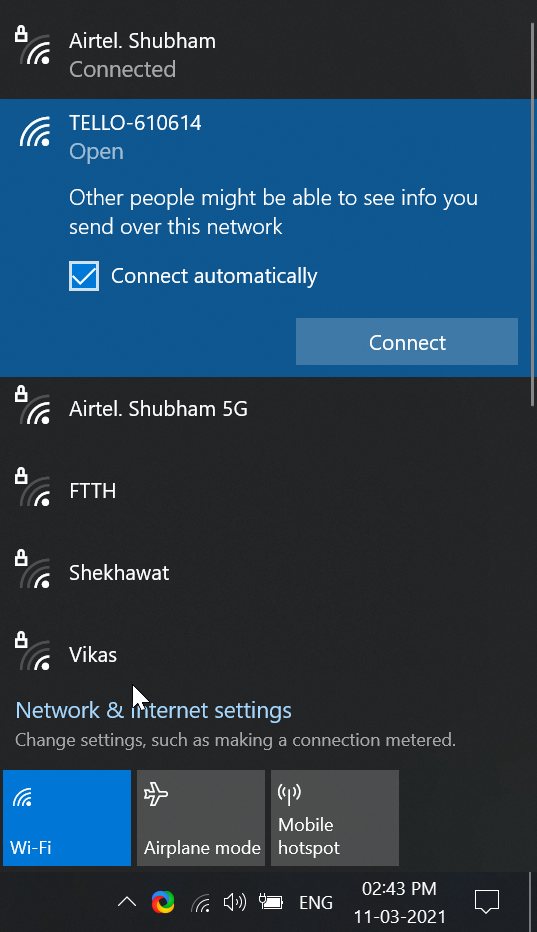
- Locate the Tello Wifi Network in your Wifi List and then connect to it.
- Open Two Command prompts in the working directory (or just open cmd and then direct it to the folder using
cdcommand) - In the first command prompt: type
python tello-command.pyand hit enter, this will initialise the tello drone. (Your DJI tello drones must be connceted for this step. refer to 1. Connecting to DJI Tello Drone). - Type
commandand hit enter, this will tell the drone to operate in a command prompt way.
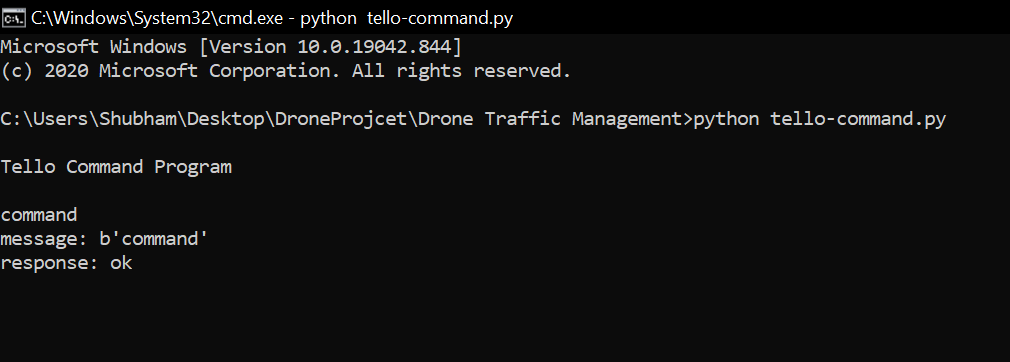
- after which you should see a
response: ok. - after this you can tell your drone to takeoff etc, simply type
takeoffand hit enter. - Type
streamonand hit enter, this will switch on the camera stream for the next process to follow. - Now in the second command prompt copy and paste this command:
python detect_video.py --weights ./checkpoints/yolov4-tiny-416 --size 416 --model yolov4 --video 0 --output ./data/video/output.avi --count --tiny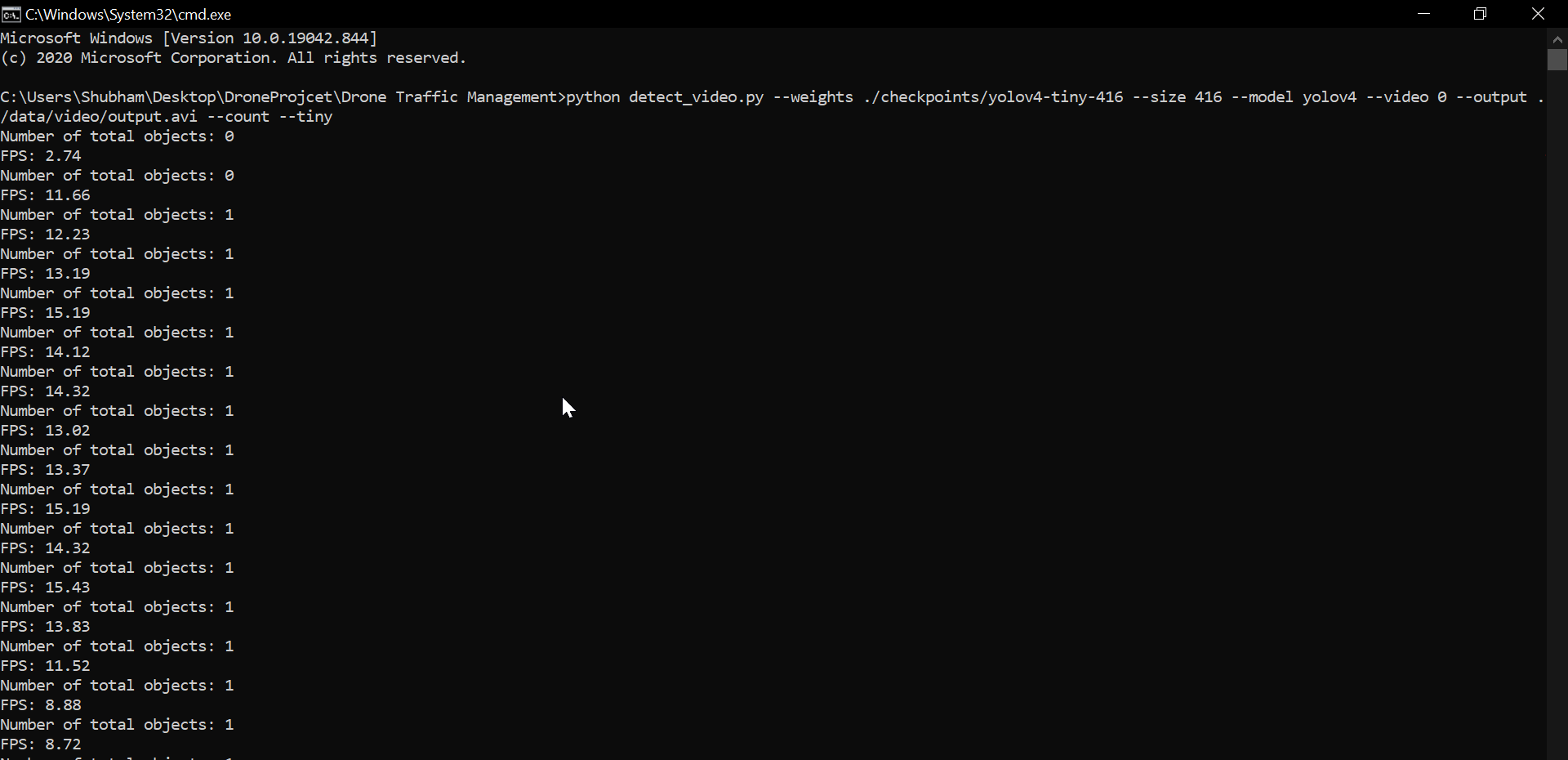
- This will run the detect_video.py file and instruct it to use the camera stream as an input to detect the cars and then save the output in an "output.avi" file in the data/video folder.
If you see some red color errors after running the detect_video.py don't worry they just occur because it takes time to listen to the video stream of the drone and until then the program can't find any frame/image to run the detection onto, it takes about 3-4 seconds in the beginning.