Set up Firebase
This guide shows how to set up Firebase to the android project.
Important: You need Android Studio 2.2 or higher and an Google Account!
- Clone: https://github.com/thomcz/face-pi.git and import the android project into Android Studio.
- Now click in the menu on Tools and Firebase. A sidebar will open and you need to click on Cloud Messaging.
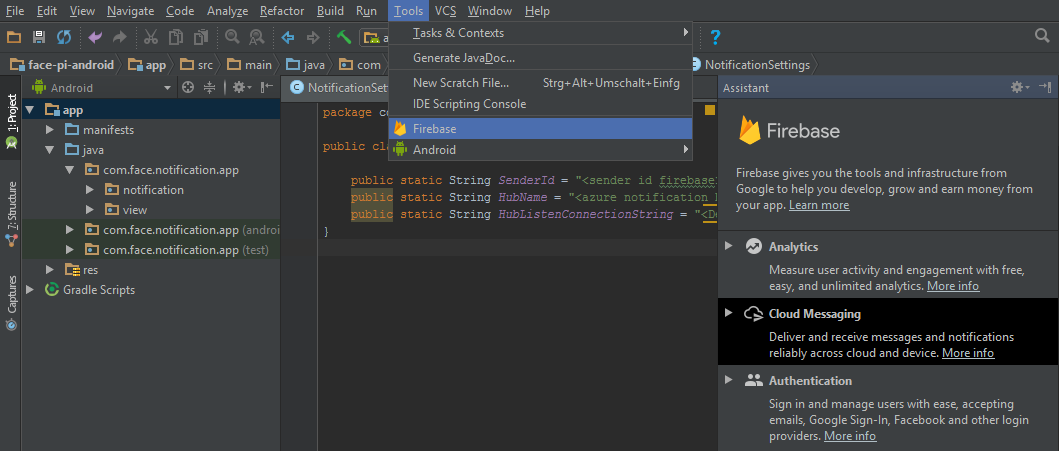
- Now a Firebase Cloud Messaging assistant will open and you need to click on Connect your app to Firebase. Your internet browser will open and redirect you to a google login page where you need to log in and give Android Studio some permissions.
- After that a new window will open in Android Studio and you can create a new Firebase project. Name your project and click the Connect to Firebase button.
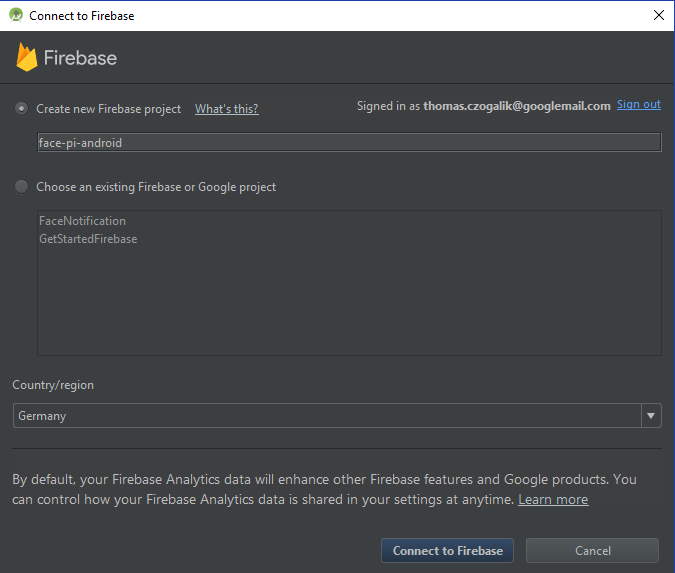
After some time your project will be connected, a message will appear and it will be marked in the set up sidebar.
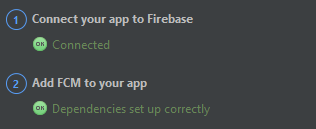
Note: The second step Add FCM to your app should also be checked if not click on it and the dependency should be added automatically.
Continue with ...