This tool can be used to display a Lovelace view of your Home Assistant instance on a jailbroken Kindle device. It regularly takes a screenshot which can be polled and used as a screensaver image of the online screensaver plugin.
If you're looking for a way to render your own HTML, see my other project hass-kindle-screensaver which renders a React page and can be adapted to your specific needs.
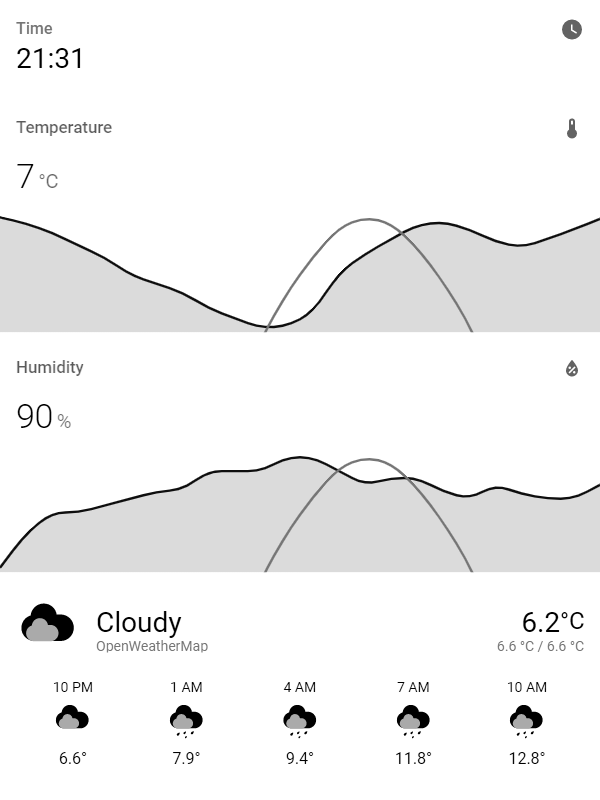
This tool regularly takes a screenshot of a specific page of your home assistant setup. It converts it into the PNG grayscale format which Kindles can display.
Using my own Kindle 4 setup guide or the online screensaver extension for any jailbroken Kindle, this image can be regularly polled from your device so you can use it as a weather station, a display for next public transport departures etc.
You may simple set up the sibbl/hass-lovelace-kindle-screensaver docker container. It renders the image to a specific path which you can configure and mount accordingly.
Home Assistant related stuff:
HA_BASE_URL=https://your-hass-instance.com:8123HA_SCREENSHOT_URL=/lovelace/screensaver?kiosk(I recommend the kiosk mode project)HA_ACCESS_TOKEN=eyJ0...(you need to create this token in Home Assistant first)LANGUAGE=en(language to use in Home Assistant frontend)CRON_JOB=* * * * *(how often to take screenshots, by default every minute)
Kindle related stuff:
RENDERING_TIMEOUT=10000(timeout of render process, necessary if your HASS instance might be down, in milliseconds)RENDERING_DELAY=0(how long to wait between navigating to the page and taking the screenshot, in milliseconds)RENDERING_SCREEN_HEIGHT=800(height of your kindle screen resolution, see below)RENDERING_SCREEN_WIDTH=600(width of your kindle screen resolution, see below)ROTATION=0(rotation of image in degrees, i.e. use 90 or 270 to render in landscape)SCALING=1(scaling factor, i.e. 1.5 to zoom in or 0.75 to zoom out)GRAYSCALE_DEPTH=8(grayscale bit depth your kindle supports)
Advanced stuff:
OUTPUT_PATH=./output.png(destination of rendered image)PORT=5000(port of server, which returns the last image)USE_IMAGE_MAGICK=false(use ImageMagick instead of GraphicsMagick)
You may also simply use the docker-compose.yml file inside this repository, configure everything in there and run docker-compose up.