This project adds extension methods for the Infisical .NET SDK to register it as a configuration provider in your .NET app.
dotnet add package TRENZ.Extensions.InfisicalYou will need four things to integrate this extension:
- Your site URL (
https://infisical.company.com) - A Client ID/secret pair
- A project ID
The site URL is obvious. It's where you can access the web UI of your instance.
Client ID & secret are a bit more hidden:
- From the home page of your instance, navigate to "Access Control"
- Switch to the tab "Identities"
- Choose an identity you want your app to use (or create one)
- Under "Authentication", add or edit "Universal Auth"
- Copy the Client ID
- Click "Add Client Secret"
- Give it a name
- Copy the Client Secret
Tip
Also make sure you give this identity access to your project!
The last thing you need is the project ID. You can find this here:
- From the home page of your instance, navigate to "Projects"
- Choose your project (or create one)
- On the left sidebar, switch to "Project Settings" (not "Settings", that one is for the "Secrets Manager")
- In the "General" tab -> "Project Overview", you will find a button "Copy Project ID"
- Click it
After you gathered all this information, add them to your appsettings.json:
{
  "Infisical": {
    "SiteUrl": "https://<your infisical host>",
    "ClientId": "07ebc18f-df32-475a-8fef-1bdd79a5c7ac",
    "ClientSecret": "insert-your-client-secret",
    "ProjectId": "some-project-id"
  }
}
Call AddInfisicalConfiguration on your application builder:
var builder = WebApplication.CreateBuilder(args);

builder.AddInfisicalConfiguration();

// ...
This will add an InfisicalConfigurationProvider that provides all available secrets through IConfiguration.
Note
The provider drops all keys in the "Infisical" object in order to protect your infisical credentials, so you won't see the keys at runtime.
When you manage an Infisical project you want to access with this extension, you need to be mindful of the following things:
When managing your Infisical project environments, notice how your environment has a name, and a slug (as seen here in the Secrets Manager settings):
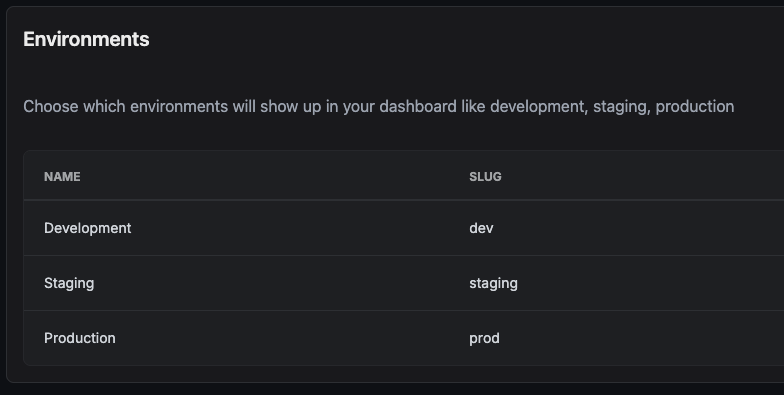
This extension uses the environment names used by .NET, for example Development, but converted to lowercase
(development).
This must match one of your environment slugs.
By default, this extension picks up the current IHostEnvironment.EnvironmentName and uses it when asking for the
secrets.
When adding or changing an environment, you need to be mindful of the impact this has for your infisical project.
Infisical likes to enforce capitalized secret key names.
This is usually not what you want for your IConfiguration keys.
You can disable automatic capitalization by enabling this option in the Secrets Manager settings:

Since Infisical doesn't allow colons (:) in the secret key anymore, we have integrated a mechanism that allows you
to use double underscores (__) instead.
Any key with double underscores will appear with colons in your IConfiguration.
For example:
- You added a secret with the key
ConnectionStrings__DB - You use this extension to load it into your
IConfiguration - You can access the secret using
IConfiguration.GetConnectionString("DB")- this works, because the
GetConnectionStringextension method expects a keyConnectionStrings:<name>, and - this extension translates
ConnectionStrings__DBtoConnectionStrings:DB
- this works, because the
You can let this provider regularly poll Infisical for changes. This is useful if you want to update your secrets without restarting your application.
To enable polling, you can set the Infisical:PollingInterval key in your appsettings.json:
{
  "Infisical": {
    ...
    "PollingInterval": 10000
  }
}
This value is the interval in milliseconds in which the provider will poll Infisical for changes. To disable polling, just remove the key from your configuration.
The default is to not poll for changes.
You can set the Infisical:LoadTimeout key in your appsettings.json to specify the maximum time the provider will
wait for the initial (and subsequent) loads of the secrets.
{
  "Infisical": {
    ...
    "LoadTimeout": 10000
  }
}
The default timeout is 5000 (5s).
To disable the timeout, set the value to -1.
Licensed under MIT. For more information, see LICENSE