A Tabby Terminal plugin that adds a persistent sidebar panel showing all your SSH connections, with quick access via toolbar button.
⚠️ Disclaimer: This plugin was made by a monkey who vibes code. Expect it to break and not work as intended. Use at your own risk!
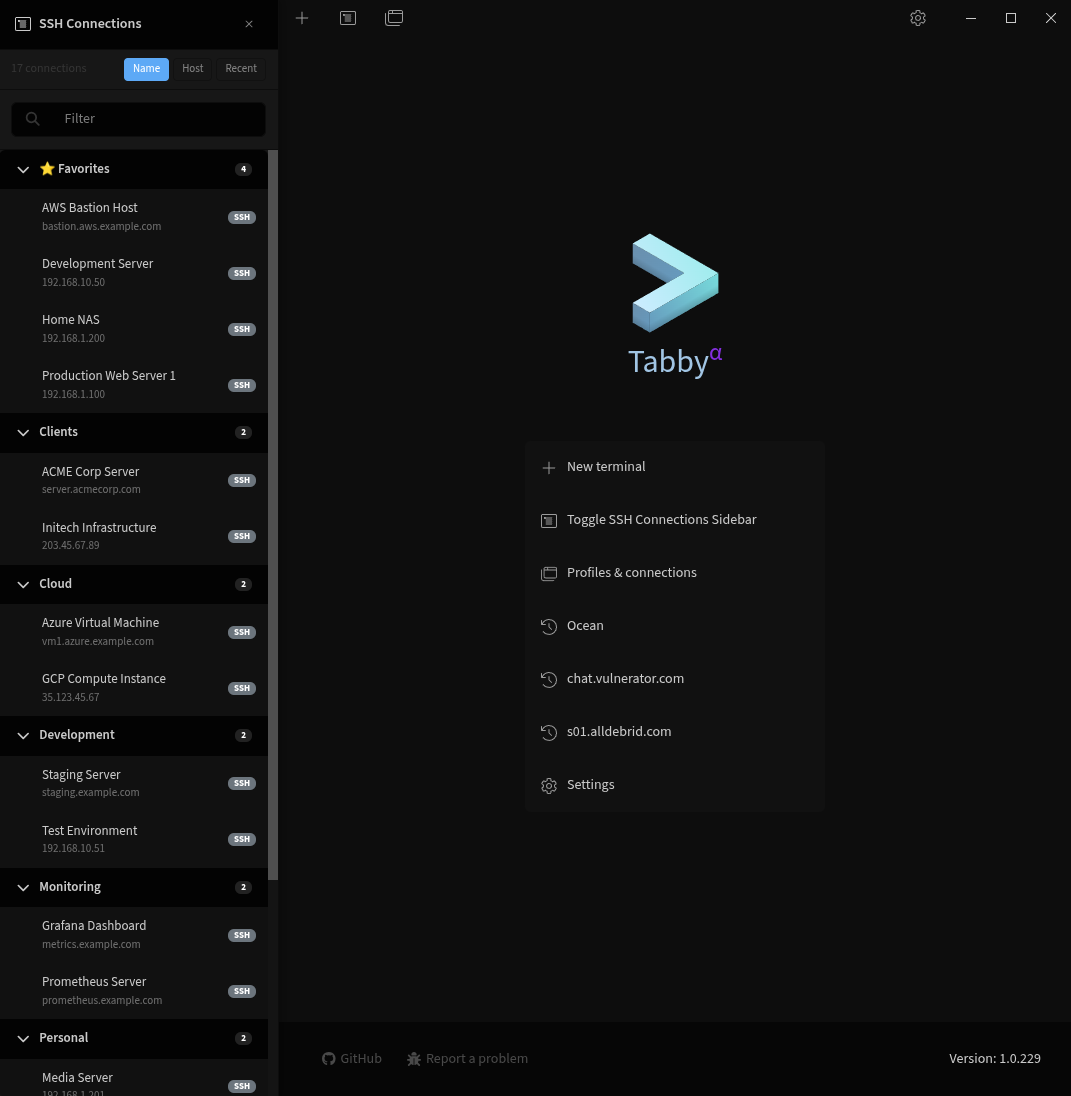
- Always-Visible Panel: Fixed sidebar on the left side showing all SSH connections
- Live Connection Status: Visual indicators show which connections are currently active
- Search Functionality: Built-in search box to filter connections by name, host, or user
- Collapsible Groups: Organize connections by groups with collapsible headers
- Favorites Support: Pin your most-used connections to a dedicated "Favorites" group at the top
- Auto-Initialize: Restores your previous sidebar state on startup
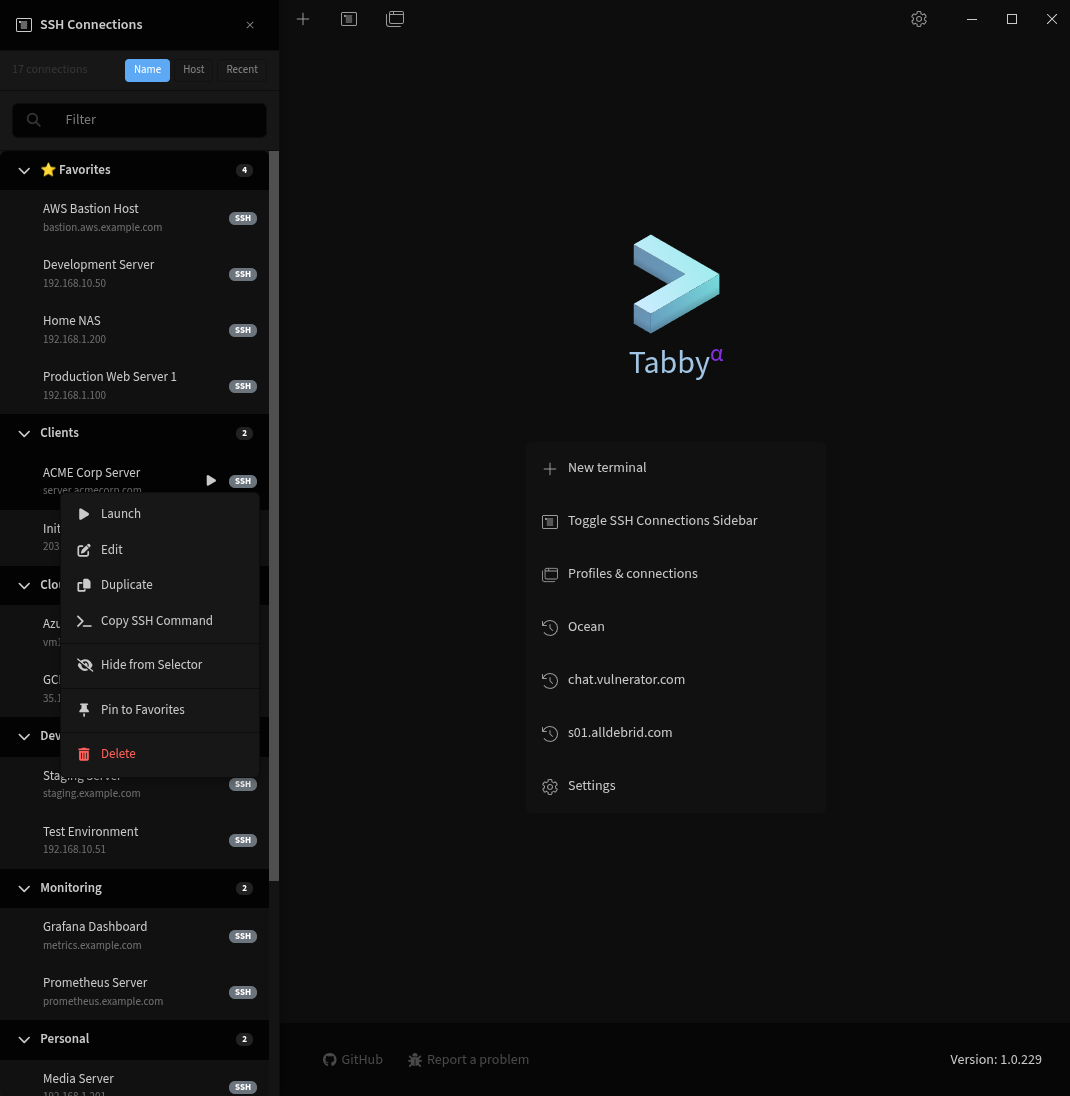
- Right-Click Context Menu: Access additional options for each connection
- Connect to SSH server
- Edit connection settings (opens directly to profile editor)
- Pin/Unpin from Favorites
- Delete connection
- Profile Sorting: Connections sorted alphabetically within groups
- Group Organization: Maintains your existing Tabby profile groups
- Toggle Button: Click to show/hide the sidebar panel
- Dual Access: Use sidebar for persistent access, or toolbar for quick toggle
- Open Tabby Terminal
- Go to Settings → Plugins
- Type
tabby-ssh-sidebarin the search box - Click Install
- Restart Tabby
cd ~/.config/tabby/plugins
npm install tabby-ssh-sidebar
Then restart Tabby.
-
Clone this repository
-
Install dependencies:
npm install --legacy-peer-deps
-
Build the plugin:
npm run build
-
Install using the script:
./install.sh
-
Restart Tabby
- After installation, restart Tabby - the sidebar will appear on the left side
- Browse Connections: Scroll through your SSH profiles organized by groups
- Search: Use the search box to filter connections by name, host, or user
- Connect: Left-click any connection to open it in a new tab
- Active Indicators: Green dot shows which connections are currently open
- Collapse Groups: Click group headers to expand/collapse connection lists
- Pin Favorites: Right-click connections and select "Pin to Favorites"
- Edit Profiles: Right-click and select "Edit" to open profile settings directly
- Hide Sidebar: Click the toolbar button to toggle visibility
Right-click any connection in the sidebar to access:
- Connect: Open SSH connection in new tab
- Edit: Open profile settings (navigates to settings tab and opens profile editor)
- Pin to Favorites / Unpin from Favorites: Manage favorite connections
- Delete: Remove the connection profile
- Right-click any connection
- Select "Pin to Favorites"
- The connection will appear in the "⭐ Favorites" group at the top
- To unpin, right-click and select "Unpin from Favorites"
The sidebar enables a completely mouse-driven workflow - no need to use the command palette or keyboard shortcuts to access your SSH connections.
The plugin stores its configuration in Tabby's settings. Configuration is automatic:
- Sidebar visibility: Automatically saved when you toggle the sidebar
- Pinned favorites: Automatically saved when you pin/unpin connections
- Group collapse state: Automatically saved when you expand/collapse groups
- Tabby Terminal v1.0.197 or later
- Node.js and npm for building
For development with auto-rebuild on changes:
npm run watchnpm run buildThis plugin uses several Tabby APIs:
- ToolbarButtonProvider: Adds toggle button to main toolbar
- SSHSidebarService: Manages sidebar lifecycle and flexbox layout injection
- ProfilesService: Retrieves and manages SSH connection profiles
- ConfigService: Persists user preferences (favorites, visibility, collapse state)
The sidebar is implemented as a dynamically injected Angular component that modifies the app-root flexbox layout to create a true persistent sidebar panel.
MIT