
Giving Life to CyberBrick Devices via AI
English | 中文
This plugin bridges the gap between OpenClaw AI agents and CyberBrick hardware. It empowers any CyberBrick device (Mini T Tank, robotic arms, etc.) with autonomous capabilities, turning static hardware into intelligent, interactive companions.
Watch OpenClaw and CyberBrick transform a Mini T Tank into a free-roaming bot!
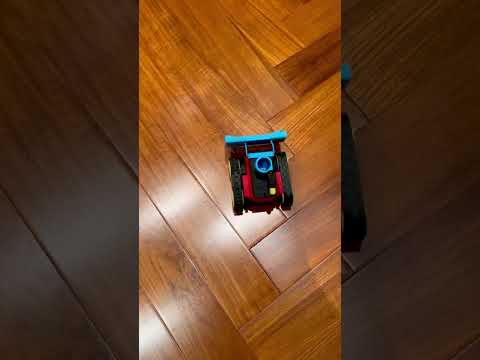
Our goal is to animate the physical world through AI. By connecting CyberBrick's versatile hardware ecosystem with OpenClaw's powerful agent framework, we enable:
- 🤖 Autonomous Behavior: Devices that explore, react, and make decisions independently.
- 🎭 Personality Injection: Programmable "souls" like the "Hyperactive Kid" persona.
- 🔌 Universal Control: A unified driver interface for all standard CyberBrick pinout configurations.

How your AI command travels from the cloud to the physical world:
graph TD
    %% Nodes
    User([👤 User / Feishu]) -->|Chat Command| OpenClaw[🧠 OpenClaw Agent]
    OpenClaw -->|Invokes Skill| Driver[🔌 CyberBrick Plugin]

    subgraph Computer [Your Computer / Server]
        Driver -->|Serial / REPL| USB{🔌 USB Port}
    end

    subgraph Hardware [Physical World]
        USB -->|Serial| Remote[🎮 CyberBrick Remote]
        Remote -->|ESP-NOW Wireless| Tank[🤖 CyberBrick Tank]
    end

    %% Styles
    style OpenClaw fill:#f9f,stroke:#333,stroke-width:2px
    style Remote fill:#bbf,stroke:#333,stroke-width:2px
    style Tank fill:#bfb,stroke:#333,stroke-width:2px
- User: Sends a command (e.g., "Dance!") via Feishu/Lark or CLI.
- OpenClaw: Processes the intent and calls the
cyberbrick-driverskill. - Plugin: Converts the skill call into MicroPython code.
- USB: Sends code to the CyberBrick Remote via Serial (REPL).
- Remote: Executes the code and sends wireless commands (ESP-NOW) to the Tank.
- Tank: Receives commands and moves its motors!
This plugin currently provides the following skills:
-
Universal Driver (
cyberbrick_driver/cyberbrick_driver.py):- Precise motor and servo control (1000Hz PWM).
- Standardized movement (Forward, Backward, Turn).
- Action triggers (Fire, Turret elevation).
- Full system diagnostics.
-
Autonomous Wander (
cyberbrick_wander/cyberbrick_wander.py):- A "Hyperactive Kid" personality engine.
- Self-driven exploration with erratic, playful behaviors.
- Complex macro actions (Dance, Panic, Celebrate).
Before invoking any skills, ensure your hardware is ready:
- Prepare Devices: You need a CyberBrick Remote (Transmitter) and a CyberBrick Tank/Robot (Receiver).
- Pairing: Use the CyberBrick App to pair your Remote and Tank. Follow the official guide if needed.
- Connection: Connect the CyberBrick Remote via USB to the computer running OpenClaw.
- Power On: Turn on both the Remote and the Tank. Ensure they are paired (usually indicated by a solid LED).
Skills are registered in SKILL.md files within each subdirectory and can be invoked naturally by OpenClaw agents.
Example Prompts:
- "Start wandering around."
- "Perform a dance routine."
- "Run a hardware self-test."
- "Move forward at full speed for 3 seconds."
Note: The Agent communicates with the Remote via USB, which then wirelessly controls the Tank.
cyberbrick_driver/: Contains the driver skill and low-level hardware abstraction layer.cyberbrick_wander/: Contains the wander skill and high-level behavioral logic.README.md: Project documentation.
- Python 3.x: Ensure Python 3 is installed on your system.
- Dependencies: Install the required Python packages.
pip3 install -r requirements.txt
To make these skills available to all OpenClaw Agents (Global Installation), or just for a specific project, follow the instructions below.
This will install the skills into OpenClaw's global skill directory, making them accessible to any agent in any workspace.
- Create the global skills directory (if it doesn't exist):
mkdir -p ~/.openclaw/skills
2.1. Clone the repository:
bash git clone https://github.com/unbug/CyberClaw.git ~/.openclaw/skills/cyberbrick-claw
If you only want to use these skills in a specific Agent Workspace (the project directory the Agent is currently operating in).
-
Navigate to the Agent's workspace root:
cd /path/to/agent/workspace -
Clone the repository:
mkdir -p skills
git clone https://github.com/unbug/CyberClaw.git skills/cyberbrick-claw
If you are developing these skills and want changes to be reflected globally without copying files.
mkdir -p ~/.openclaw/skills
ln -s $(pwd)/cyberbrick_driver ~/.openclaw/skills/cyberbrick-driver
ln -s $(pwd)/cyberbrick_wander ~/.openclaw/skills/cyberbrick-wanderOpenClaw automatically detects SKILL.md files in its skill search paths (e.g., ~/.openclaw/skills/ or ./skills/). No further configuration is usually required once the files are in place.
The CyberBrick Driver needs to know which serial port your device is connected to. It attempts to auto-detect the port, but you can explicitly configure it if needed.
Option 1: Auto-Detection (Recommended) The driver will automatically look for devices with names like "CyberBrick", "usbmodem", "USB Serial", or "CP210". Just run the commands, and it should work.
Option 2: Environment Variable
Set the CYBERBRICK_PORT environment variable to your specific serial port.
# macOS / Linux
export CYBERBRICK_PORT=/dev/tty.usbmodem12345

# Windows
set CYBERBRICK_PORT=COM3
Option 3: Command Line Argument
Pass the --port argument when running the driver directly.
python3 cyberbrick_driver/cyberbrick_driver.py test --port /dev/tty.usbmodem12345- Permission Denied: If you get a permission error accessing the serial port, you may need to add your user to the
dialoutgroup (Linux) or check your driver settings. - Device Not Found: Ensure the CyberBrick is powered on and connected via USB. Check if it appears in
ls /dev/tty.*(macOS/Linux) or Device Manager (Windows).
Powered by OpenClaw & CyberBrick