



At Video SDK, we’re building tools to help companies create world-class collaborative products with capabilities for live audio/video, cloud recordings, RTMP/HLS streaming, and interaction APIs.
🥳 Get 10,000 minutes free every month! Try it now!
- 📱 Demo App
- ⚡ Quick Setup
- 🔧 Prerequisites
- 📦 Running the Sample App
- 🔥 Meeting Features
- 🧠 Key Concepts
- 🔑 Token Generation
- 🧩 Project OverView
- 📖 Examples
- 📝 VideoSDK's Documentation
- 💬 Join Our Community
📱 Download the Sample iOS app here: https://testflight.apple.com/join/26EBZkcX
- iOS 13.0+
- Xcode 13.0+
- Swift 5.0+
- Valid Video SDK Account
Clone the repository to your local environment.
git clone https://github.com/videosdk-live/videosdk-rtc-ios-sdk-example.gitRun pod install in terminal from the Example project directory.
Generate temporary token from Video SDK Account.
public let AUTH_TOKEN = "#YOUR_GENERATED_TOKEN"
Run App from Xcode. Please run the app in real device for better experience because audio and video is not supported in simulator.
Unlock a suite of powerful features to enhance your meetings:
| Feature | Documentation | Description |
|---|---|---|
| 📋 Precall Setup | Setup Precall | Configure audio, video devices, and other settings before joining the meeting. |
| 🤝 Join Meeting | Join Meeting | Allows participants to join a meeting. |
| 🚪 Leave Meeting | Leave Meeting | Allows participants to leave a meeting. |
| 🎤 Toggle Mic | Mic Control | Toggle the microphone on or off during a meeting. |
| 📷 Toggle Camera | Camera Control | Turn the video camera on or off during a meeting. |
| 🖥️ Screen Share | Screen Share | Share your screen with other participants during the call. |
| 🔊 Change Audio Device | Switch Audio Device | Select an input-output device for audio during a meeting. |
| 🔌 Change Video Device | Switch Video Device | Select an output device for audio during a meeting. |
| ⚙️ Optimize Audio Track | Audio Track Optimization | Enhance the quality and performance of media tracks. |
| ⚙️ Optimize Video Track | Video Track Optimization | Enhance the quality and performance of media tracks. |
| 💬 Chat | In-Meeting Chat | Exchange messages with participants through a Publish-Subscribe mechanism. |
| 📸 Image Capture | Image Capturer | Capture images of other participant from their video stream, particularly useful for Video KYC and identity verification scenarios. |
| 📁 File Sharing | File Sharing | Share files with participants during the meeting. |
| 🖼️ Virtual Background | Virtual Background | Add a virtual background or blur effect to your video during the call. |
| 📼 Recording | Recording | Record the meeting for future reference. |
| 📡 RTMP Livestream | RTMP Livestream | Stream the meeting live to platforms like YouTube or Facebook. |
| 📝 Real-time Transcription | Real-time Transcription | Generate real-time transcriptions of the meeting. |
| 🔇 Toggle Remote Media | Remote Media Control | Control the microphone or camera of remote participants. |
| 🚫 Mute All Participants | Mute All | Mute all participants simultaneously during the call. |
| 🗑️ Remove Participant | Remove Participant | Eject a participant from the meeting. |
Understand the core components of our SDK:
-
Meeting- A Meeting represents Real-time audio and video communication.Note: Don't confuse the terms Room and Meeting; both mean the same thing 😃 -
Sessions- A particular duration you spend in a given meeting is referred as a session, you can have multiple sessions of a specific meetingId. -
Participant- A participant refers to anyone attending the meeting session. Thelocal participantrepresents yourself (You), while all other attendees are consideredremote participants. -
Stream- A stream refers to video or audio media content published by either thelocal participantorremote participants.
The token is used to create and validate a meeting using API and also initialize a meeting.
🛠️ Development Environment:
- You may use a temporary token for development. To create a temporary token, go to VideoSDK's dashboard .
🌐 Production Environment:
- You must set up an authentication server to authorize users for production. To set up an authentication server, please take a look at our official example repositories. videosdk-rtc-api-server-examples
- One-to-One meeting - The One-to-One meeting allows 2 participants to join a meeting in the app.
We have separated conrtroller and components in following folder structure:
VideoSDK
└── view
    └── ButtonControlsView.swift
    └── ParticipantCellView.swift
└── API
    └── Constants.swift
    └── APIService.swift
└── models
    └── Message.swift
    └── ChatUser.swift
    └── MeetingData.swift
└── controllers
    └── StartMeetingViewController.swift
    └── MeetingViewController.swift
    └── ChatViewController.swift
- Your app needs to add permissions to use microphone and camera. Add below code your app's info.plist.
<key>NSCameraUsageDescription</key>
<string>Allow camera access to start video.</string>

<key>NSMicrophoneUsageDescription</key>
<string>Allow microphone access to start audio.</string>create meeting- Please refer this documentation to create meeting.validate meeting- Please refer this documentation to validate the meetingId.
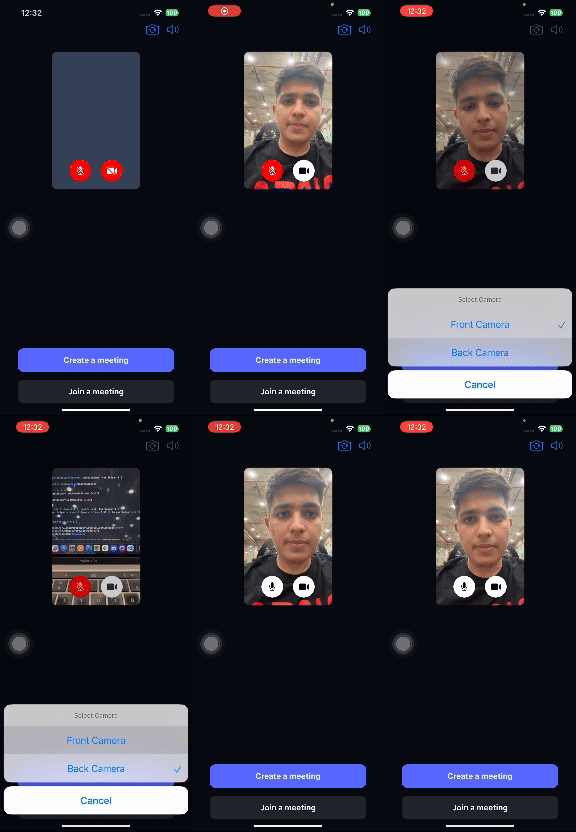
- Purpose: The Pre-Call Setup screen allows participants to configure their video and audio settings before joining or creating a meeting.
- Key Features:
- Camera Selection: Toggle between front and back cameras using an action sheet, and pass the selected camera orientation to the meeting.
- Microphone Selection: Choose a preferred microphone from the list of available devices using
VideoSDK.getAudioDevices()for audio input and output during the meeting.
- Purpose: Handles API requests to generate tokens, create meetings, and validate meeting details.
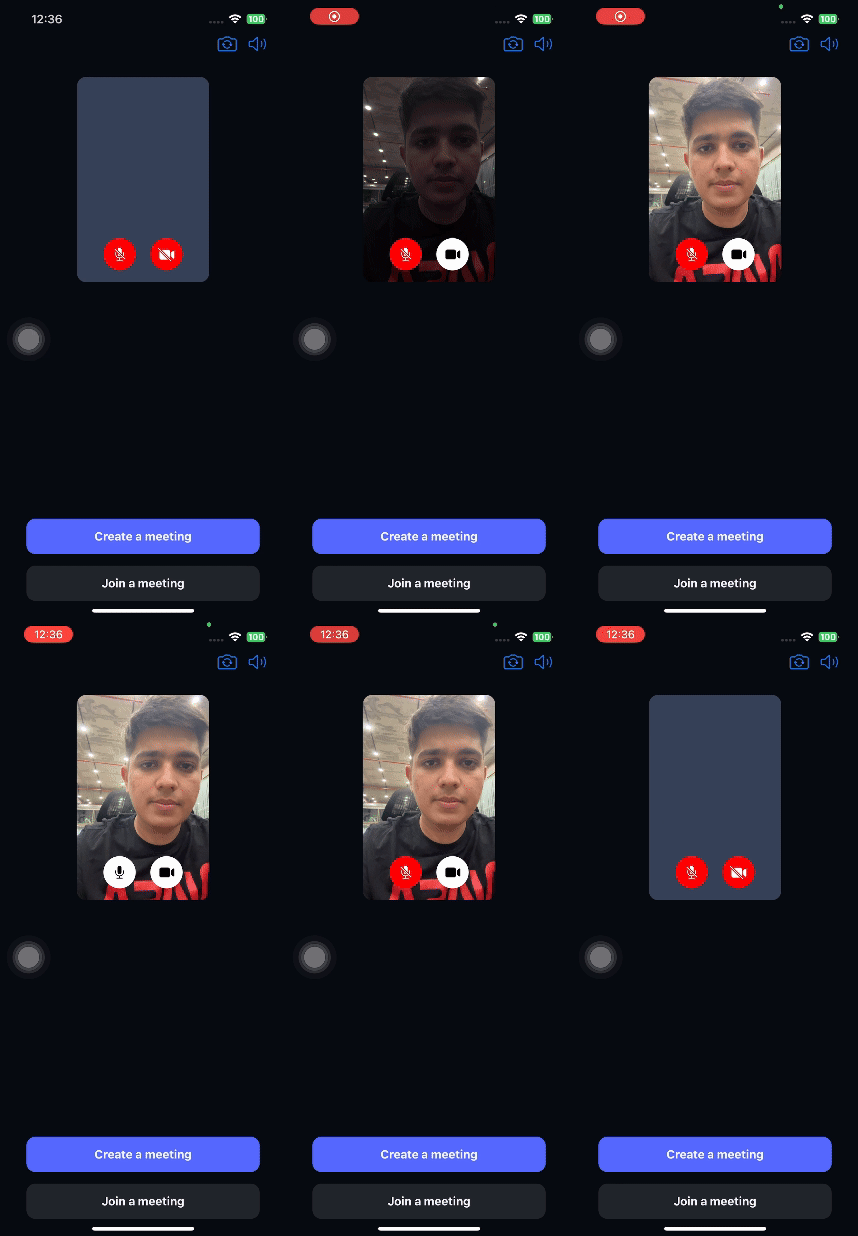
- Purpose: Manages the process of creating or joining a meeting, including setting up audio, video, and navigation.
- Key Features:
- Meeting Creation & Joining: Handles the logic for creating or joining a meeting and validates user input.
- Camera Setup: Initializes and manages the camera for video capture.
- Microphone Setup: Initializes and manages the microphone for audio capture.
- Notifications: Requests notification permissions for in-app alerts when the app is moved to the background.
- Navigation: Passes meeting data to
MeetingViewControllerwhen the "join" or "create" button is tapped.
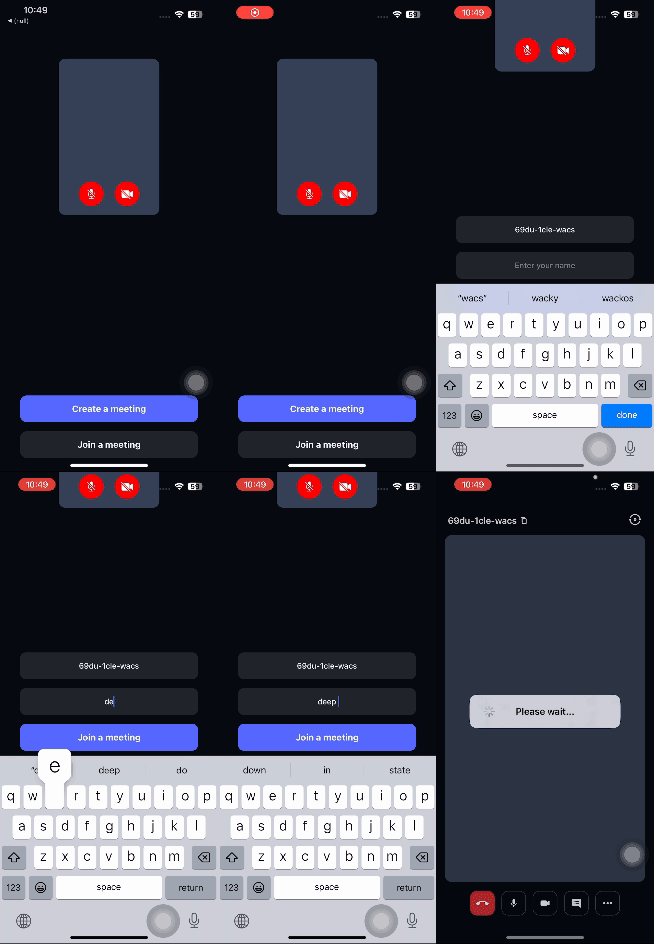
Purpose: Manages the meeting flow, including audio/video controls, screen sharing, participant management, and interactive features.
- Meeting Initialization: Initializes the meeting with
VideoSDK.initMeetingusing the meeting ID. - Stream Handling: Manages local and remote participant video streams and layout.
- Real-Time Chat: Allows participants to send and receive messages.
- Raise Hand: Lets participants raise their hands during the meeting.
- Microphone & Camera Controls: Toggles muting/unmuting and enabling/disabling video.
- Recording: Allows recording of the meeting, available in the developer dashboard.
- Interactive Live Streaming: Hosts can start/stop live streaming (HLS).
- Screen Sharing: Participants can share their screen during the meeting.
- Show Participant List: Displays a list of all active participants.
- Audio Output Switching: Switches audio output between devices (e.g., speaker, Bluetooth).
- MeetingEventLisetner: Listens for multiple types of events which can be listened to know the current state of the meeting.
- ParticipantEventListener: Listens for multiple types of events which can be listened to know the about the participants in the meeting.
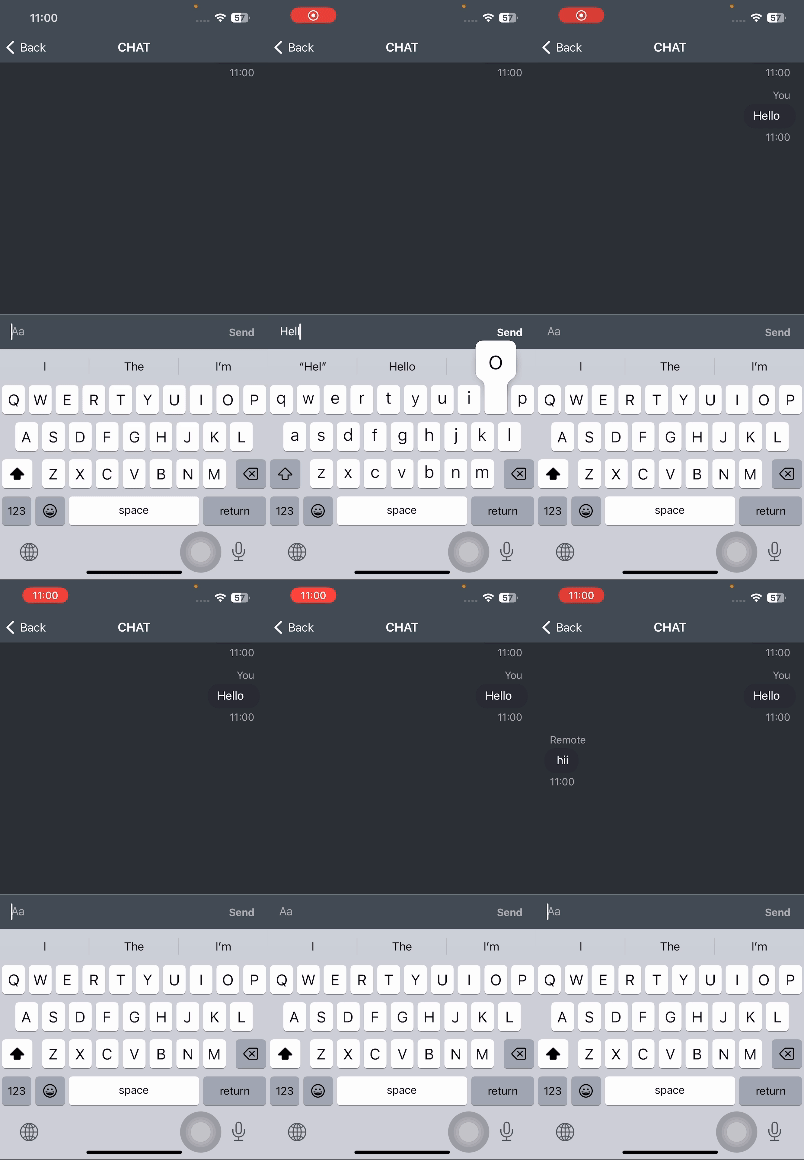
- Purpose: Manages the chat interface for the video meeting using the
MessageKitframework. - Key Features:
- Initialization: Sets up the meeting and chat topic, and loads initial messages.
- Message Handling: Handles adding new messages, reloading the chat, and scrolling to the latest message.
- UI Customization: Customizes the appearance of the navigation bar, message collection view, and input bar.
- Real-Time Messaging: Publishes messages in real-time using the meeting's pub/sub system.
ChatUser.swift: Represents a chat user with senderId and displayName conforming to SenderType.
Message.swift: Represents a chat message with sender, messageId, sentDate, and kind conforming to MessageType.
-
Purpose: Displays a dynamic list of participants in the meeting using a table view.
-
Key Features:
- Participant List Display: Displays participants in a table view and updates automatically when the participant list changes.
- Dynamic Updates: Automatically updates the participant list when participants join or leave the meeting.
- UI Customization: Features a modern design with rounded top corners for the main view.
-
Methods:
- notifyParticipants: Updates the participant list and reloads the table view when a participant joins or leaves.
- btnClose_Clicked: Dismisses the participant list view.
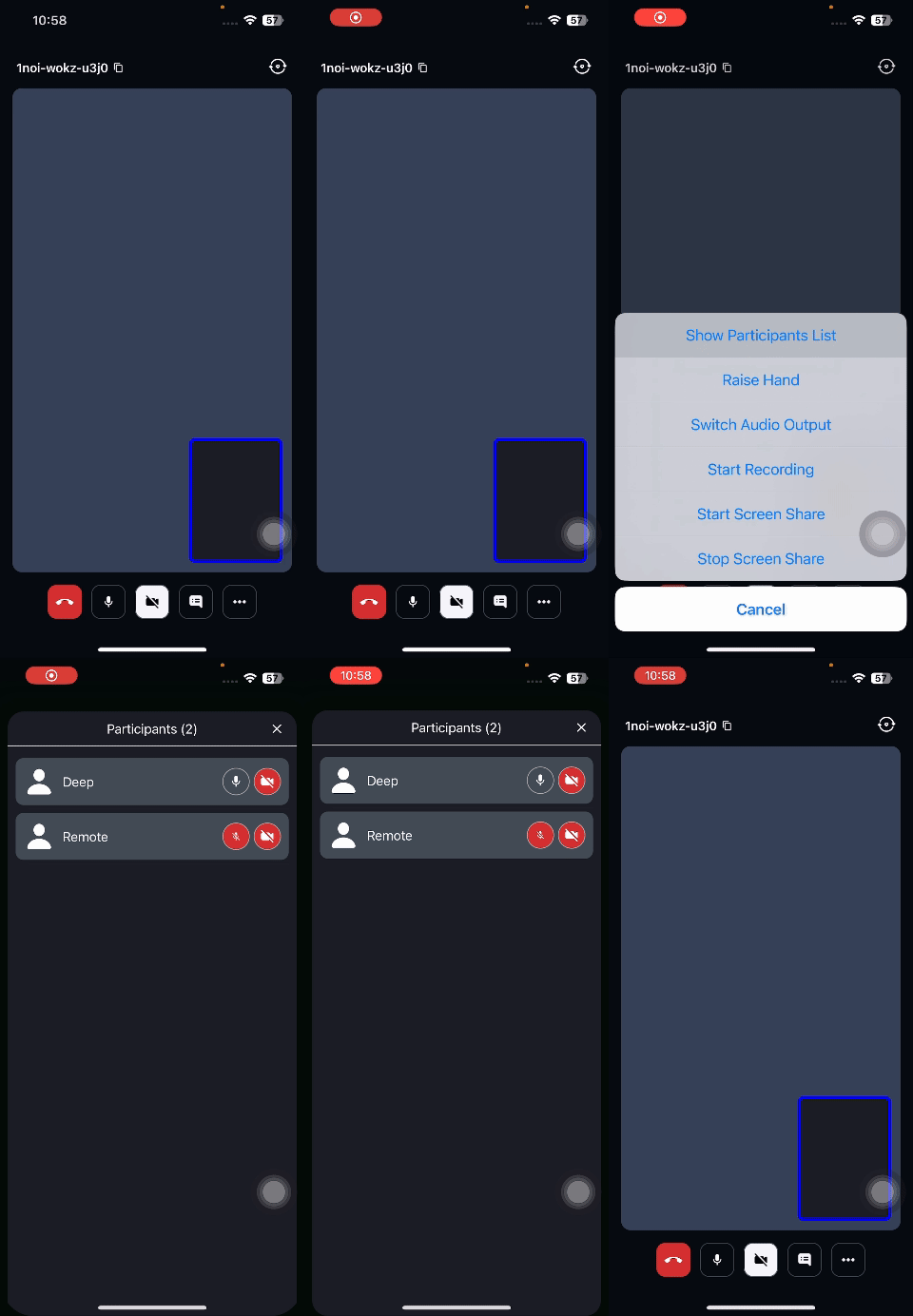
- This project handles one-on-one video call, providing features like microphone and camera control, screen sharing, and participant management. It supports real-time chat and meeting event listeners for tasks like recording and screen sharing.and handles permissions for audio, video, and screen sharing.
- v1-sample-code branch: Simple UI with Group call experience.
- videosdk-rtc-prebuilt-examples
- videosdk-rtc-javascript-sdk-example
- videosdk-rtc-react-sdk-examplee
- videosdk-rtc-react-native-sdk-example
- videosdk-rtc-flutter-sdk-example
- videosdk-rtc-android-java-sdk-example
- videosdk-rtc-android-kotlin-sdk-example
- videosdk-rtc-ios-sdk-example
- videosdk-hls-react-sdk-example
- videosdk-hls-react-native-sdk-example
- videosdk-hls-flutter-sdk-example
- videosdk-hls-android-java-example
- videosdk-hls-android-kotlin-example
Explore more and start building with our Documentation