En Debugging
To open the debug panel, you can either click on the green play button, or drag the panel from the left side of the screen. Both of these options are show below marked in red.
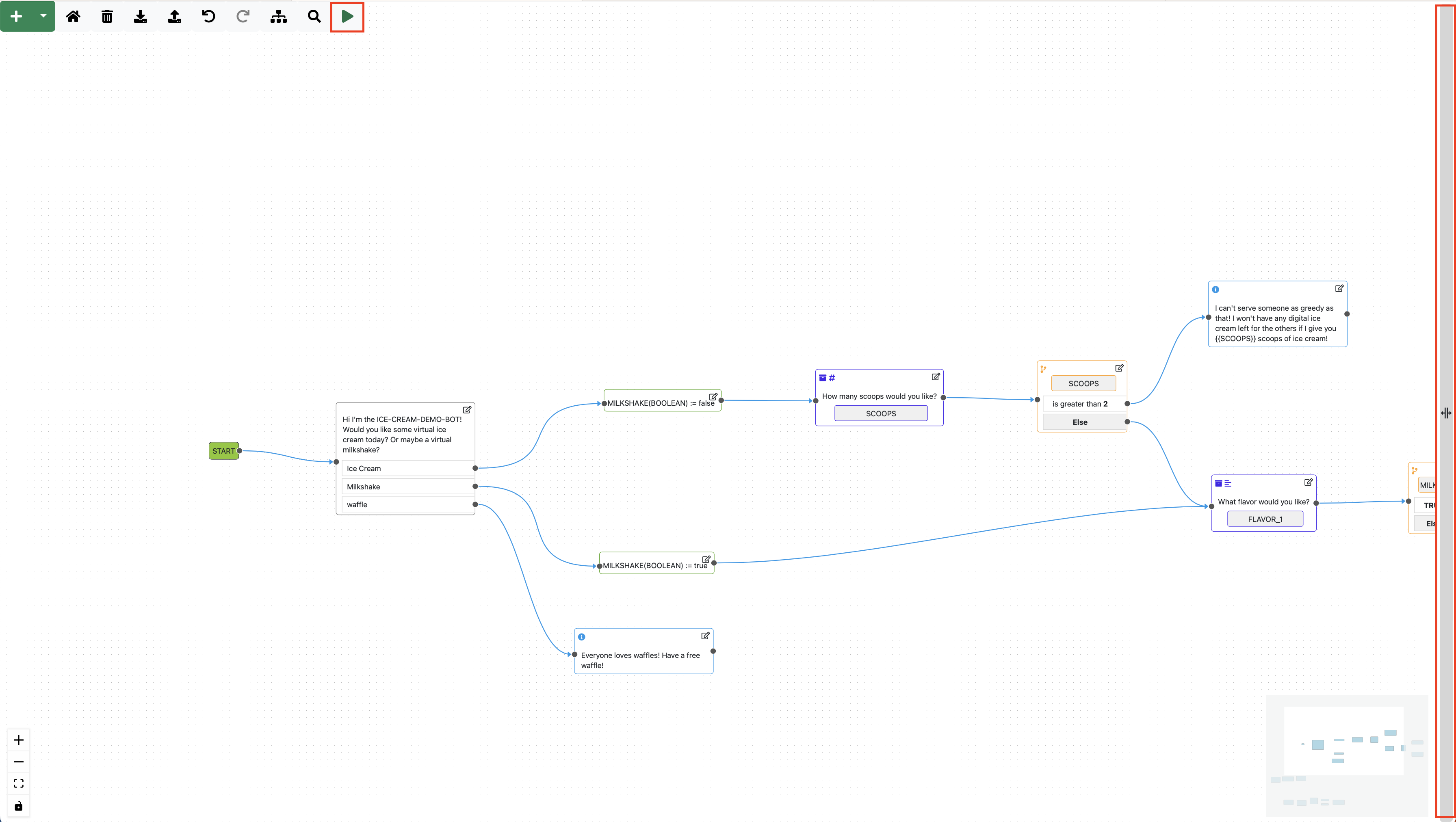
The largest part of the debug panel is taken up with the chat window. Here you can dynamically test your dialog system as you update the dialog tree. This can be useful to make sure that the user responses you define match inputs you expect to get or to double check that any logical conditions you've added are connected the way you intended.
After making changes, the dialog window automatically loads the updated graph and will and will utilise the new changes starting from the next node.
To help keep an overview of where you are in the graph, the view shown in the workspace will automatically zoom to the node currently being outputted. This way you can easily verify that what you defined on the right side (chat window) matches what you actually see on the left side (graph).
When clicking on the green play button, the debug panel will be opened and automatically restarted. However if you want to restart the dialog at any other time, you just need to click either the green play button in the menu bar again or the green "restart" button in the debug panel.
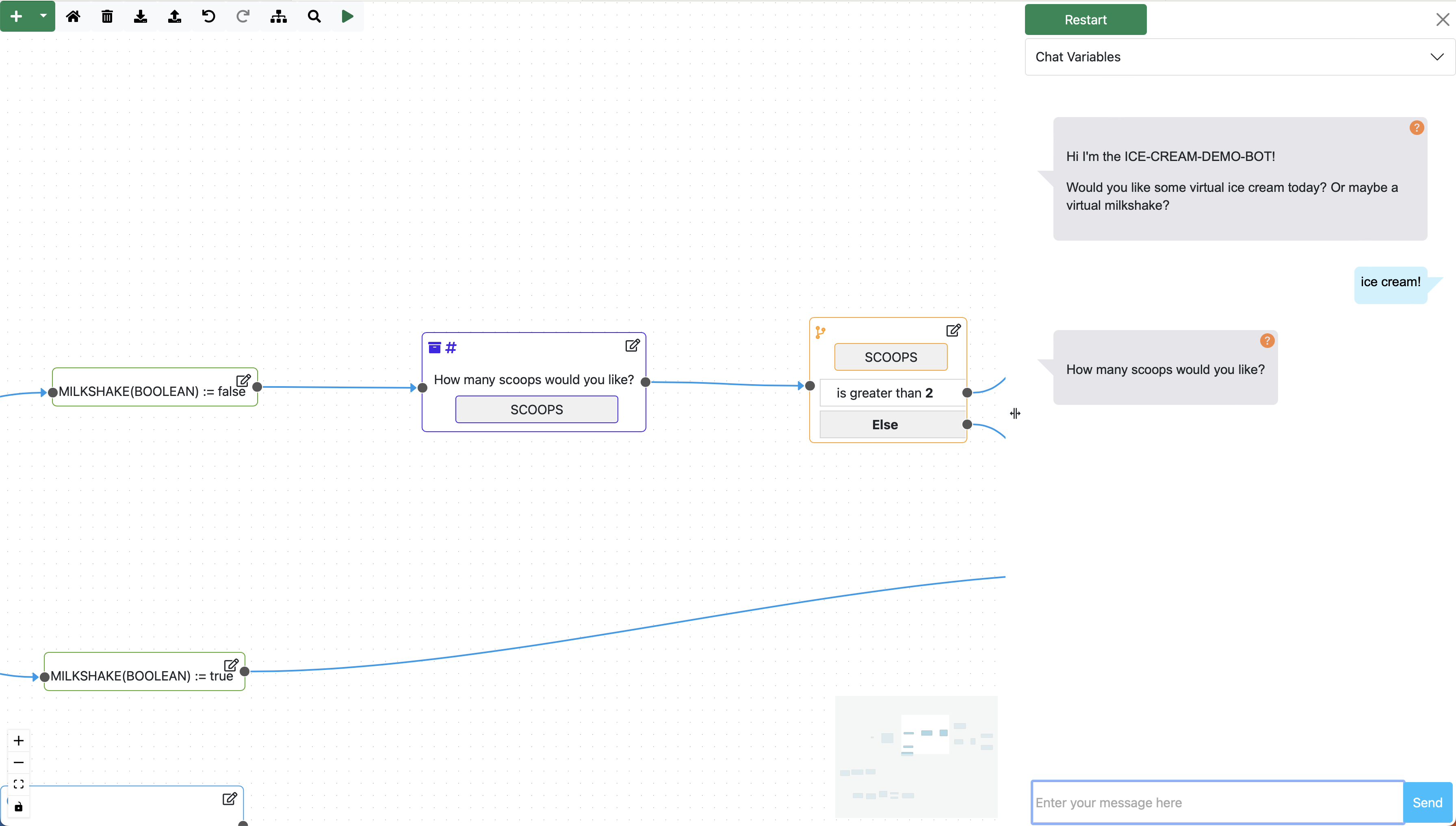
To double check that your logic is working correctly, you can also use the variable tracker. To see the what variables have been encountered so far in your dialog and what values are currently stored in them, you can click on the "chat variables" bar at the top of the debug menu (under the restart button). Doing so will open a table, like the one shown below.
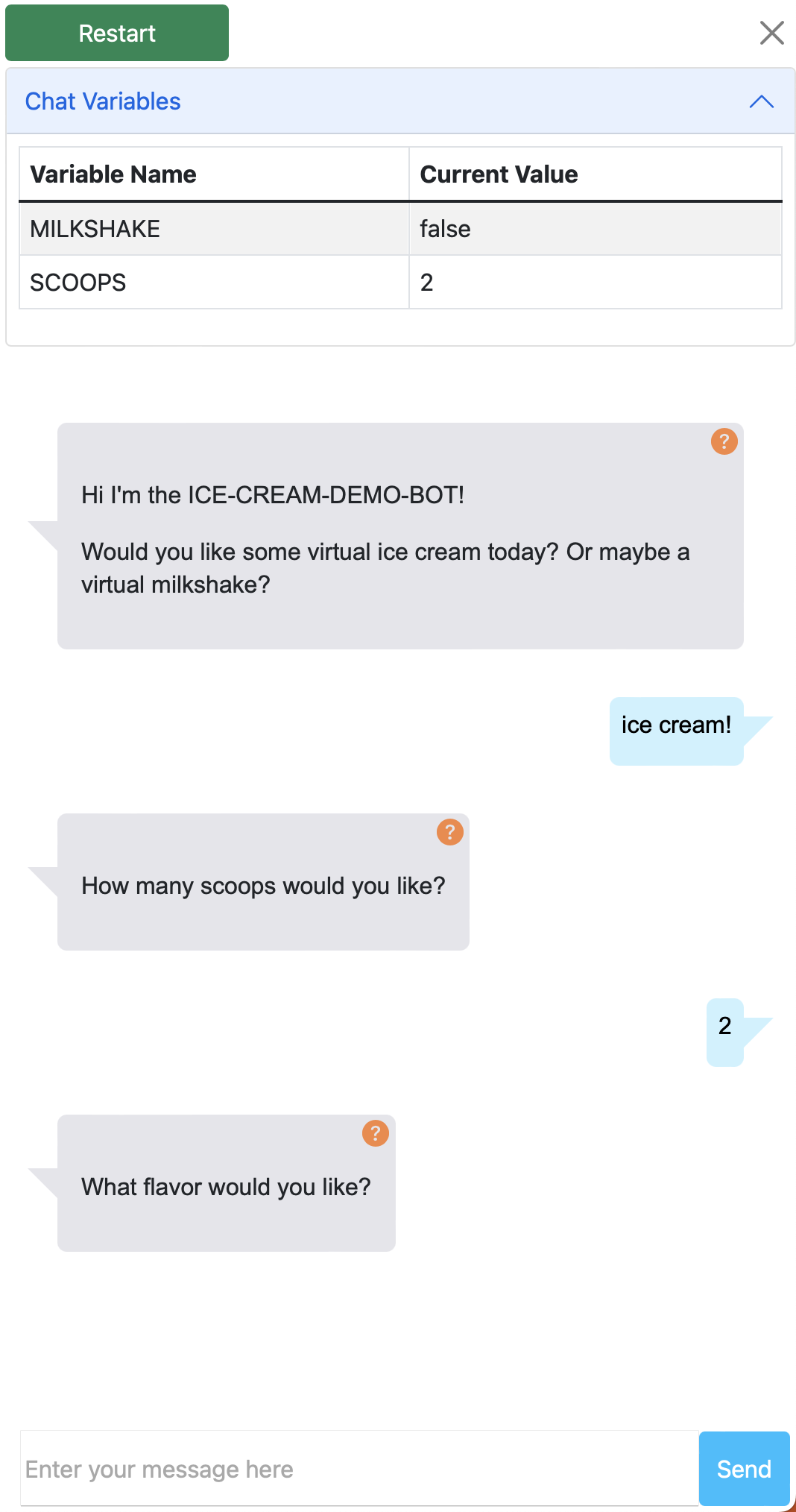
Knowing what variables the dialog system knows about (and their values) at a given time can be very useful if you are using logic nodes and experiencing unexpected behaviour. It is especially useful as it can help you discover if you forgot to define a variable in one branch of the dialog.