Badge Edition. Screen pages
Regardless of the screen page being selected, the Badge Edition does execute the same background tasks all the time.
It means that, when your primary traffic display is the XCSoar or LK8000 app running on a mobile device connected to the Badge by Bluetooth LE - it is safe to switch the Badge into 'UTC clock', 'Status' or 'Baro' screen mode and you will not loose anything this case.
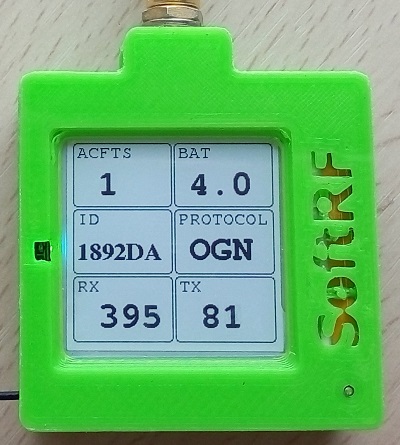
ACFTS - a number of aircrafts 'in sight'
BAT - battery voltage
ID - unique device ID of this Badge unit
PROTOCOL - current radio protocol in use
RX - radio packets received
TX - radio packets transmitted
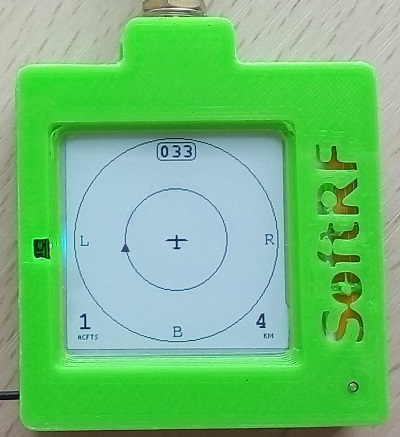
This illustration shows one traffic object located about 1 km left and it is higher than the Badge carrier aircraft.
Present GNSS CoG is 33 degrees relative to North.
Full scale of the radar screen is currently set to 4 km (2km left, 2 km right, 2 km ahead, 2 km behind).
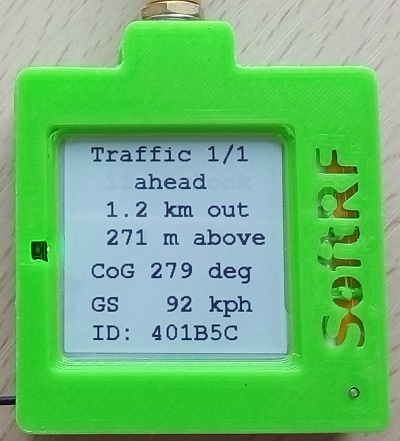
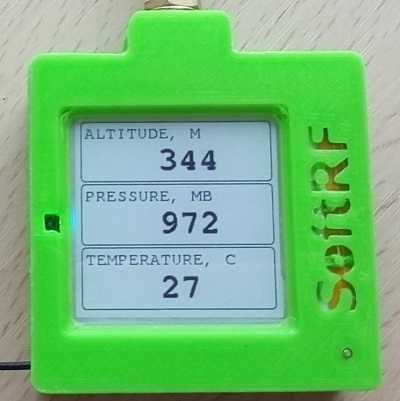
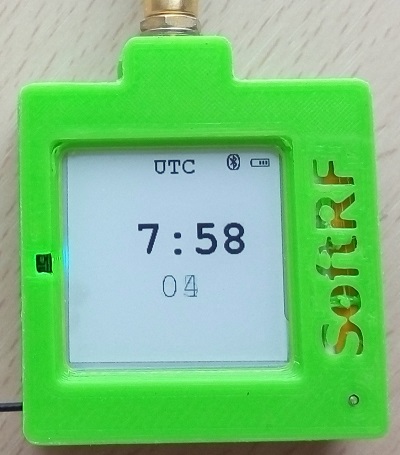
The Badge uses internal RTC component to operate the clock. The clock are powered by a separate battery and/or main 3.7V Li-Po battery.
Every time you power on the Badge - the device will try to sync the clock up with precise GNSS satellites time. So, if you see that the UTC time on the screen is not available or invalid - move your Badge into an area of good GPS/GLONASS reception, then wait for a first fix.
Small 'battery' icon in the right upper corner indicates battery charge level.
When the Badge has positive Bluetooth LE connection with a wireless client - the Bluetooth icon will show up near the battery one.
SoftRF
-
Standalone

- UAV
-
LoRa module
-
Concorde

-
Retro MkII
-
Prime MkIV
-
Prime MkIII

-
Badge
-
Card MkII
-
Card
-
Stylus
-
Airventure
-
Pocket
-
Nano
- Prime MkII
-
Dongle
- Ham
- Handheld
-
Solaris
-
Lyra
-
Labubu
- Eco
- Gizmo
- ES
- Octave
- Duo
- Uni
- Cozy
- Midi
- Mini
- Lego
- Balkan
-
Academy
- Raspberry
- Bracelet
- Retro
SkyView
Flight Recorder
Adapters
Firmware
Tools
Protocols