WebTop USB. Quick start
- Make sure that these DIP switches are configured to provide OTG function over USB 'Male' port ;
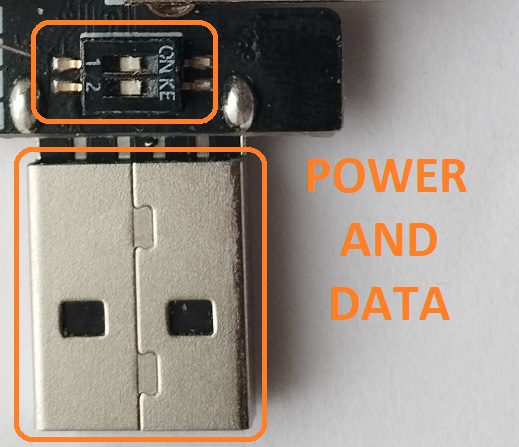
-
Download firmware binaries into your WebTop USB. Follow these instructions ;
-
Set position of the DIP switches as follows ;
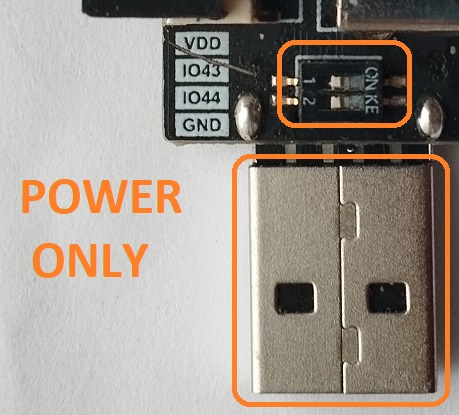
- Plug an appropriate SoftRF Edition device into USB 'Female' port, then connect the T-Dongle to a power source ;
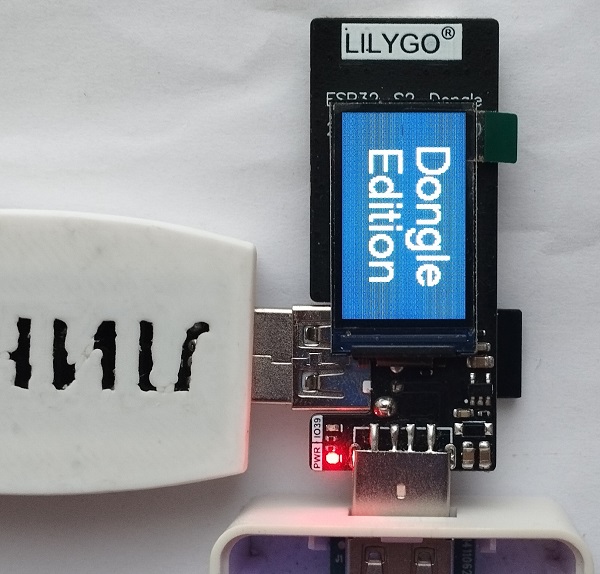
- Wait until completion of the boot sequence ;
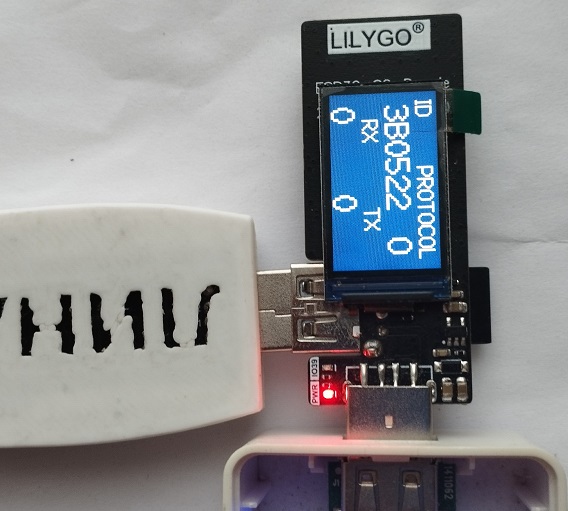
-
Move your WebTop USB into an area of good GPS/GLONASS reception ;
-
Connect your Tablet/Cellphone to SoftRF Wi-Fi Access Point.
SSID: SoftRF-XXXXXX
Key: 12345678 -
Open up a browser then proceed to this URL: http://192.168.1.1
-
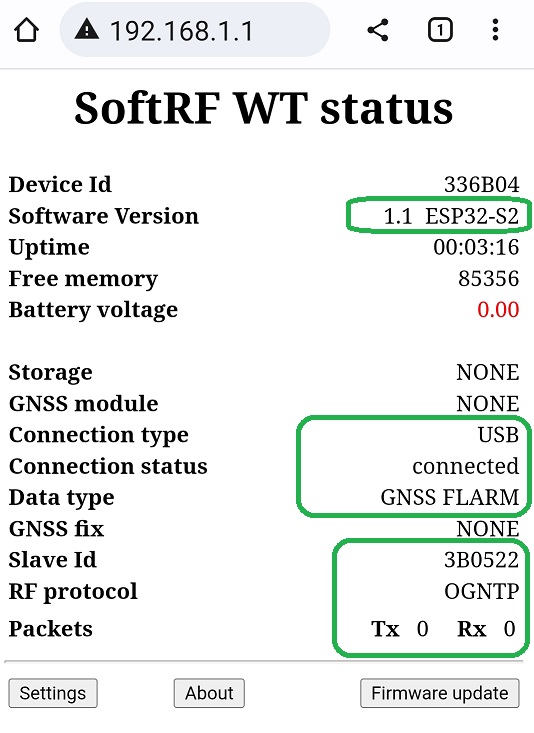
A page like this should come up:
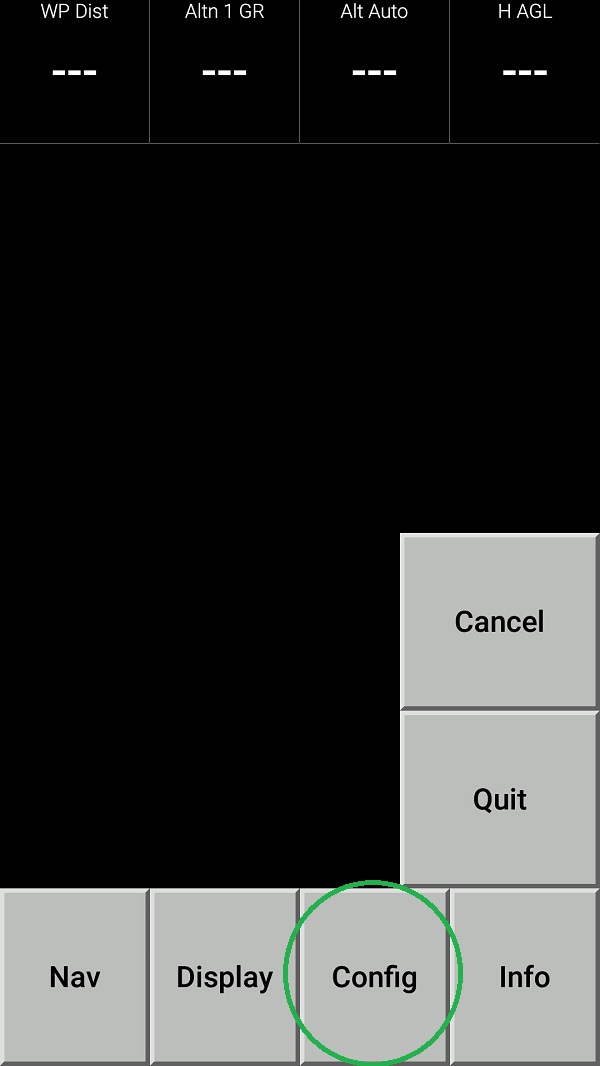
- Open up the XCSoar app in Fly mode. Double tap the screen then select Config:
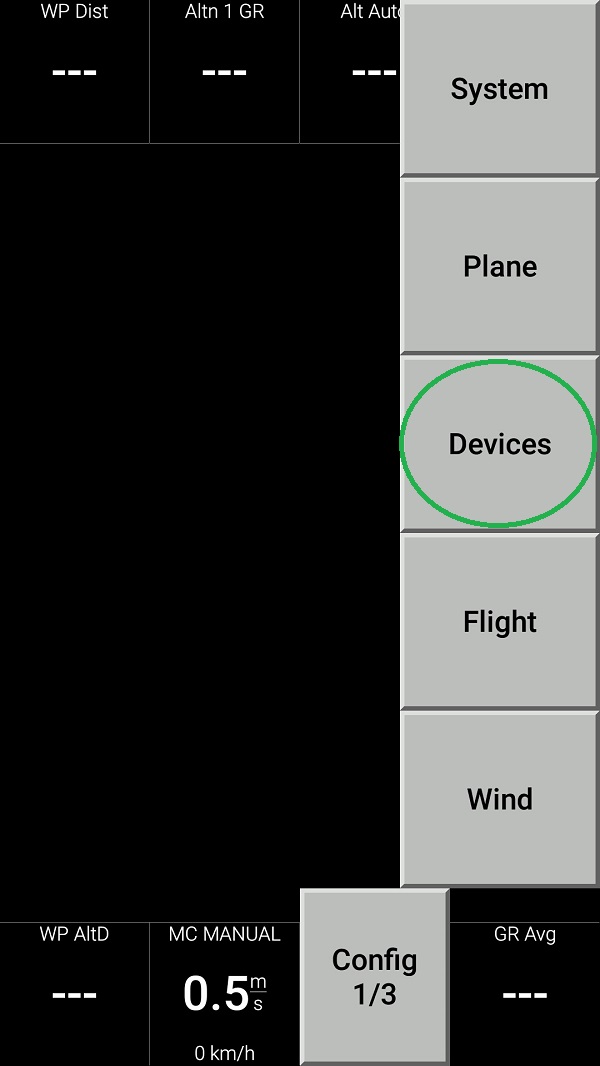
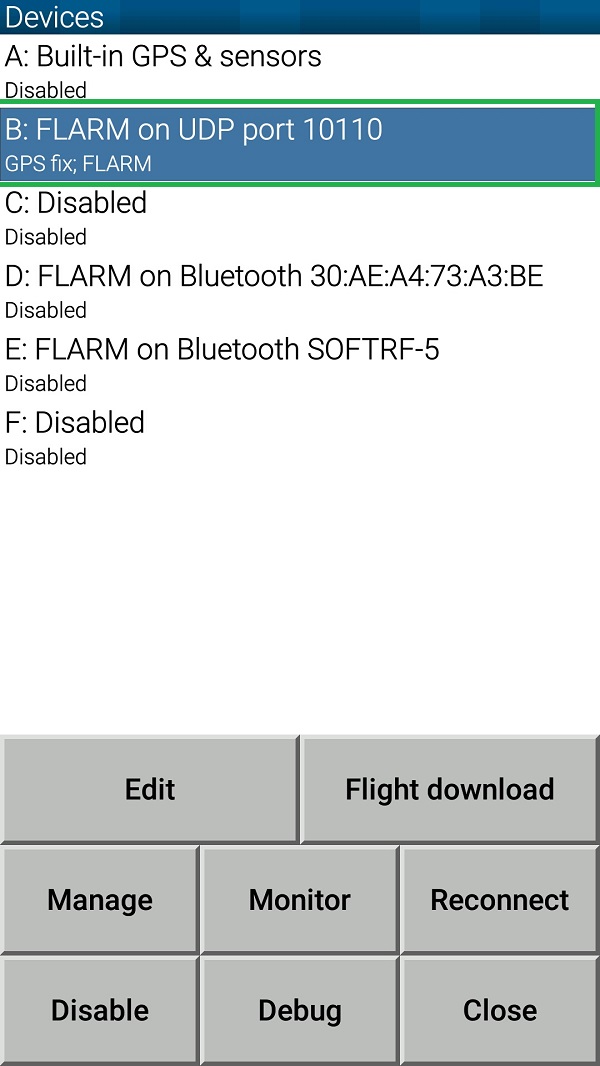
- Select Devices:
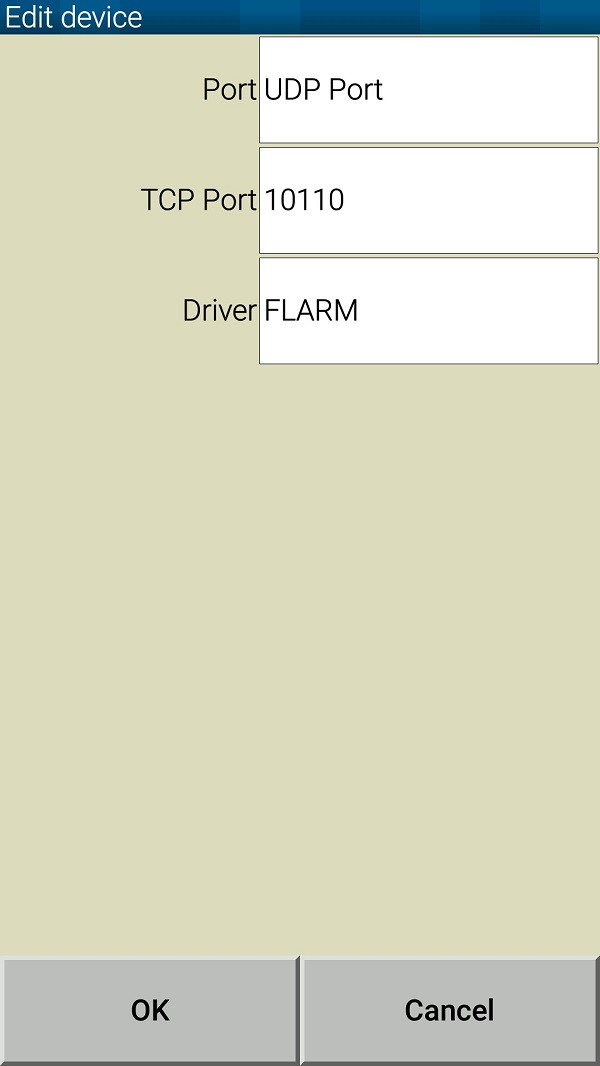
- Push Edit button then configure the device as follows:
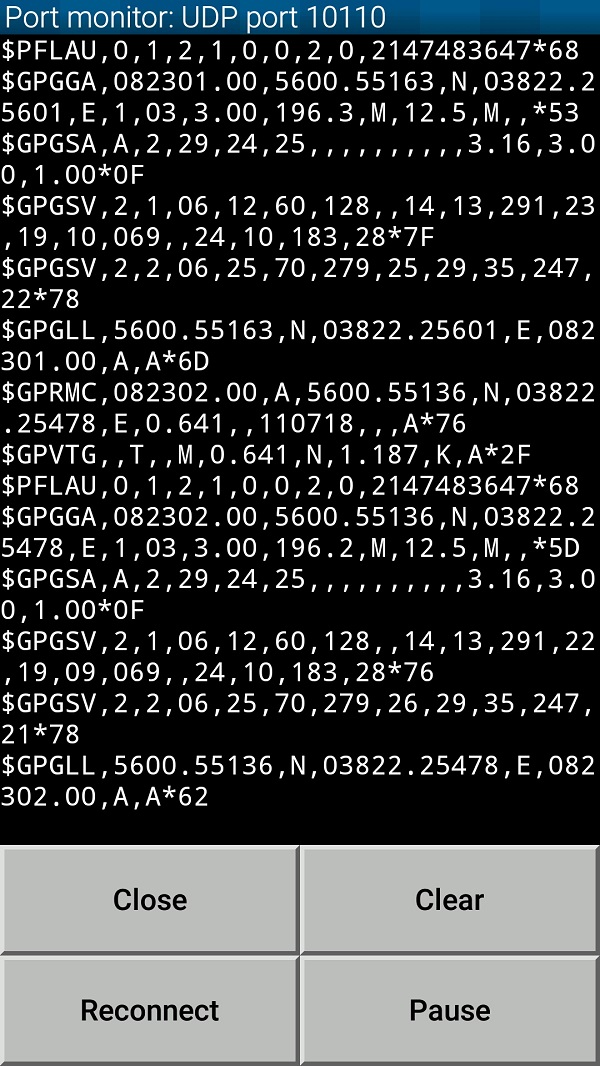
- Push Monitor button and see if your tablet/phone is receiving NMEA data from your Prime Edition Mark II:
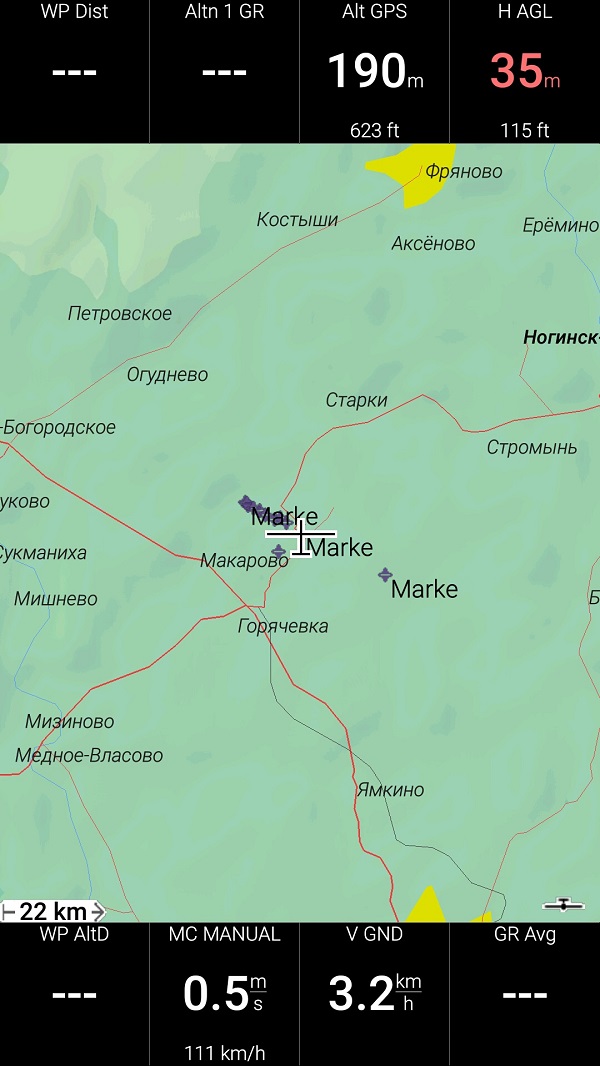
- Return all the way back to XCSoar main screen:
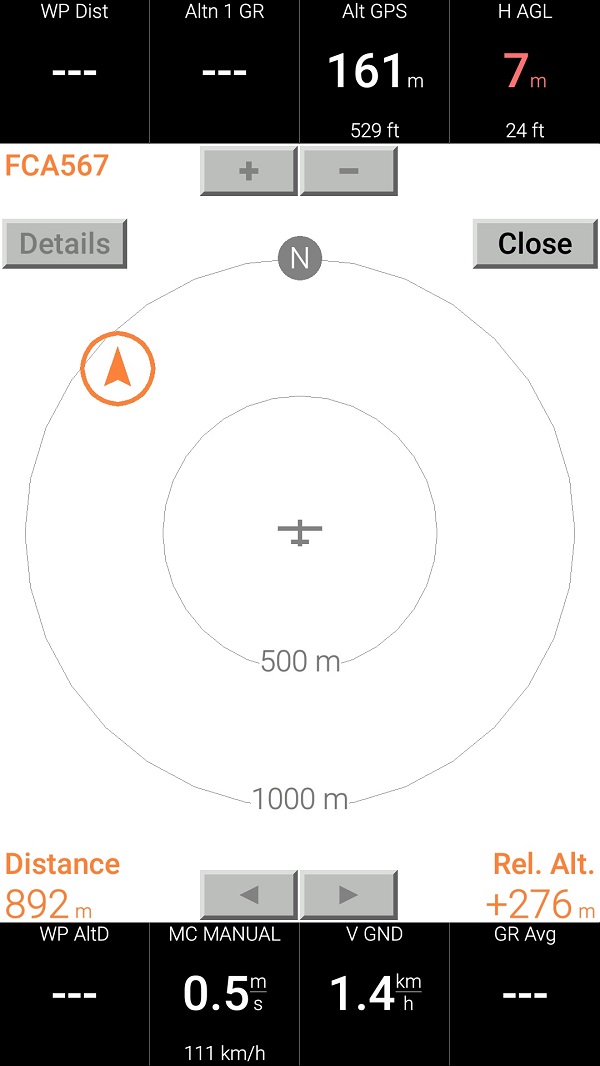
- Swipe three times to the left to reach Radar View. When any other traffic (OGN Tracker or another Prime MkII) is around - you should see it on this screen:
SoftRF
-
Standalone

- UAV
-
LoRa module
-
Concorde

-
Retro MkII
-
Prime MkIV
-
Prime MkIII

-
Badge
-
Card MkII
-
Card
-
Stylus
-
Airventure
-
Pocket
-
Nano
- Prime MkII
-
Dongle
- Ham
- Handheld
-
Solaris
-
Lyra
-
Labubu
- Eco
- Gizmo
- ES
- Octave
- Duo
- Uni
- Cozy
- Midi
- Mini
- Lego
- Balkan
-
Academy
- Raspberry
- Bracelet
- Retro
SkyView
Flight Recorder
Adapters
Firmware
Tools
Protocols