Mode_Grid
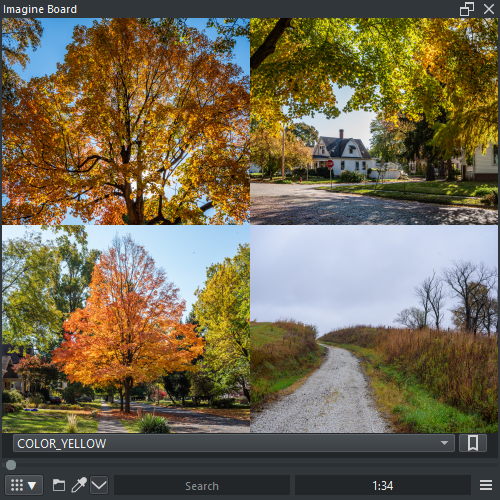
Grid displays images in a dynamic fashion in order to use the available space efficiently. Preview and Grid mode are connected.
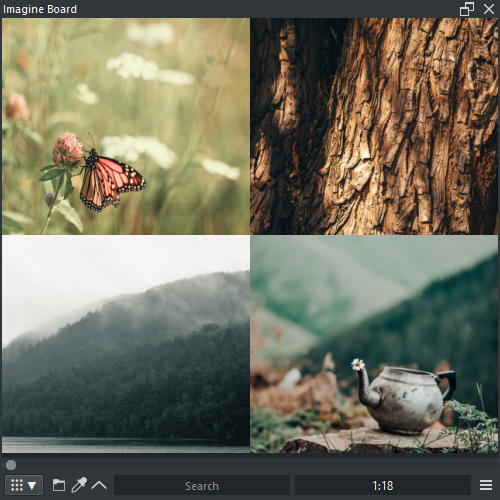
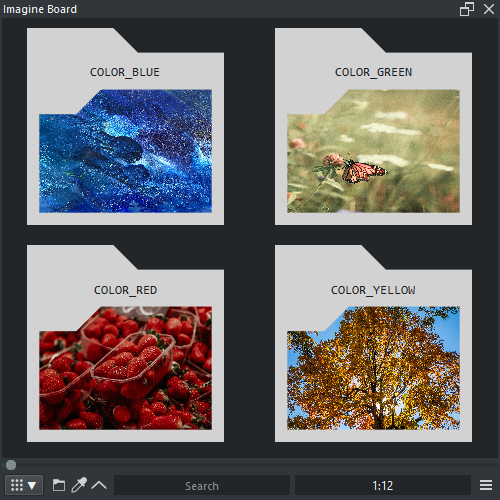
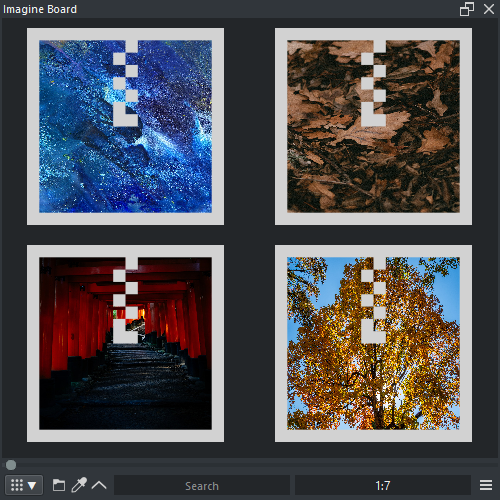
- LMB : Select Index
- [PICKER] LMB : Read pixel color values when Color picker is active
- LMB x2 : Change to Preview mode
- RMB : Context menu
-
Camera : Camera options
- Wheel : Grid line increment
- MMB + ( Drag Cell ) : Grid line increment
- SHIFT + LMB ( Drag Cell ) : Grid line increment
-
Selection : Selection options
- CTRL + LMB : Select image
- CTRL + RMB : Deselect image
- CTRL + LMB x2 : Select all images
- CTRL + RMB x2 : Deselect all images
-
Drag and Drop : Drag and Drop options
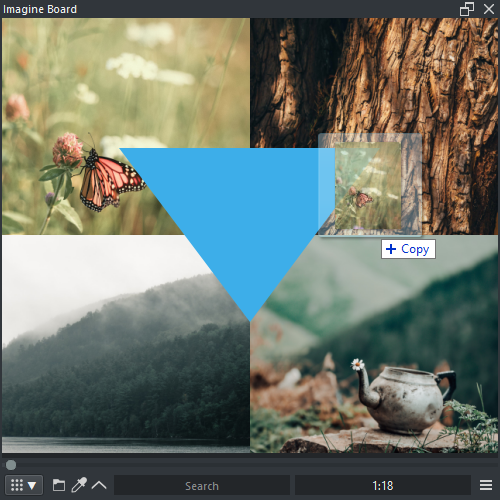
- ALT + LMB ( Drag ) : Drag and Drop image file out of the Panel into ( Krita, Keyenter, Reorder, Drive )
- Drop Image In : Open and display local files, or display internet images with Preview mode
-
Directory : Directory options
- ( DIR ) CTRL + LMB x2 : Open folder
- ( DIR ) SHIFT + CTRL + ALT + LMB x2 : Open parent folder
- Browse Minus / Plus : Grid line pagination increment
Right click on the panel context menu options.
- Pin Reference : Send image to Reference mode
-
Grid : Grid options
- Display Fit : Display thumbnail fully
- Precache List : Precache thumbnails to the allowed amount
-
Search : Search options ( searchable )
- [NULL] : Search folder for null images
- [ORIGINAL] [COPY] : Search folder for images that are duplicated
- Clear [TAGS] : Clear all images from their tags
-
Modify : Modify options ( warnning : files will be modified )
- Fix (to sRGB) : Fix images in the folder to display faster
- Pre-Multiply : Premultiply images in the folder
-
File : File options
- Open Location : Open the folder and highlights the url ( if possible )
- Copy Path : Copy to the clip board the url
- Copy Image : Copy to the clip board the image
- Color Analyse : Send the image to pigment.o picker to be analysed
-
Insert : Insert options
- Document : Insert image as a new document
- Layer : Insert image as a new layer
- Reference : Insert image as a new reference
- Full Screen : Maximizes Imagine Board to the screen
Bookmarks will use the control interface
- Bookmark List : Select the bookmark from the list
-
Bookmark Button : Bookmark options
- LMB ( Click ) : Go to the current bookmark in the list
-
LMB ( Press ) : Bookmark menu
- Save : Save folder as a bookmark
- Delete : Delete bookmark from the list
Grid mode options.


-
Folder : Folder options or stop cycle
- LMB ( Click ) : Open file explorer dialog to select folder
- LMB ( Press ) : Open menu to change into a nearby folder
- Color Picker : Toggle neutral clicking as color picker
- Context Menu : Toggle grid control interface