Mode_Preview
Preview is the default display method. This mode aims to display images with the best possible resolution for the available space. Preview and Grid mode are connected.
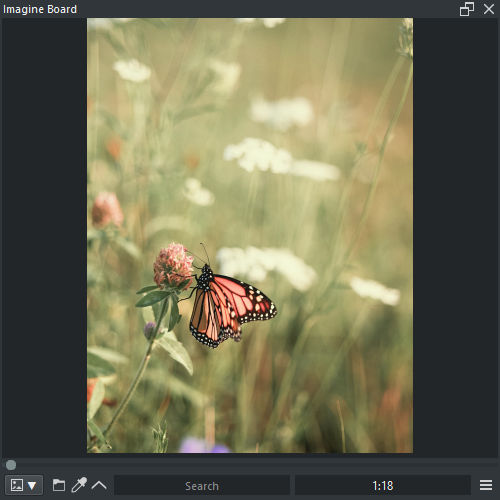


- LMB : Neutral click
- [PICKER] LMB : Read pixel color values when Color picker is active
- LMB ( Drag ) : Click on the infomation box area, and drag up to open, or drag down to close
- LMB x2 : Change to Grid mode
- RMB : Context menu
-
Camera : Camera options
- CTRL + LMB : Camera Reset
- MMB ( Drag ) : Camera Pan
- SHIFT + LMB ( Drag ) : Camera Pan
- SHIFT + RMB ( Drag Vertical ) : Camera Zoom
- SHIFT + RMB ( Drag Horizontal ) : Camera Rotate
-
Pagination : Pagination options
- Wheel : File index increment
- CTRL + LMB ( Drag ) : File index increment
-
Drag and Drop : Drag and Drop options
- ALT + LMB ( Drag ) : Drag and Drop image file out of the Panel into ( Krita, Keyenter, Reorder, Drive )
- Drop Image In : Open and display local files, or display internet images
-
Directory : Directory options
- ( DIR ) CTRL + LMB x2 : Open folder
- ( DIR ) SHIFT + CTRL + ALT + LMB x2 : Open parent folder
- Browse Minus / Plus : File pagination increment
- Frame Minus / Plus : File frame pagination increment ( ANIM / COMP )
Right click on the panel context menu options.
- Pin Reference [CLIP] : Send image to Reference mode
-
Preview : Preview options
- Original Size : Display image in the original resolution
- Random Index : Select a random image index
-
Slide Show : Toggle Slide Show
- [PLAY] : Play the slideshow
- [STOP] : Stop the slideshow
-
Overlay : Overlay options
- Clip : Clip rectangle to crop images quickly ( resets with pagination )
- Grid Lines : Grid lines over the image
- Alpha Color[#HEX6] : Background color overlay for the alpha channel
- Information : Information tab over the image
-
File : File options
- Open Location : Open the folder and highlights the url ( if possible )
- Copy Path : Copy to the clip board the url
- Copy Image : Copy to the clip board the image
- Color Analyse [CLIP] : Send the image to pigment.o picker to be analysed
-
Animation : Animation options
- Export One : Export the active frame
- Export All : Export all frames
-
Compressed : Compressed options
- Export One : Export the active frame
- Export All : Export all frames
-
Edit : Edit options
- View Grayscale : Toggle display Grayscale
- Flip Horizontal : Toggle display fliped horizontal
- Flip Vertical : Toggle display fliped vertical
- Reset : Reset all edit options
-
Insert : Insert options
- Document [CLIP] : Insert image as a new document
- Layer [CLIP] : Insert image as a new layer
- Reference [CLIP] : Insert image as a new reference
- Full Screen : Maximizes Imagine Board to the screen
Animation and Compressed files will use the control interface for its contents


- Frame Slider : Select frame with a slider
- Frame Back : Increment one frame backwards
- Play / Pause : Play and Pause animation cycles
- Frame Forward : Increment one frame forwards
Preview mode options.


-
Folder : Folder options or stop cycle
- LMB ( Click ) : Open file explorer dialog to select folder
- LMB ( Press ) : Open menu to change into a nearby folder
- Color Picker : Toggle neutral clicking as color picker
- Context Menu : Toggle preview control interface