Mode_Reference
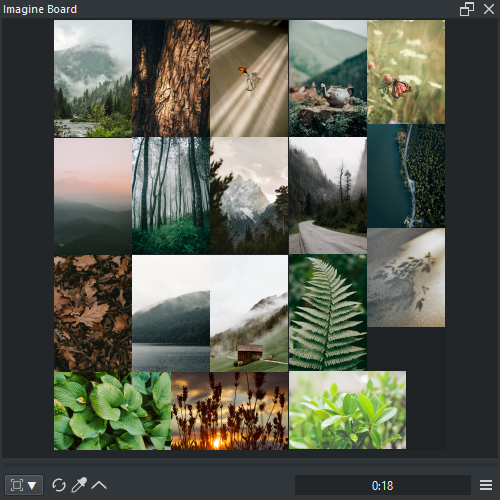
Reference creates from boards from various sources unlike Preview and Grid that read from a single source. For this reason the boards can act as an independant list of favorites from various folders and even from the internet to compose a mood board. Due to its nature these boards can help organize ideas and can also be archived for future reference even without the original sources being acessible anymore.
- [PICKER] LMB : Read pixel color values when Color picker is active
- RMB : Context Menu
-
Pin : Pin options
- [PIN] LMB : Activate pin
-
[PIN] LMB ( Drag ) : Move pin
- [PIN] LMB ( Drag ) > SHIFT/CTRL/ALT/SHIFT+CTRL : Move pin with snapping
- [PIN] SHIFT + CTRL + LMB ( Drag ) : Move pin with snapping
- [PIN] LMB x2 : Pin full preview toggle
- [PIN] CTRL + SHIFT + ALT + LMB : Pin full preview toggle
- [PIN] CTRL + LMB : Pin Select/Deselect
-
Pin Transform : Transform options ( Image and Text Pins behave different )
- [PIN][NODE] CTRL + SHIFT + LMB ( Drag Perpendicular ) : Pin Scale ( snaps with cursor over node )
- [PIN][CENTER] CTRL + SHIFT + LMB ( Drag Horizontal ) : Pin Rotate ( snaps to 5 angles always )
-
Camera : Camera options
- MMB ( Drag ) : Camera Pan
- Wheel : Camera Zoom
- SHIFT + LMB ( Drag ) : Camera Pan
- SHIFT + RMB ( Drag Vertical ) : Camera Zoom
-
Selection : Selection options
- [BOARD] LMB ( Drag ) : Box Select
- CTRL + LMB ( Drag ) : Box Select
- CTRL + RMB ( Drag ) : Box Deselect
- CTRL + LMB x2 : Select all pins
- CTRL + RMB x2 : Deselect all pins
-
Drag and Drop : Drag and Drop options
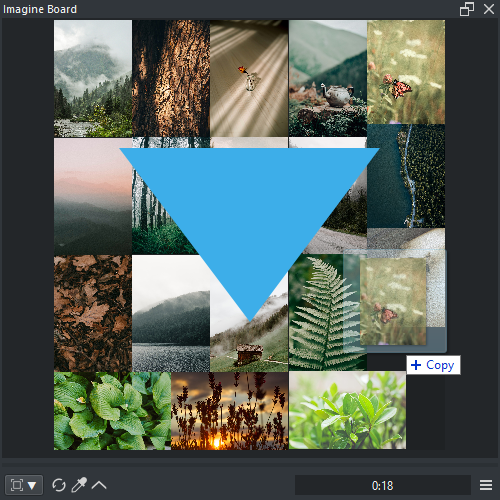
- ALT + LMB ( Drag ) : Drag and Drop image file out of the Panel into ( Krita, Keyenter, Reorder, Drive )
- Drop Image In : Drop image into the board
Right click on the panel context menu options.
- Locked : Lock board from miss click edits
-
Reference : Reference options
- Link : Input image URL to insert Pin
- Label : Create a text label
-
Board : Board options
- Fit : Fits all pins to the available space
- Refresh : Refresh the display of all Pins
-
Pin : Pin options
-
Pack[NUM] : Pack selected pins
- Linear Grid : Grid of images ( faster )
- Linear Row : Row of images
- Linear Column : Column of images
- Linear Pile : Pile images
- Optimal Area : Optimal packing with Area sort
- Optimal Perimeter : Optimal packing with Perimeter sort
- Optimal Ratio : Optimal packing with Ratio sort
- Optimal Class : Optimal packing with Class sort
-
Reset : Reset options
- Rotation : Reset pin rotation
- Scale : Reset pin scale
-
File : File options
- Open Location : Open the folder and highlights the url ( if possible )
- Copy Path : Copy to the clip board the url
- Copy Image : Copy to the clip board the image
- Color Analyse [CLIP] : Send the image to pigment.o picker to be analysed
-
Edit : Edit options
- View Grayscale : Toggle display Grayscale
- Flip Horizontal : Toggle display fliped horizontal
- Flip Vertical : Toggle display fliped vertical
- Reset : Reset all edit options
-
Insert : Insert options
- Document : Insert image as a new document
- Layer : Insert image as a new layer
- Reference : Insert image as a new reference
- Download : Download pin to destination
- Rebase : Relocate pin source
- Delete : Delete pins
-
Pack[NUM] : Pack selected pins
- Full Screen : Maximizes Imagine Board to the screen
Labels will use the control interface for its contents ( select label to apply changes )

- Text : Text to display
- Font : Text font
- Size : Text size
- Color Text : Picker for the text color
- Color Bg : Picker for the background color
Reference mode options.


-
Link : Link options
- LMB ( Click ) : Stop operation ( Packing )
-
LMB ( Press ) : Open link menu
- EO : Display the EO board file
- KRA : Display the KRA board file ( when a KRA board is present will change the icon )
-
Options [EO] : Link options menu when EO is selected
- New : Create a new EO file
- Open : Open a EO file
- Save : Save manually a EO file
- Copy : Make a copy of the board into a new filename
- Archive : Archive EO board with images inside ( bigger EO file size )
-
Options [KRA] : Link options menu when KRA is selected
- Read : Read the board inside the KRA file
- Write : Write the board in to the KRA file
- Archive : Archive the board into the KRA file ( bigger KRA file size )
- Unarchive : Unarchive the board inside the KRA file ( smaller KRA file size )
- Color Picker : Toggle neutral clicking as color picker
- Context Menu : Toggle reference control interface