2. User Guide
Email Validator for Pardot is a Marketing App Extension which uses External Actions to check the emails addresses of your Prospects and External Activities to log the results (by default, "Pass" or "Warn", depending if the email is considered as legit or a potential spam/low reputation address).
Email Validator is visible as an Action within your Engagement Programs in Pardot. The only input you need to provide to the Action, is the Business Unit ID of your Pardot.
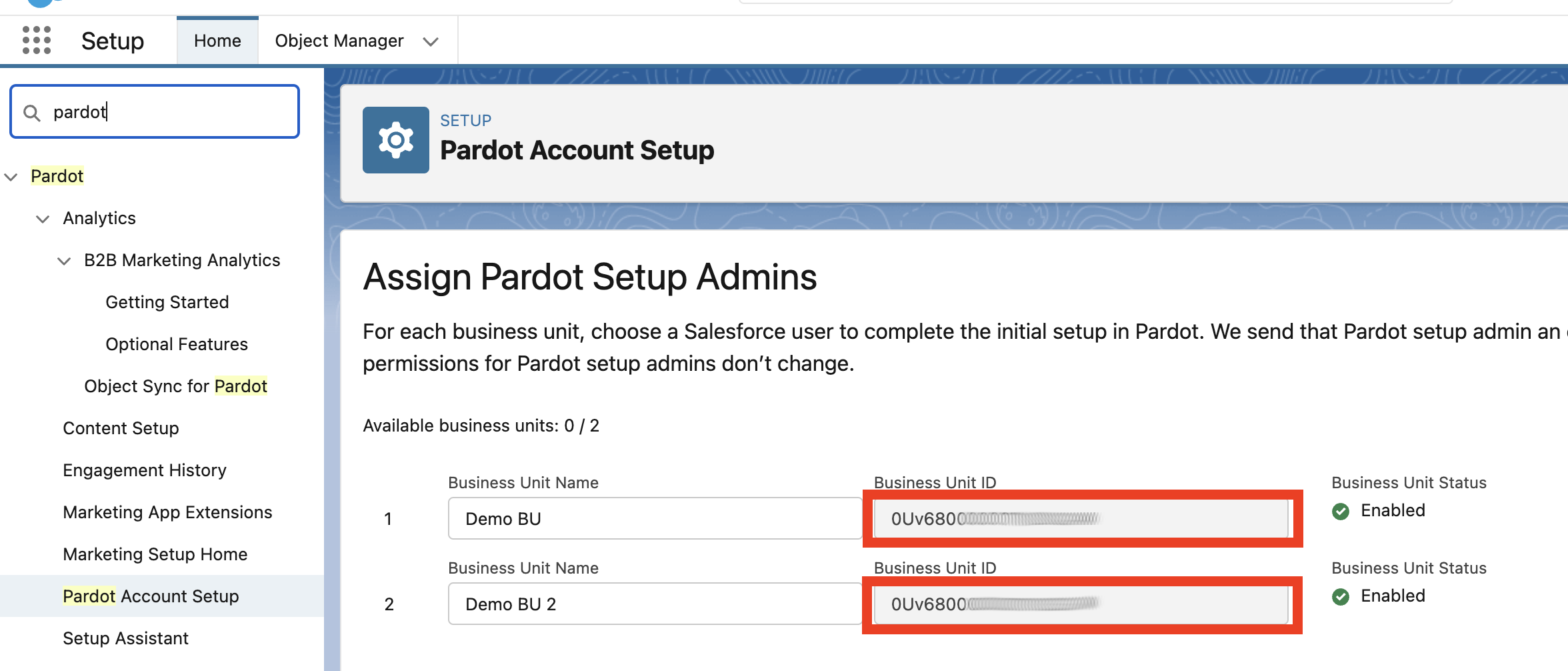
To obtain the Business Unit ID, go to Setup > Pardot Account Setup and copy the Business Unit ID of the Business Unit you want to use:
Now you're ready to use Email Validator:
- Create a new Engagement Program (or edit an existing one) and select a relevant Recipient List (defining which prospects will be checked)
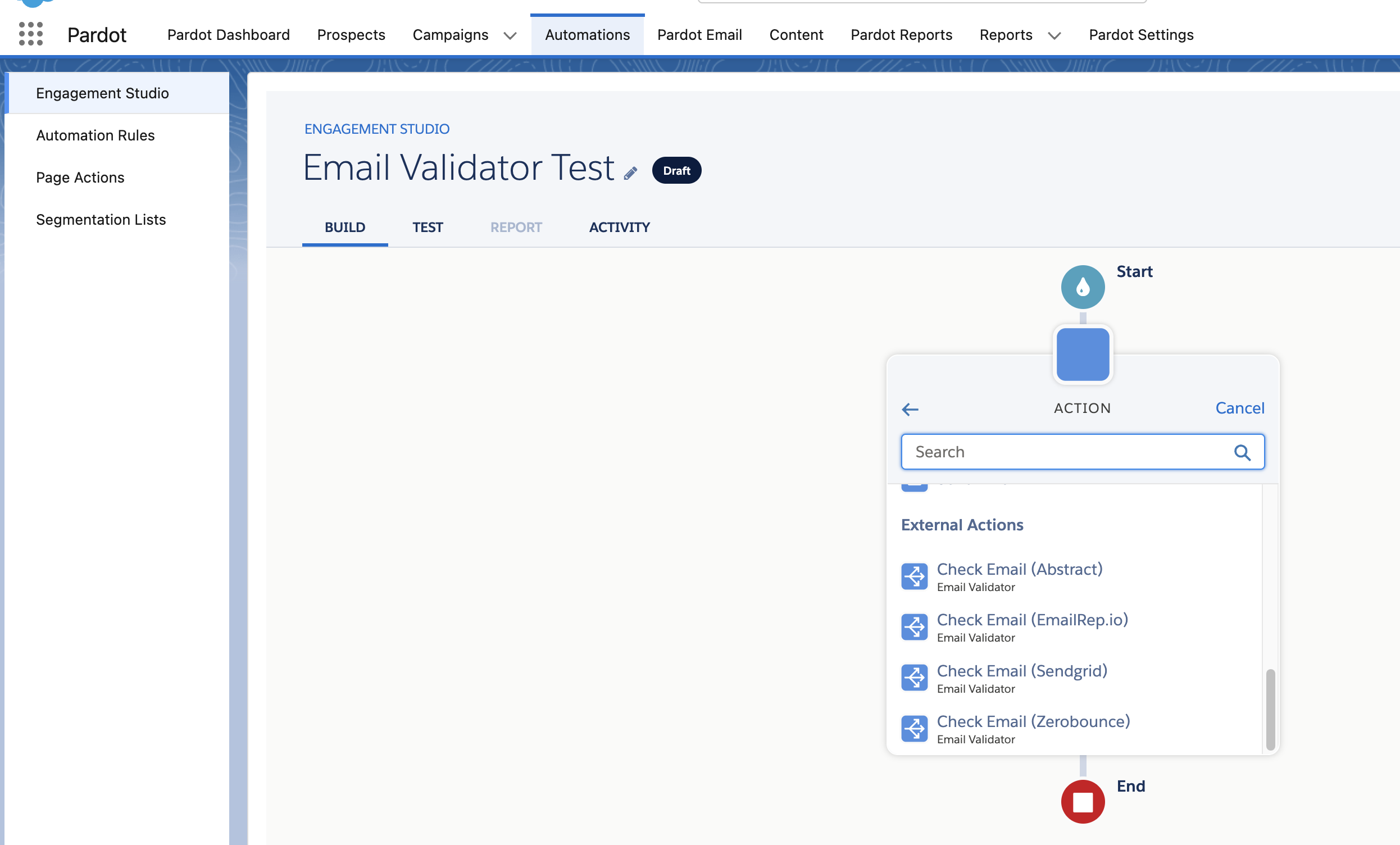
- Add an Action element, scroll down to External Actions. You should see all services Activated during setup (if you don't see them, make sure that your Salesforce connector is configured and not paused):
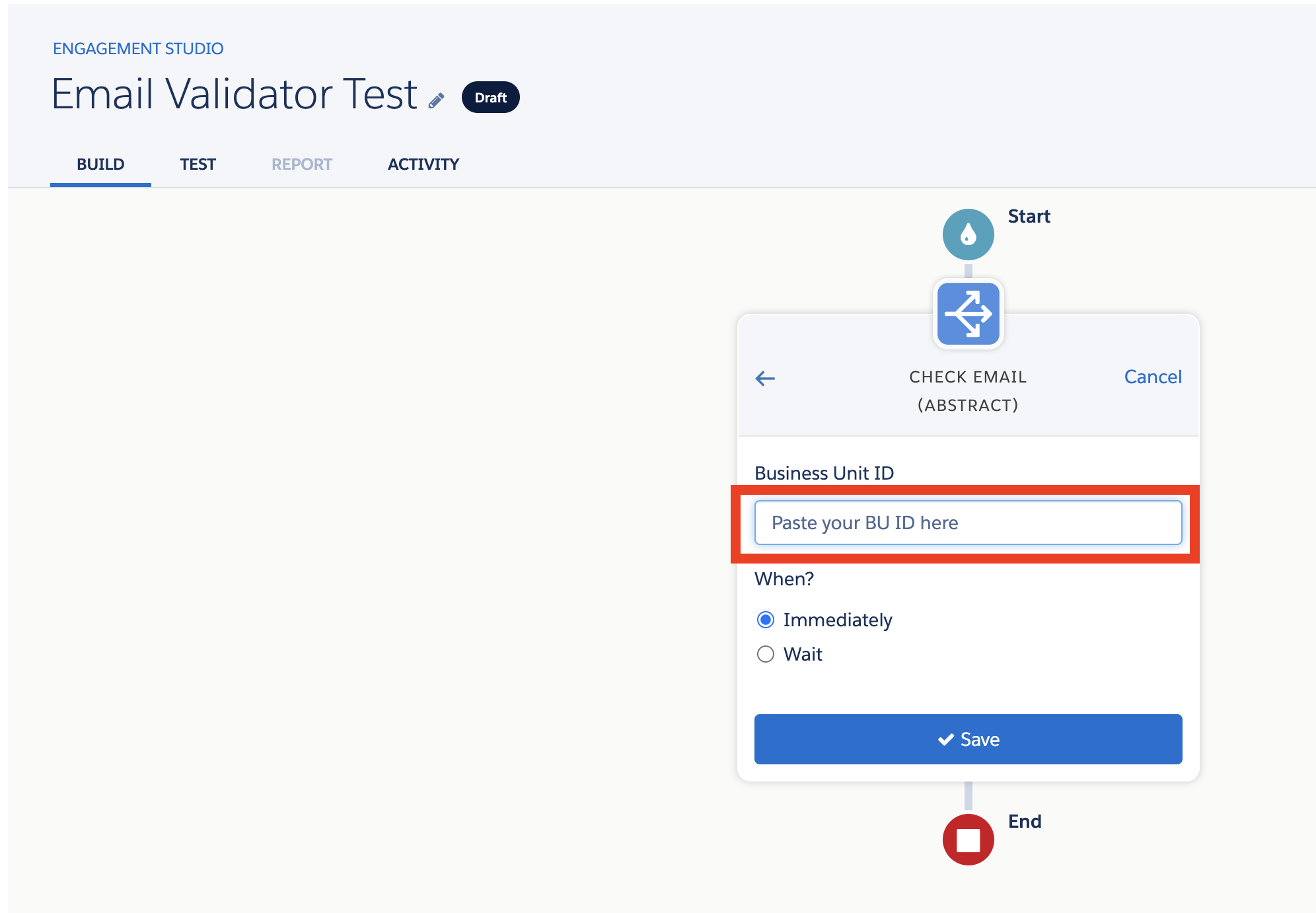
- Select the "Check Email" action of your chosen service, paste the Business Unit ID and click "Save"
-
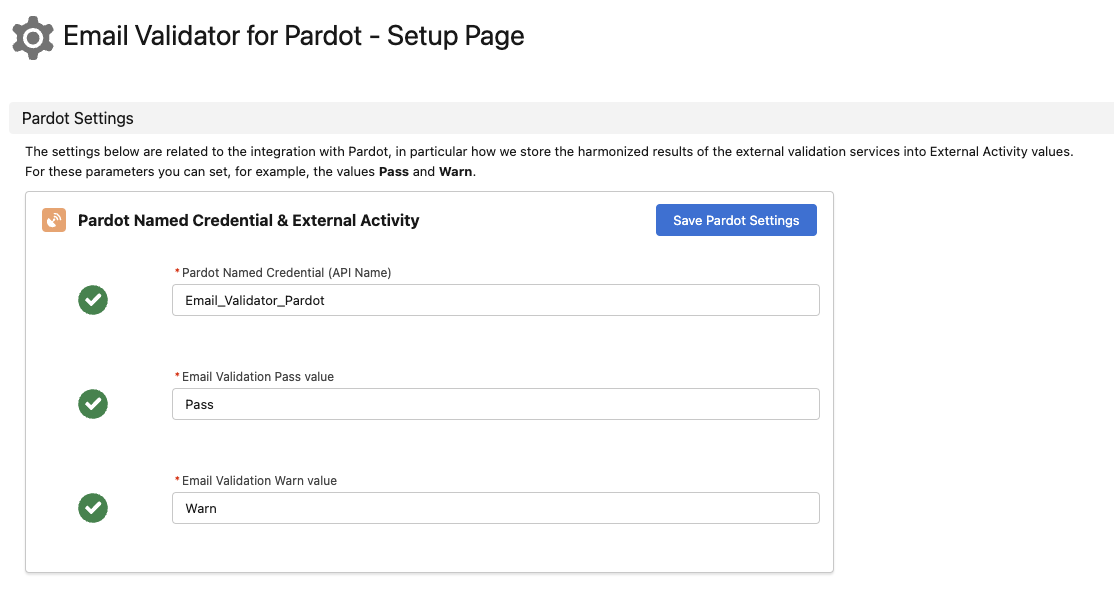
At this point every Prospect going through the program, once you Start it, will automatically receive an External Activity with a value "Pass" or "Warn", depending on what was configured by your Admin. (Pro Tip: if you have the Email Validator Admin permission set you can customized the values returned to the External Activity by visiting the Email Validator Setup page)
-
NOW IT'S YOUR TURN. Your Business, your rules :-) Decide how to use those External Activity values.
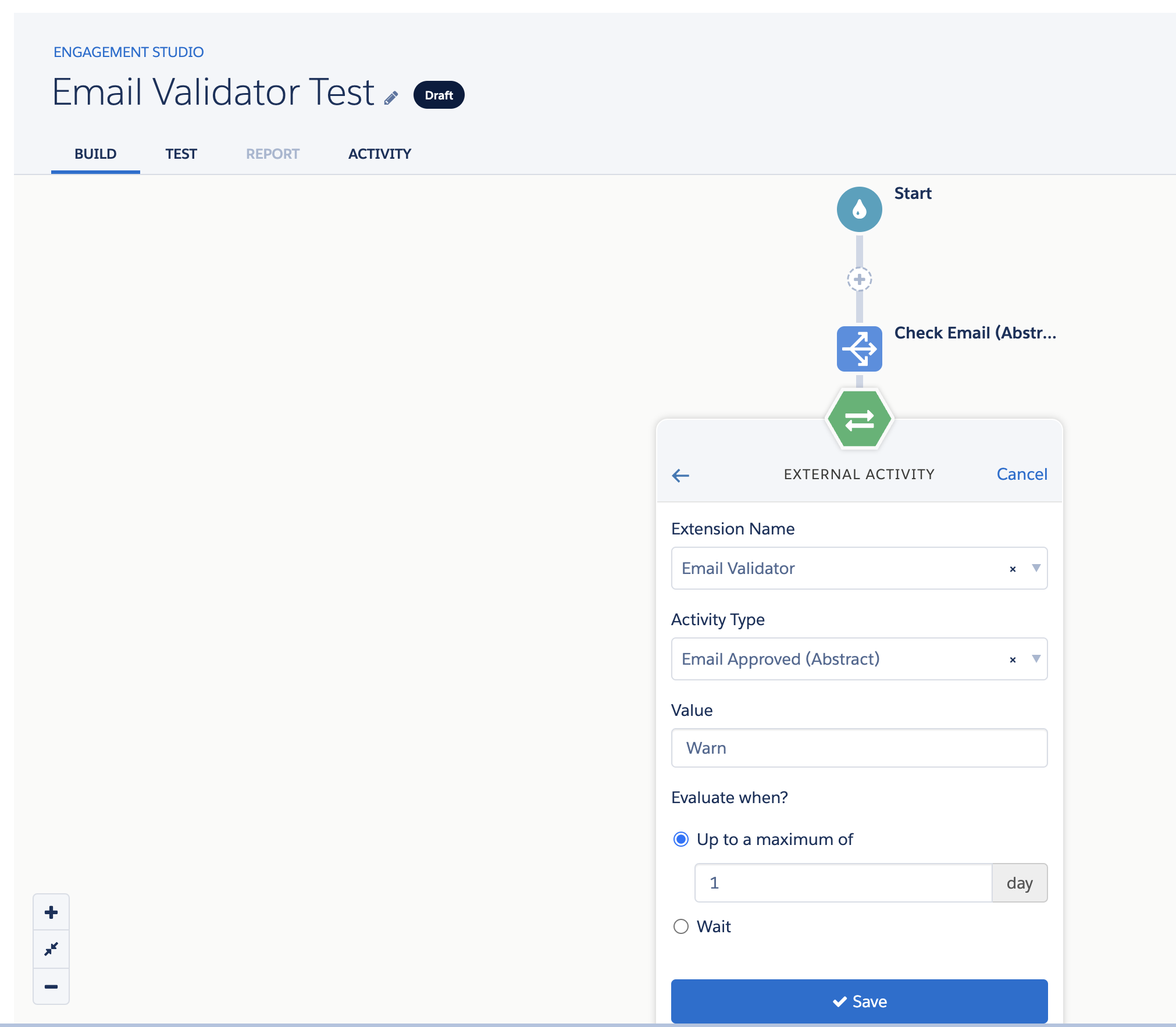
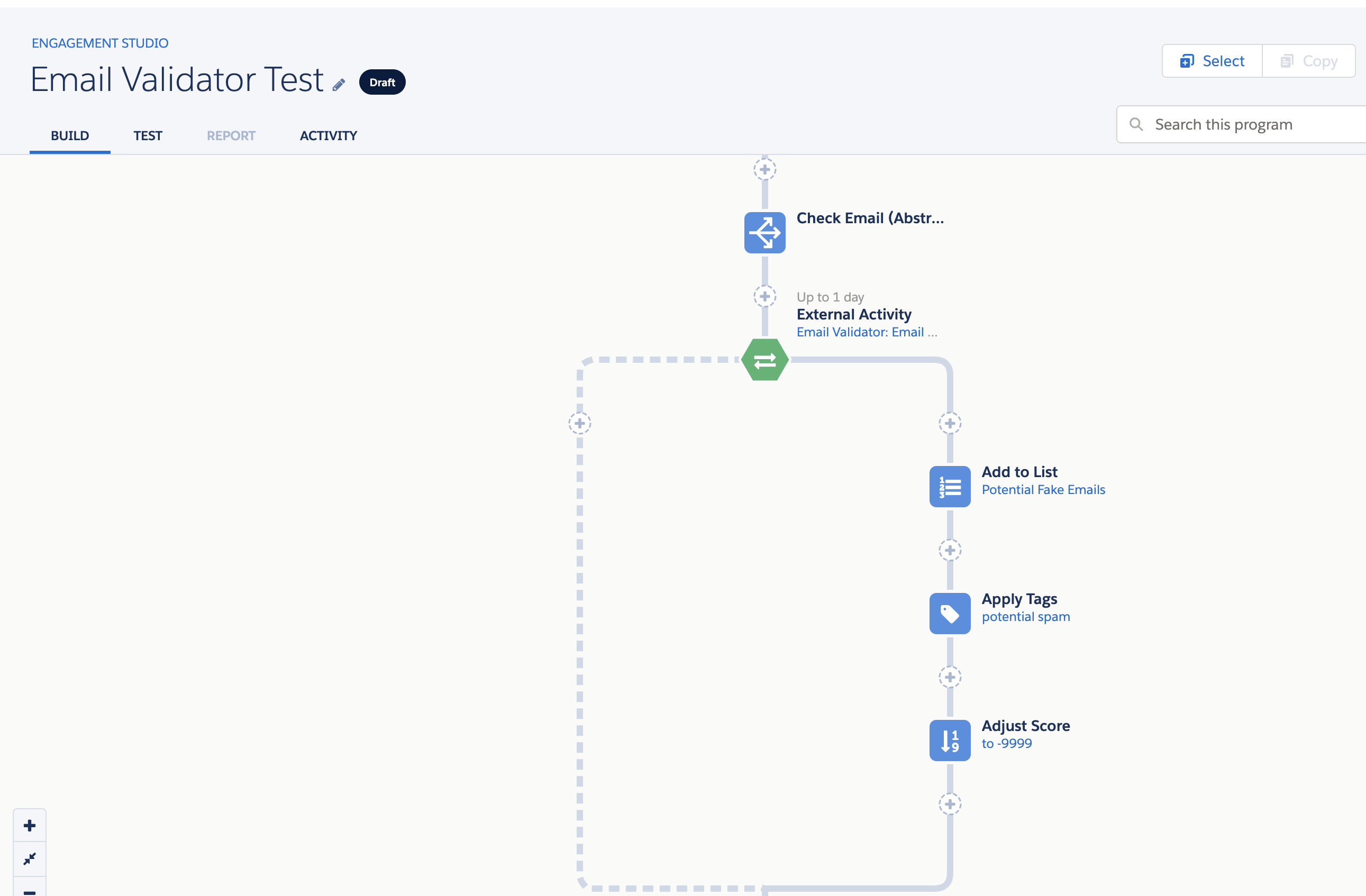
For example you could add a Trigger element of type External Activity and configure it to use Email Validator extension with the Activity Type of your choice and filter just the "Warn" prospects to tag them as
potential spamor to add them to a specific Segmentation List:
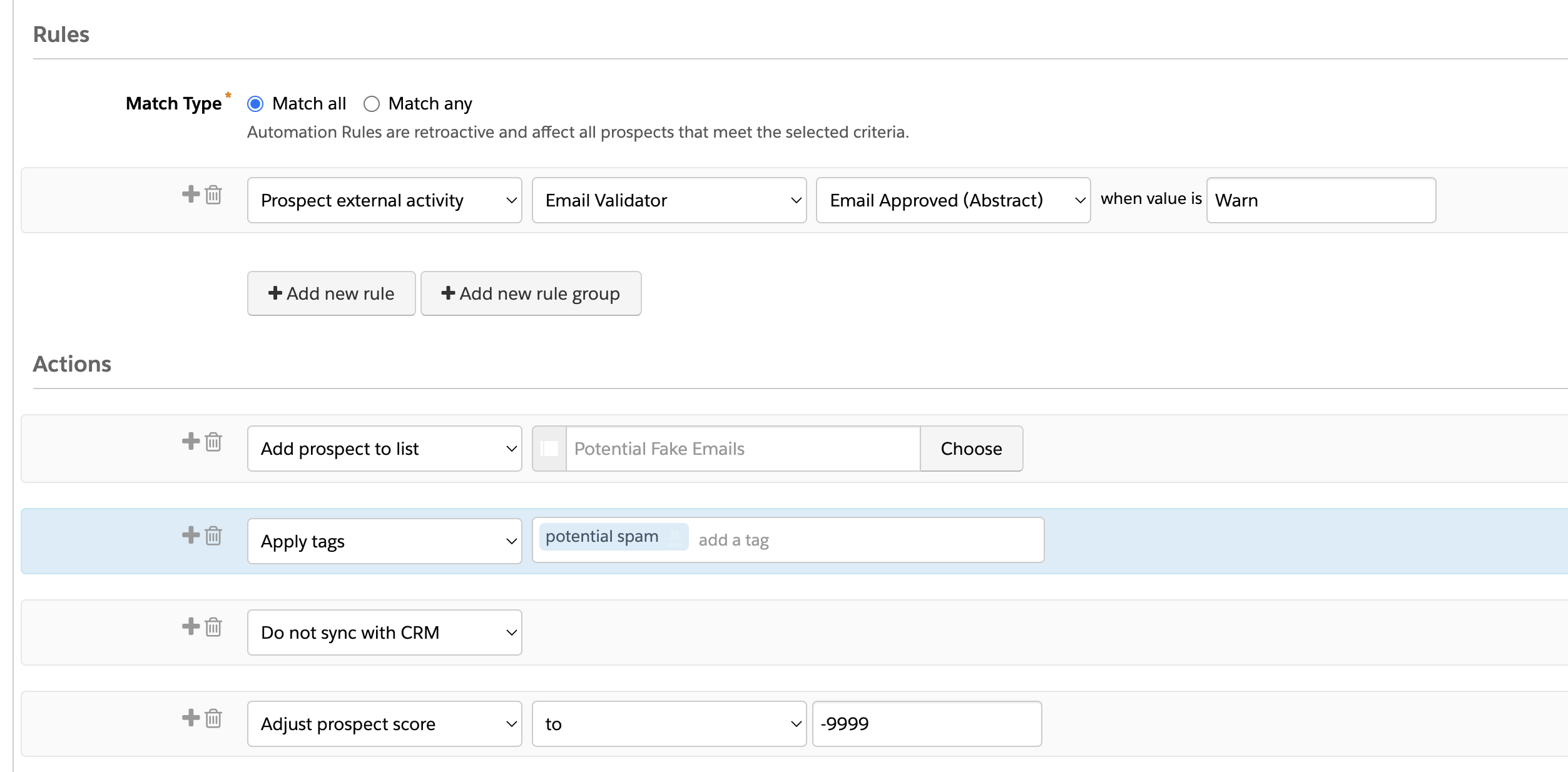
Alternatively you can use the Email Validator External Activity value in a separate Automation Rule:
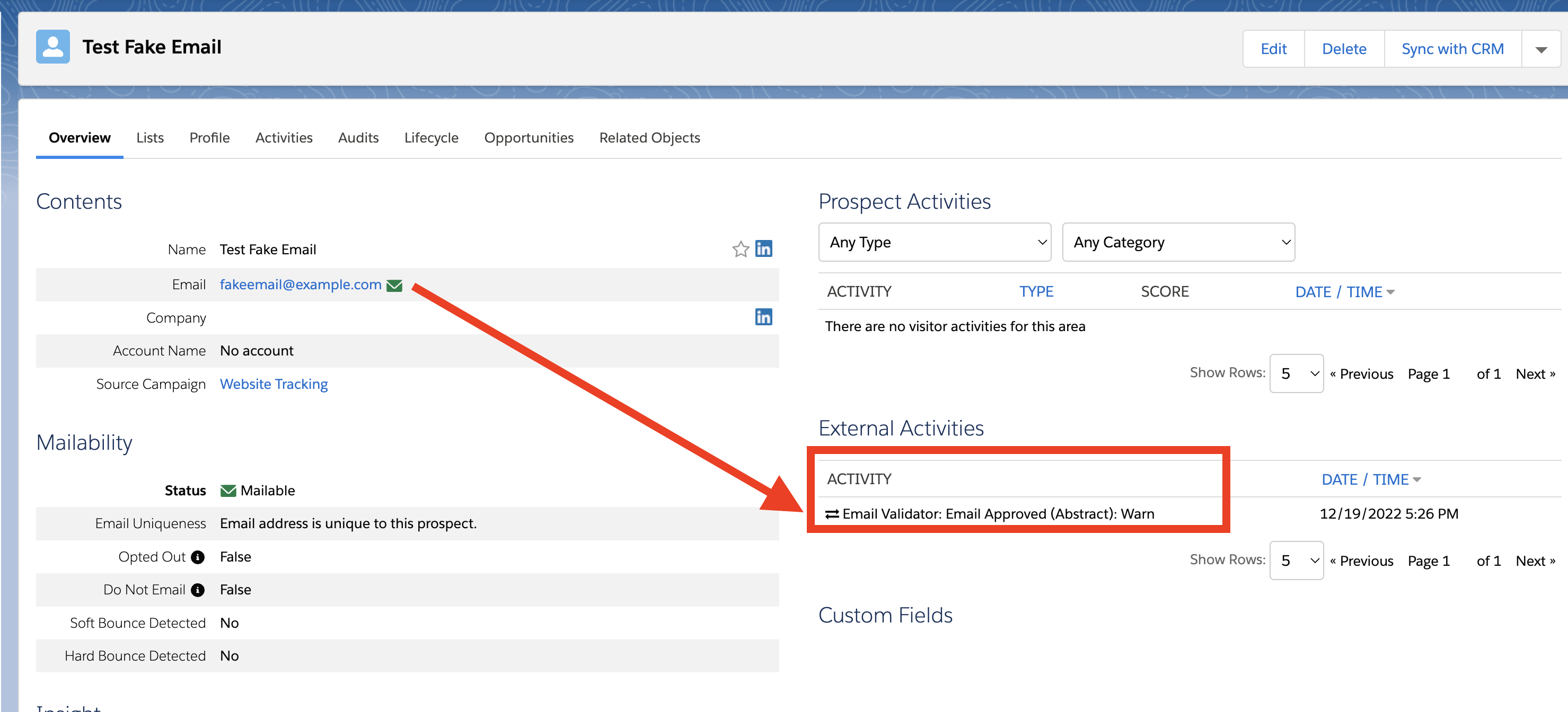
Any time you use the External Action to check the email addresses of your prospects, an External Activity will be created on the Prospect page, with the results of the email validation. The format is always:
Email Validator: [Activity Name] : [Result value (Pass / Warn)]
For example: Email Validator: Email Approved (Abstract) : Warn