Sidebar tools
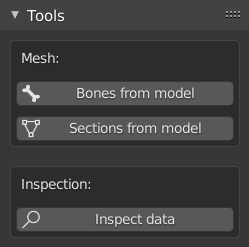
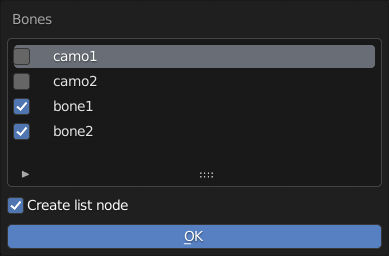
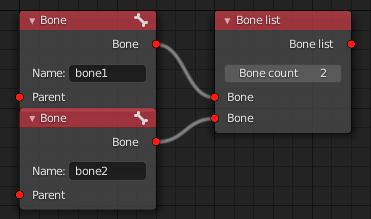
This function allows to quickly generate bone item nodes from the selected vertex groups of the selected mesh.
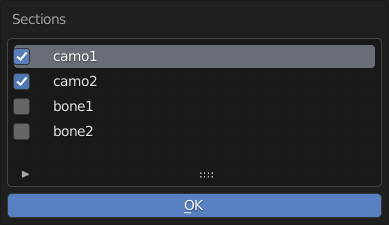
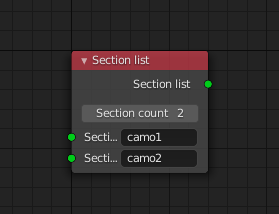
This functions allows to quickly generate section lists from the selected vertex groups of the selected mesh.
This function is used in conjunction with the data inspector nodes. Visit the Data inspector node page for more info on them.
When executed, this function executes the active data inspector nodes present in the node tree. They allow users to preview the output data of various nodes of the setup without validation taking place, therefor helping debugging if needed. The inspected data is printed out to the system console.
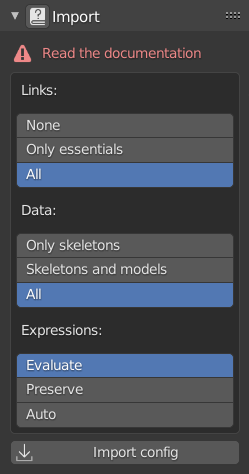
The contents of the panel are only enabled if the Arma 3 Tools installation folder is set in the addon preferences.
Visit the import page for more information on the import process.
- None: none of the links are created
- Only essentials: only the essential links (parenting, unique values etc.) are created, connections to list nodes are omitted
- All: all the links are created
- Only skeletons
- Skeletons and models
- All
Expressions: simple mathematical expressions are supported for four floating point values of animations
- Evaluate: try to evaluate all the expressions and directly import the resulting value (default value is 0 for when the evaluation fails)
- Preserve: create Simple expression nodes for all values (even simple float values)
- Auto: evaluate simple floating point values, and only preserve actual expressions in nodes
Opens file browser dialog, and starts the importing process on the selected file.
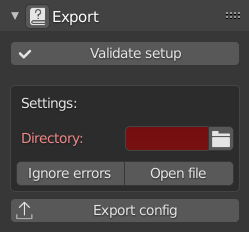
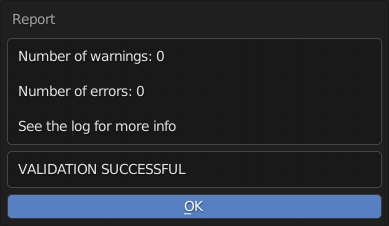
Runs validation on the node tree setup and reports the results in a pop-up window.
The directory where the model.cfg file should be created during export. (The property is red when not set)
- On: export the data to model.cfg format regardless of it's faults (NOT RECOMMENDED, USE FOR DEBUGGING ONLY)
- Off: only export data to model.cfg format if it passes validation
- On: the model.cfg file is automatically opened in the default text editor after export
- Off: the model.cfg file is not opened after export
If an existing directory is set as export directory, creates model.cfg file and exports data.
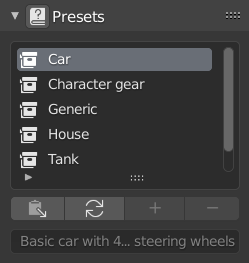
Lists all available presets both built-in and custom (visit the presets page for more into).
Built-in presets are indicated by the  icon, while custom presets are indicated by
  .
.
The description field of the selected item is also displayed at the bottom of the section.
Inserts the selected setup preset into the node tree. An error could be raised if the preset no longer exists (eg.: the preset file was moved out of it's folder).
This function serves as a means to forcefully clear the list and reload the presets. This action is automatically done during certain operations (e.g.: before trying to insert a preset, setting a custom preset folder in the addon preferences etc.), but it may need to be triggered manually on some occasions (e.g.: when first loading the addon, when a preset file was manually moved into, or removed from the preset folder etc.).
The option is only enabled, if a proper custom preset folder is set in the addon preferences.
If the current node tree contains any nodes, the function promps the user for three necessary informations, then generates a custom setup preset file in the specified directory.
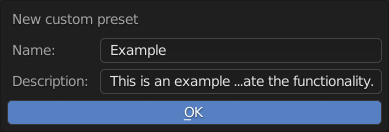
The function will raise errors if:
- there are no nodes in the node tree
- there are invalid (red) connections present in the node tree
- the preset name is left blank
The function may raise error depending on the addon preferences if a file name conflict occurs.
Important to note that all present nodes are included in the generated preset (always make sure there are no nodes that should not be in the saved result), and not all node settings are saved. Generally speaking, only those properties are saved that change the expected value of the node (number of items in list nodes, axis type in animations, scope in animation presets etc.).
Deletes preset file from the preset folder, and automatically reloads the preset list.
Important to note that only custom presets can be deleted.
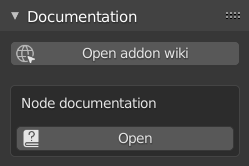
Opens the home page of this wiki.
Opens the wiki page related to the selected node if available. The function is enabled if only one node is selected, and documentation url is defined for the node.