Submitting Job to Roar
If your code is ready, you must "submit" your job to Roar. There are multiple ways to submit, but each method has pros and cons.
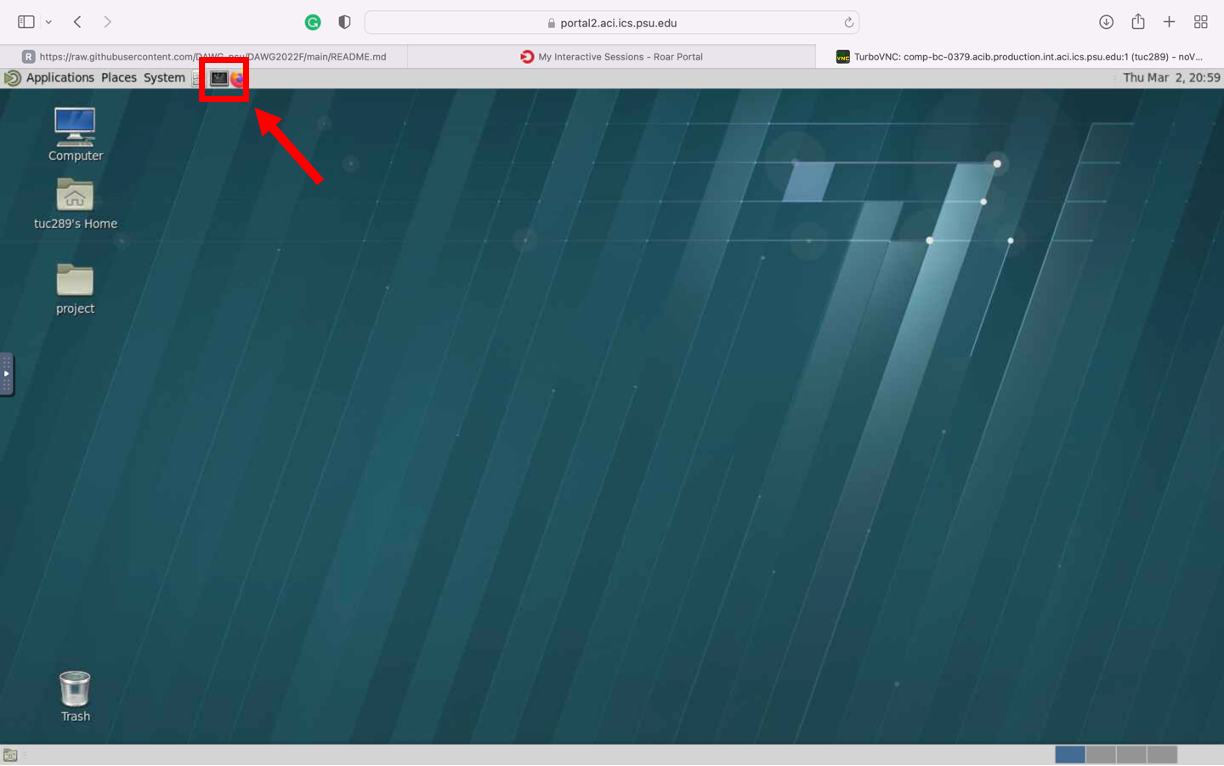
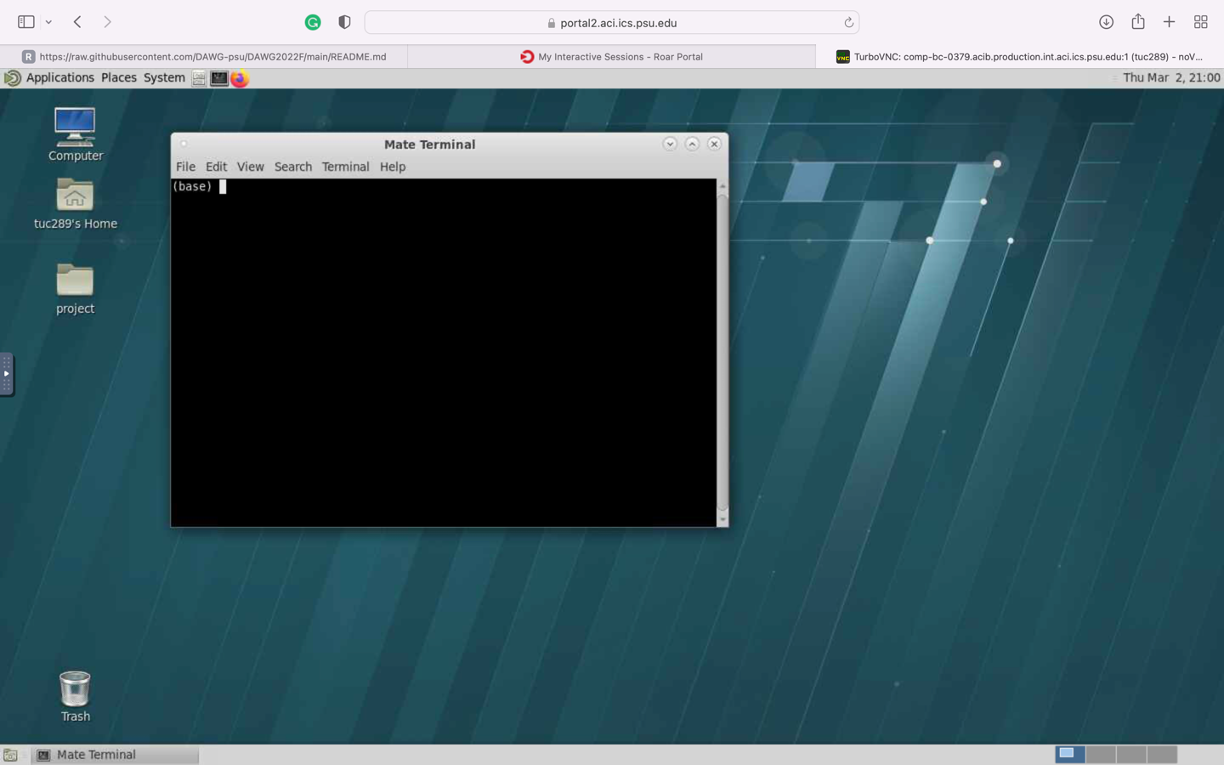
The easiest way to run your code is by using an interactive desktop. We already cover how to launch an interactive desktop in the previous section. Once you launch your interactive desktop, you will feel like you are using someone else's computer.
All you need to do is open a terminal window and code.
Pros
- easy to access
- You can close your browser and re-visit where you stop later
Cons
- Hard to copy and paste (you cannot use control+c and control+v). You need to use "clipboard" to copy content between your PC to the interactive desktop
- The Default setting for the interactive desktop uses only 4 cores, even though you can ask for up to 20 cores. You can change the setting while your desktop is still in queued
- To change the setting, you need to either open ACI Shell Access OR SSH and type below
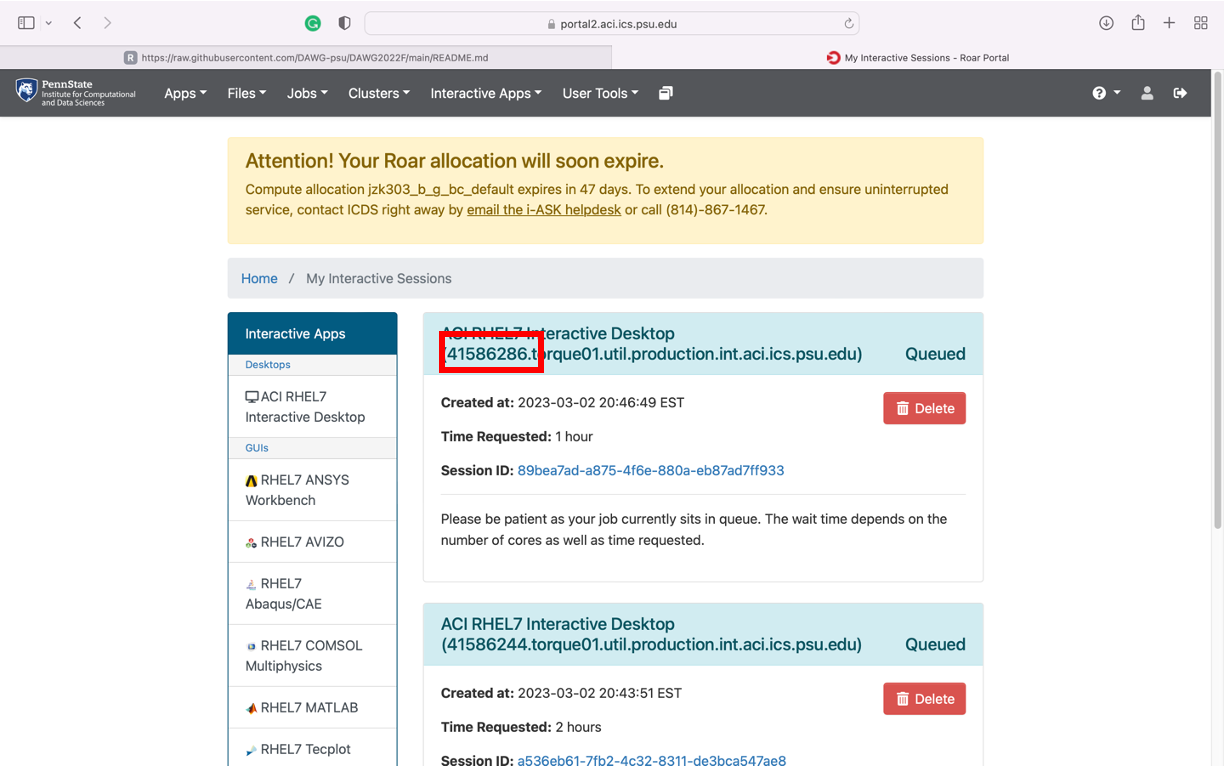
qalter [job ID] -l nodes=1:ppn=20 -l pmem=4gb
NOTE: If your interactive desktop is already open, you cannot change the setting after.
You can find your [job ID] here :
qsub is a code to submit a script. Jobs can be either run in batch or interactive modes.
Both batch and interactive jobs must provide a list of requested resources to the scheduler to be placed on a compute node with the correct resources available. These are given either in the submission script or on the command line. If these are given in a submission script, they must come before any non-PBS command.
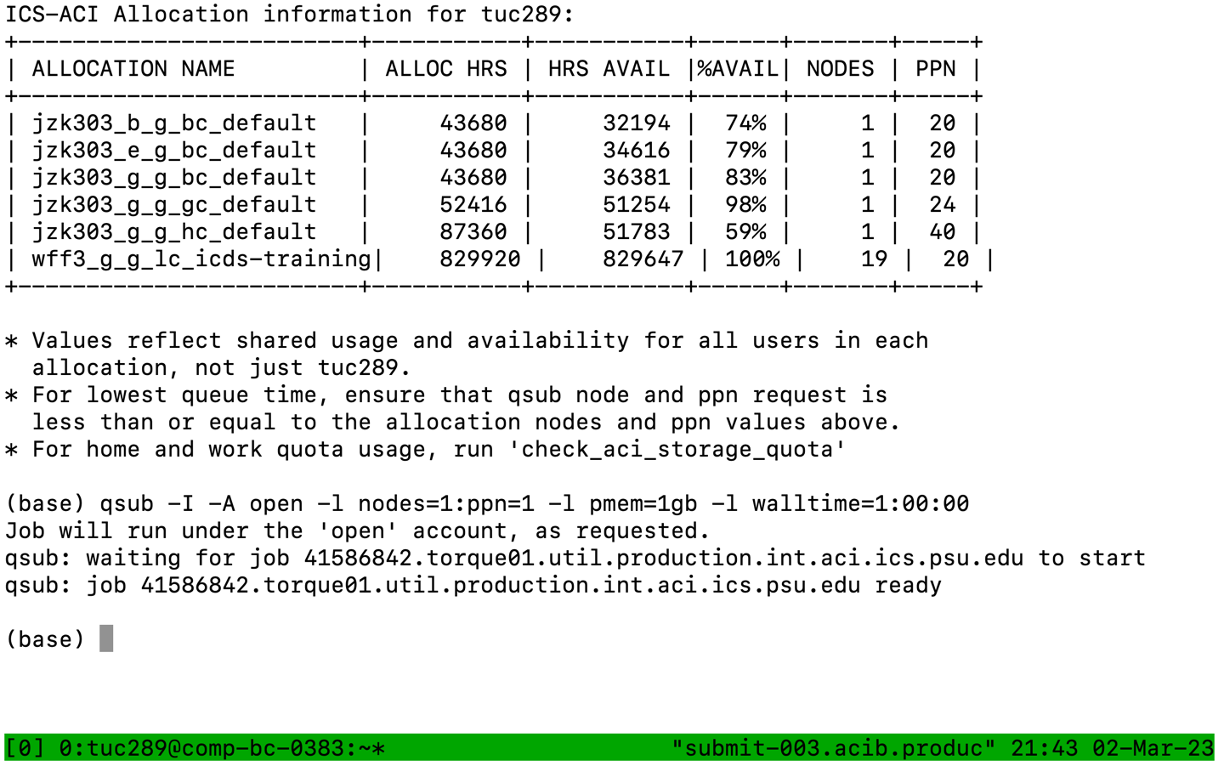
If you access Roar using SSH or ACI shell access, you can enter the interactive mode of 'qsub,' where you can type and run code in real time using Unix command lines.
You can first call the interactive mode by typing below.
qsub -I -A open -l nodes=1:ppn=20:basic -l pmem=4gb -l walltime=48:00:00

-I                           # indicating you are using interactive mode
-A open                      # Allocation name (open)
-l nodes=1:ppn=20:basic      # number of nodes (1), number of processors (20), and type of node (basic)
-l pmem=4gb                  # maximum amount of memory used by each processor. This CAN NOT exceed 128gb total (not per processor)
-l walltime=48:00:00         # How many hours do you want to use
You need to wait until the job starts. It takes a few minutes.
Pros
- You can see the job progress in real-time
- You can easily kill your job once you find there is something wrong
Cons
- You need to wait every time you want to open an interactive mode
- You cannot come back to your job once you close your browser
You can write a PBS script and submit it directly to Roar.
Here is the example of PBS script (Source: https://latisresearch.umn.edu/creating-a-PBS-script)
#PBS -S /bin/bash
#PBS -q batch
#PBS -l nodes=1:ppn=10
#PBS -l mem=64gb
#PBS -l walltime=48:00:00
#PBS -N myscript
#PBS -o myscript.out
#PBS -e myscript.err
#PBS -m abe
#PBS -M [email protected]

cd $PBS_O_WORKDIR/
Rscript --vanilla myscript.R
| PBS Directive | What it does |
|---|---|
| #PBS -q batch | Specifies that the job be submitted to the batch queue |
| #PBS -l nodes=1:ppn=10 | Requests 1 node and 10 processors per node |
| #PBS -l mem=64gb | Requests 64 GB of RAM |
| #PBS -l walltime=48:00:00 | Sets max walltime for the job to 48 hours |
| #PBS -N myscript | Sets the name of the job as displayed by qstat |
| #PBS -o myscript.out | Sends standard output to myscript.out |
| #PBS -e myscript.err | Sends standard error to myscript.err |
| #PBS -j oe | Merge output and error files. Both streams will be merged, intermixed, as standard output. |
| #PBS -m abe | Sends email on job abort, begin, and end |
| #PBS -M [email protected] | Specifies email address to which mail should be sent. |
| #PBS -S /bin/$shell | Sets the shell to be used in executing your script. If left out, it defaults to your normal login shell. Typical values for the $shell argument are /bin/bash, /bin/tcsh, /bin/csh or /bin/sh. |
| #PBS -V | Export all environment variables in the qsub command environment to the batch job environment. |
After you have your script, you should save the script as a .pbs file (e.g., "myscript.pbs"), then you can submit the job directly from the submission portal.
qsub myscript.pbs
Pros
- Your job will be started almost right after you submit your script
- You don't need additional steps. You can connect via SSH or ACI shell access, and simply submit your job
Cons
- You cannot monitor the progress of your job
- Once you made a mistake in the script, you cannot stop the job (although the job would be killed with error eventually)